Meta App Review Submission Guide
Welcome to the official guide for submitting your WhautoChat Whitelabel Reseller App for Meta App Review. This documentation will walk you through every step - from preparing your self-hosted app, recording videos, updating permissions, and submitting the final review.
Prerequisites
Once you have installed your self-hosted app and configured webhooks for Meta channels such as WhatsApp, Messenger, and Instagram, please follow the steps below to ensure everything works correctly.
1. Initial Setup and Testing
Install and Configure Your Self-Hosted App
- Set up webhooks for Meta Channels (WhatsApp, Messenger, and Instagram)
- Sign up for your self-hosted app and connect all channels
- Test that both sending and receiving messages work correctly
Prepare Test Accounts
- Create a test Facebook account specifically for app review submission
- Add this test account to your Meta App under Roles (assign as Tester or Developer)
- Create a Facebook Page using the test account
- Link your Instagram account to the test Facebook account
Update Business Branding
Before recording any videos, update your business branding including:
- Logo
- Icons
- App name
- Other relevant branding elements
Important: Meta will review your videos, so ensure your branding is properly displayed
2. Recording Required Videos
You must record demonstration videos for each channel with voice-over narration. In all videos, include this statement:
"Since our Meta app is currently under review, to test these integrations, please use the test account credentials provided in the app review instructions."
WhatsApp Channel Recording
Required Coverage:
- Incoming messages (text and images)
- Outgoing messages (text and images)
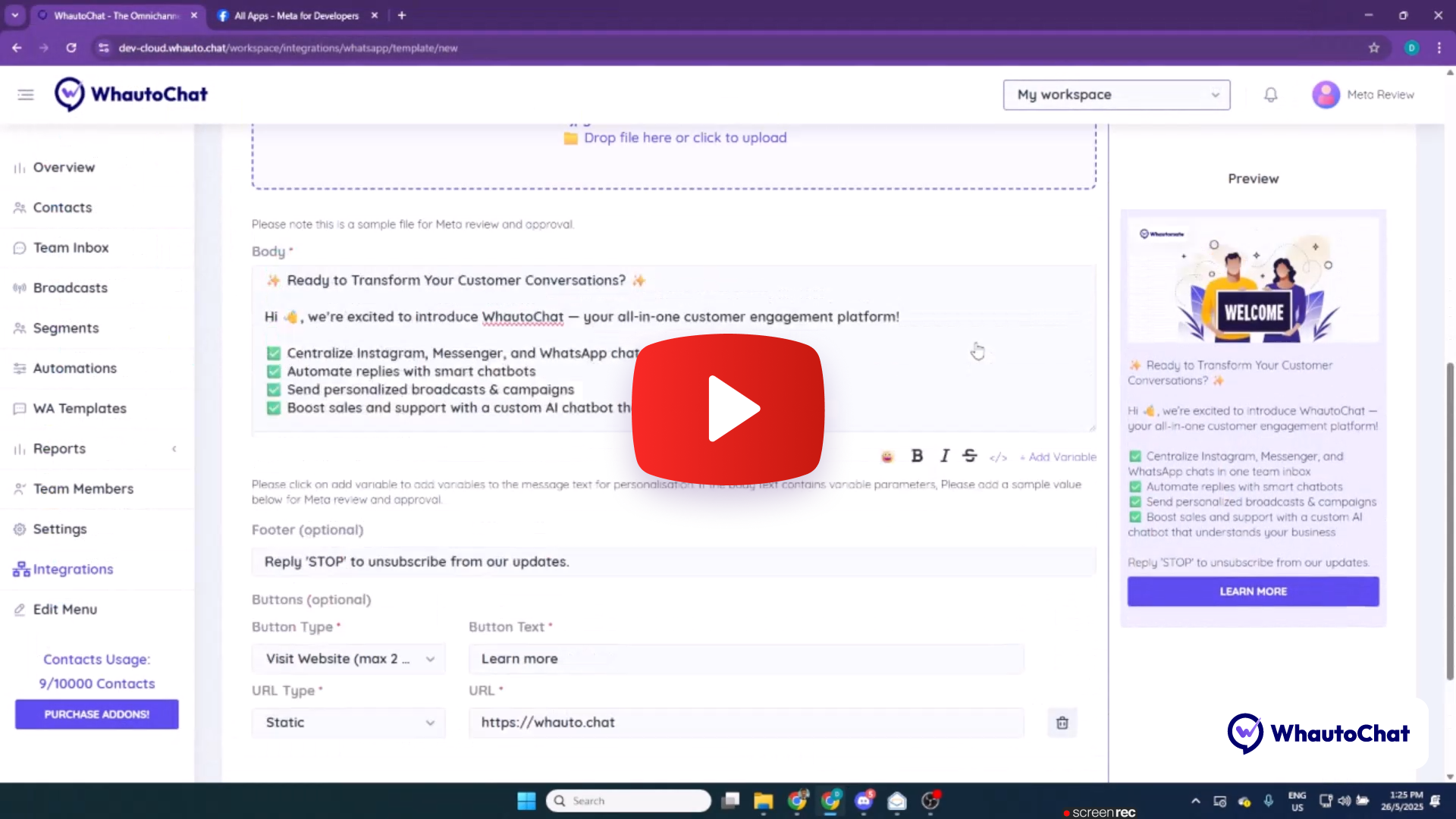
- WhatsApp Template message submission
Click the image below to watch the WhatsApp reference video 👇
Messenger Channel Recording
Required Coverage:
- Incoming messages (text and images)
- Outgoing messages (text and images)
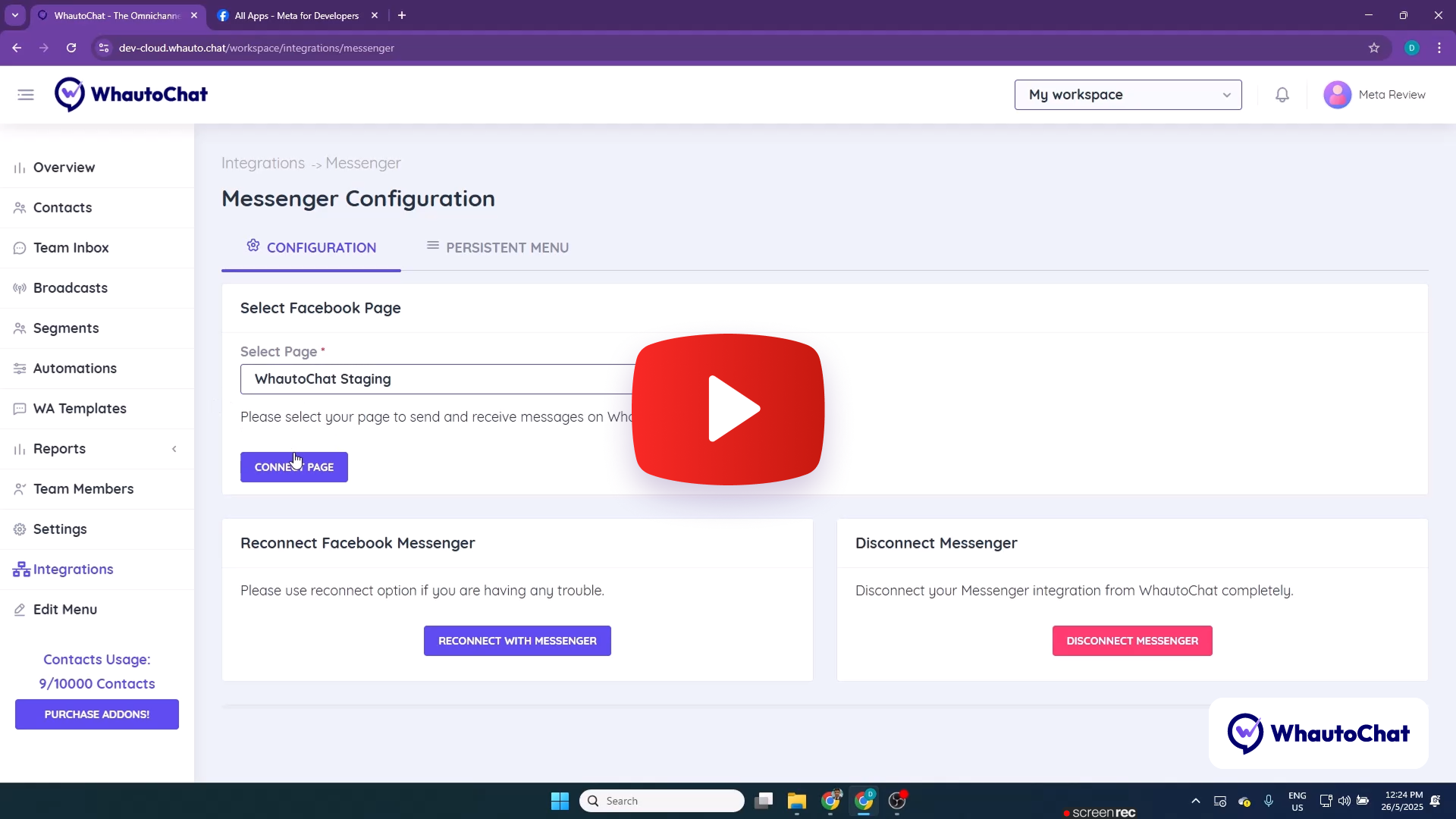
Click the image below to watch the Messenger reference video 👇
Instagram Channel Recording
Required Coverage:
- Incoming messages (text and images)
- Outgoing messages (text and images)
- Unsend message functionality
- Story replies
- Story mentions
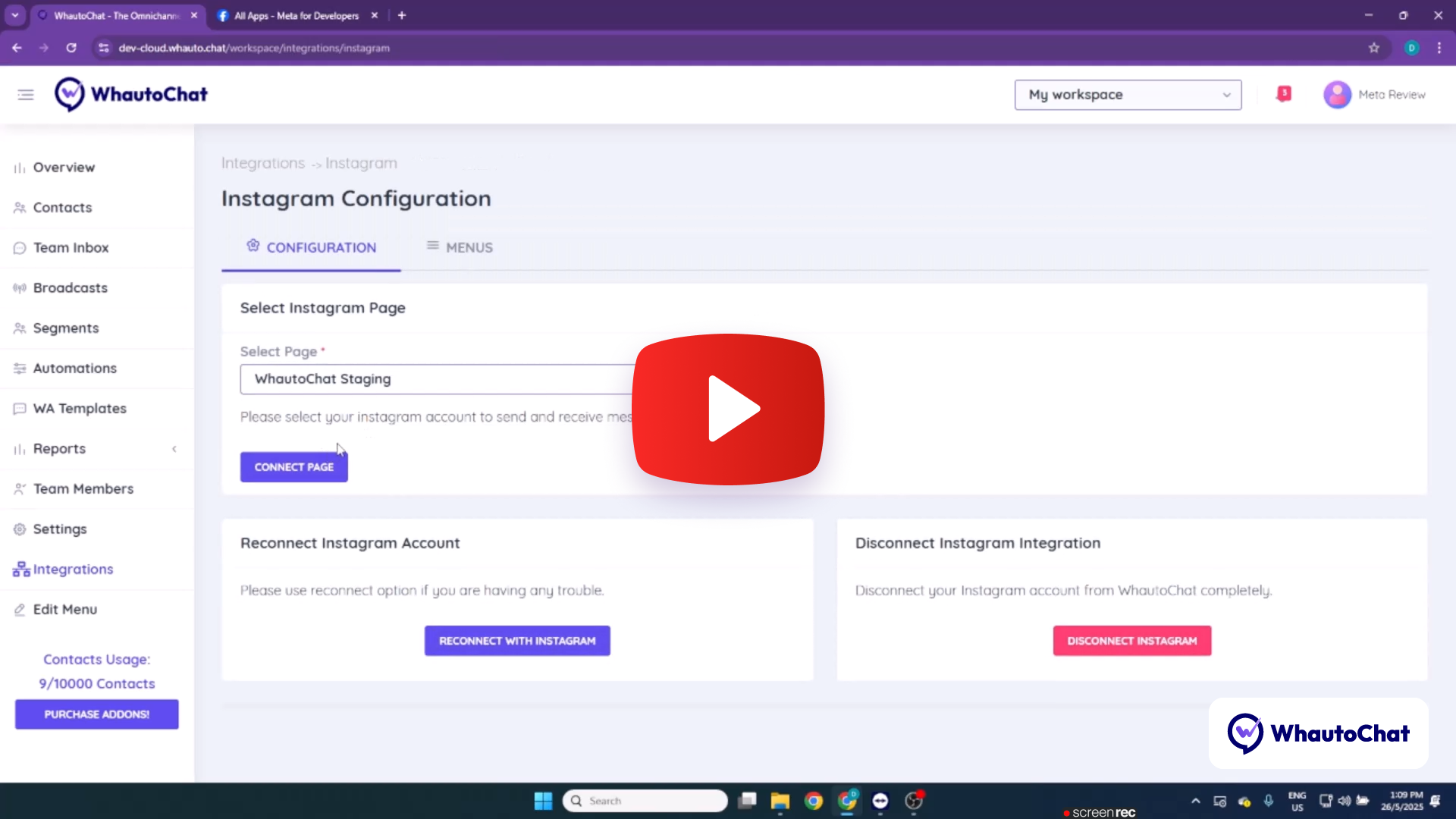
Click the image below to watch the Instagram reference video 👇
Human Agent Permission Recording
Required Coverage:
- Demonstrate the hybrid experience where automated responses can escalate to human agents
- Show the AI-to-Human Agent conversation flow
Click the image below to watch the Human Agent reference video 👇
3. Submitting Your App for Review
Access App Review Section
- Navigate to developers.facebook.com
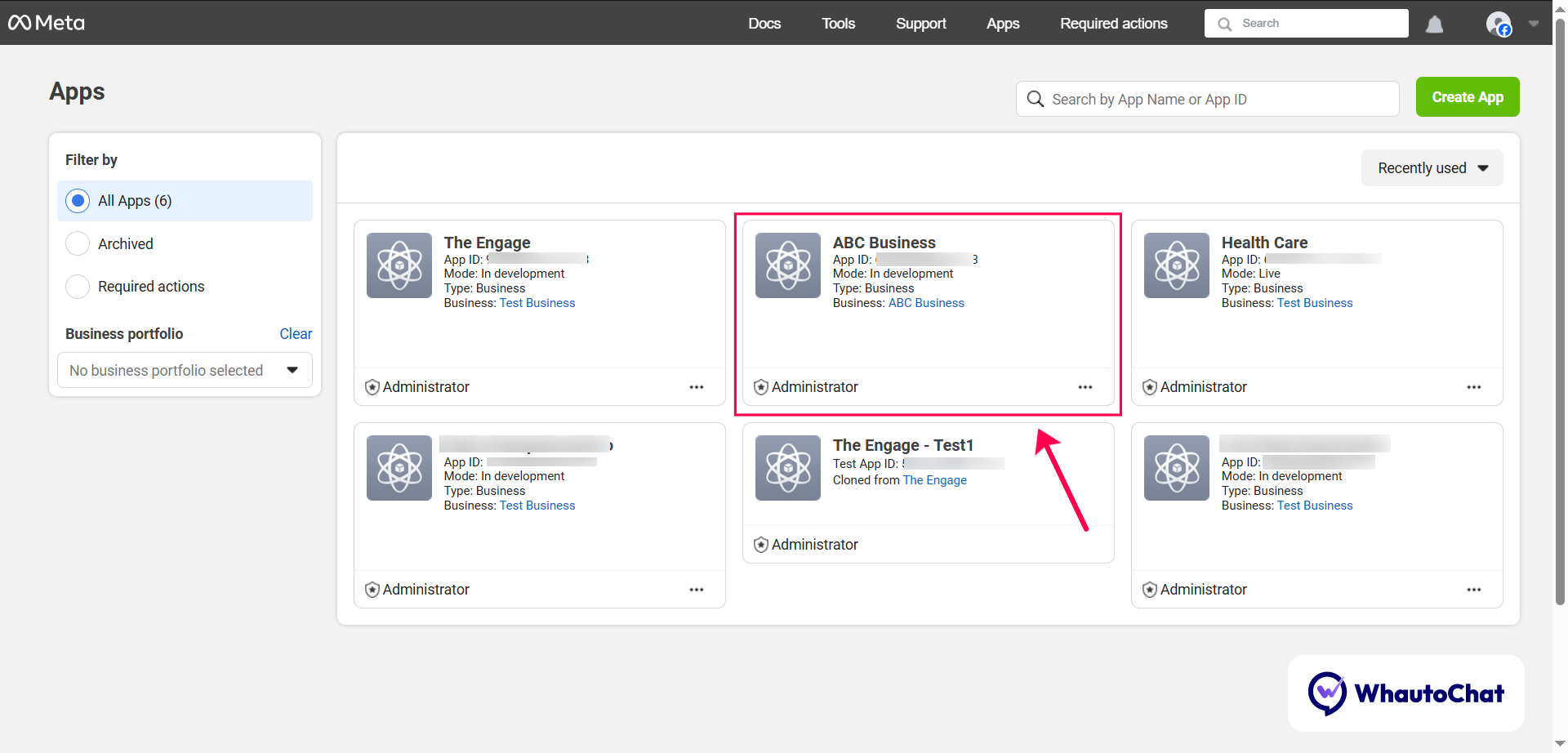
- Select your Meta App (e.g., "ABC Business")
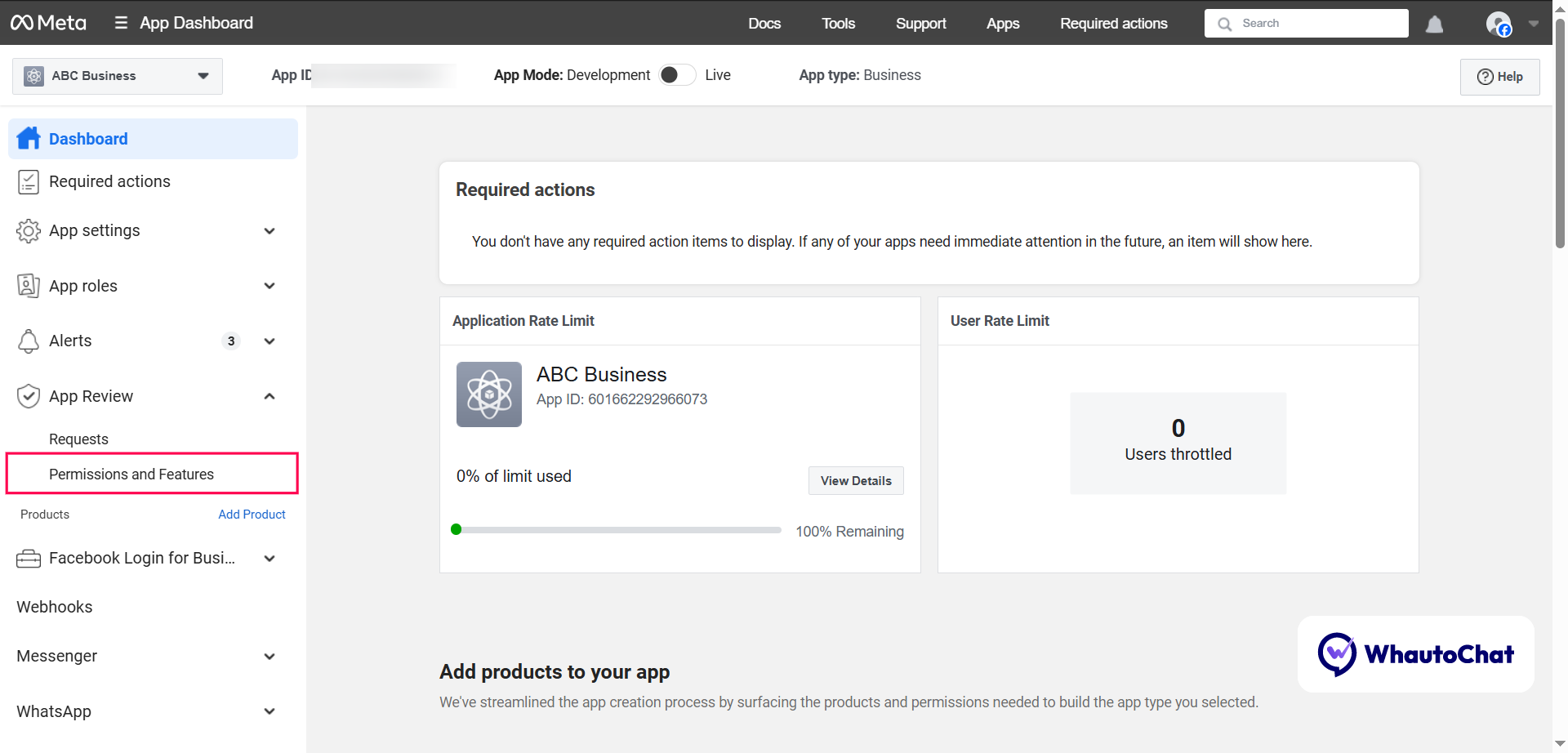
- Go to App Review → Permissions and Features
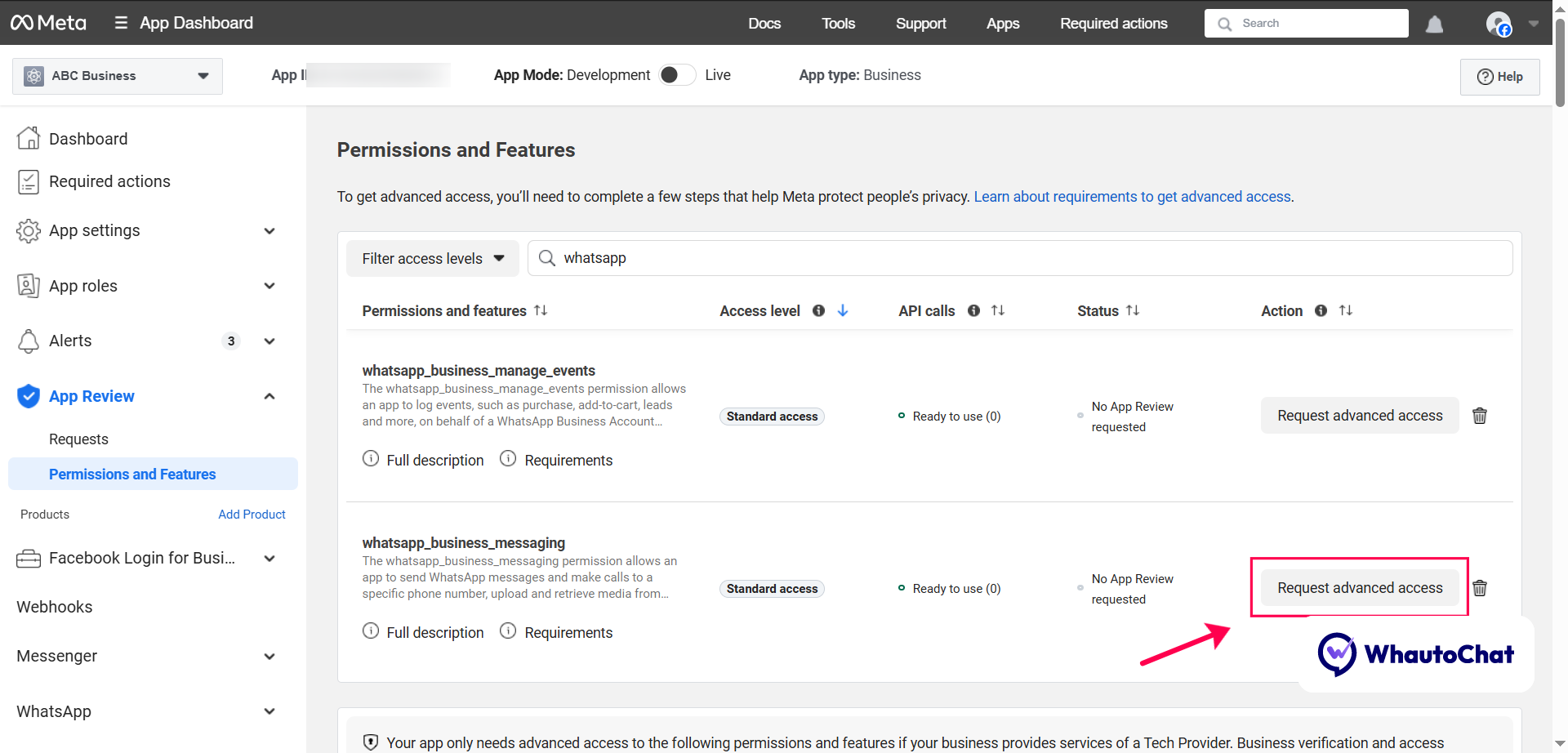
Request Advanced Access
Request Advanced Access for the following permissions:
- whatsapp_business_management
- whatsapp_business_messaging
- pages_show_list
- pages_manage_metadata
- pages_messaging
- instagram_basic
- business_management
- instagram_manage_messages
- human_agent
- public_profile
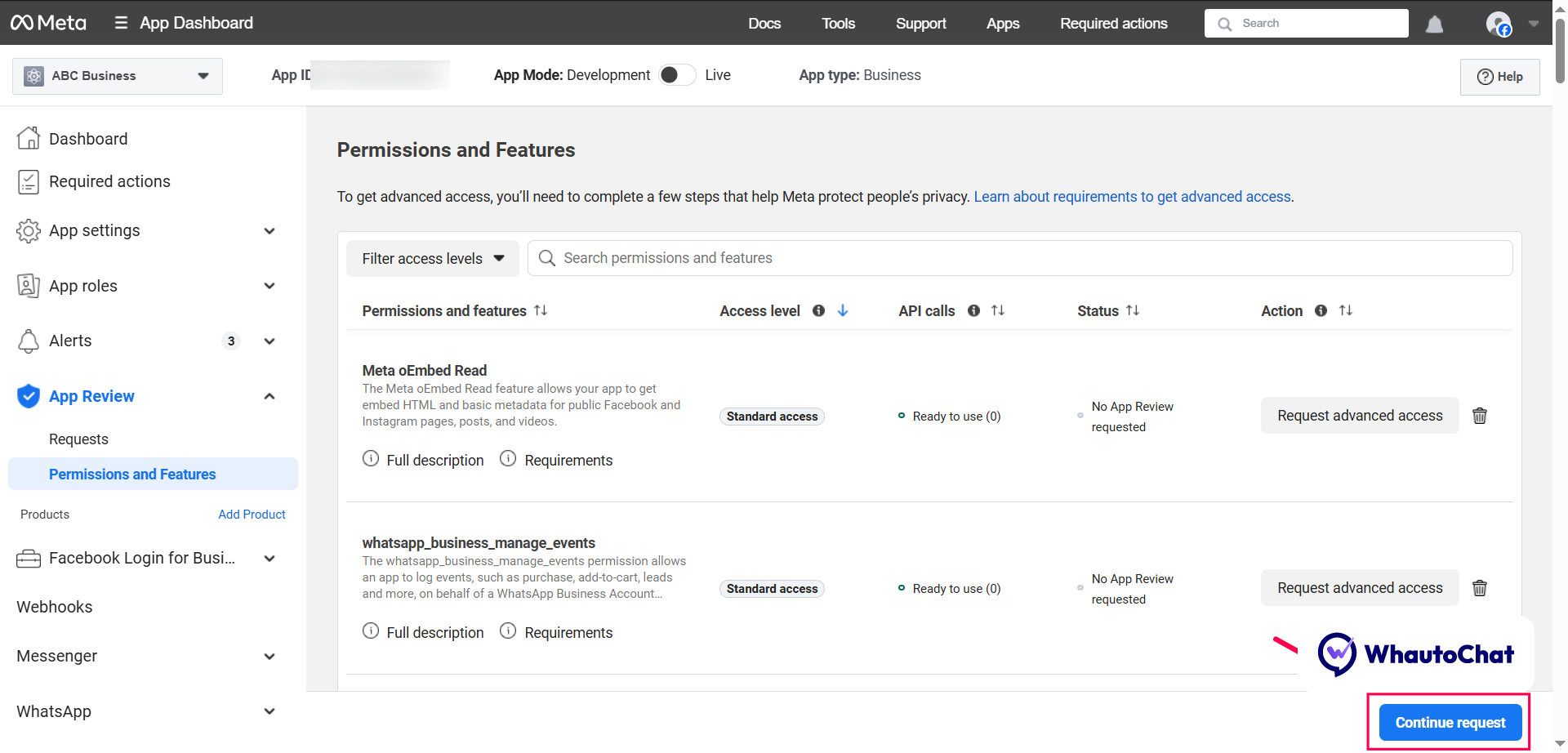
Begin Submission Process
- Click the "Continue Request" button
- Review the list of permissions added for advanced access
- Click Next to proceed
4. Complete Required Sections
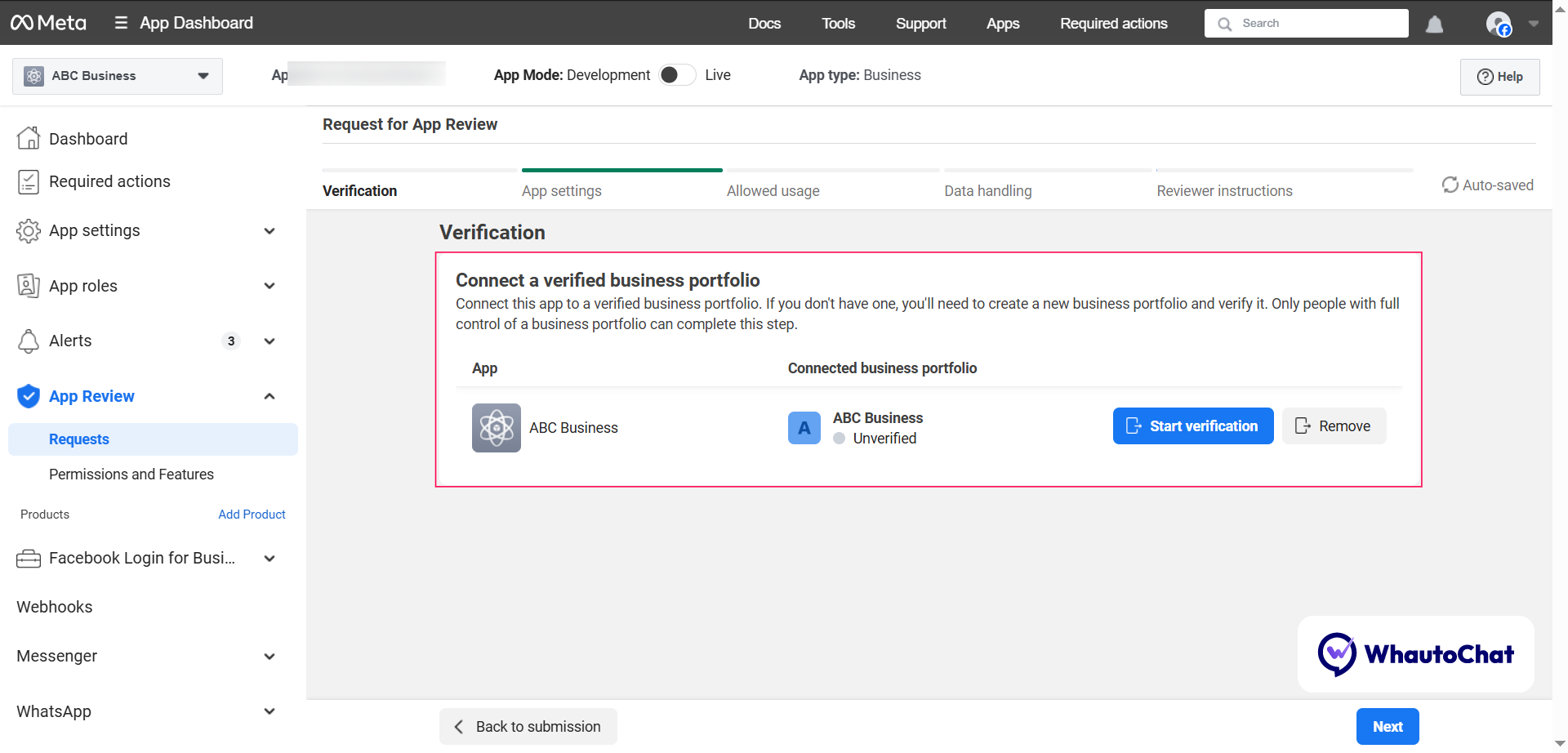
(i) Business Verification
Complete Business Verification if not already done. Otherwise, proceed to the next step.
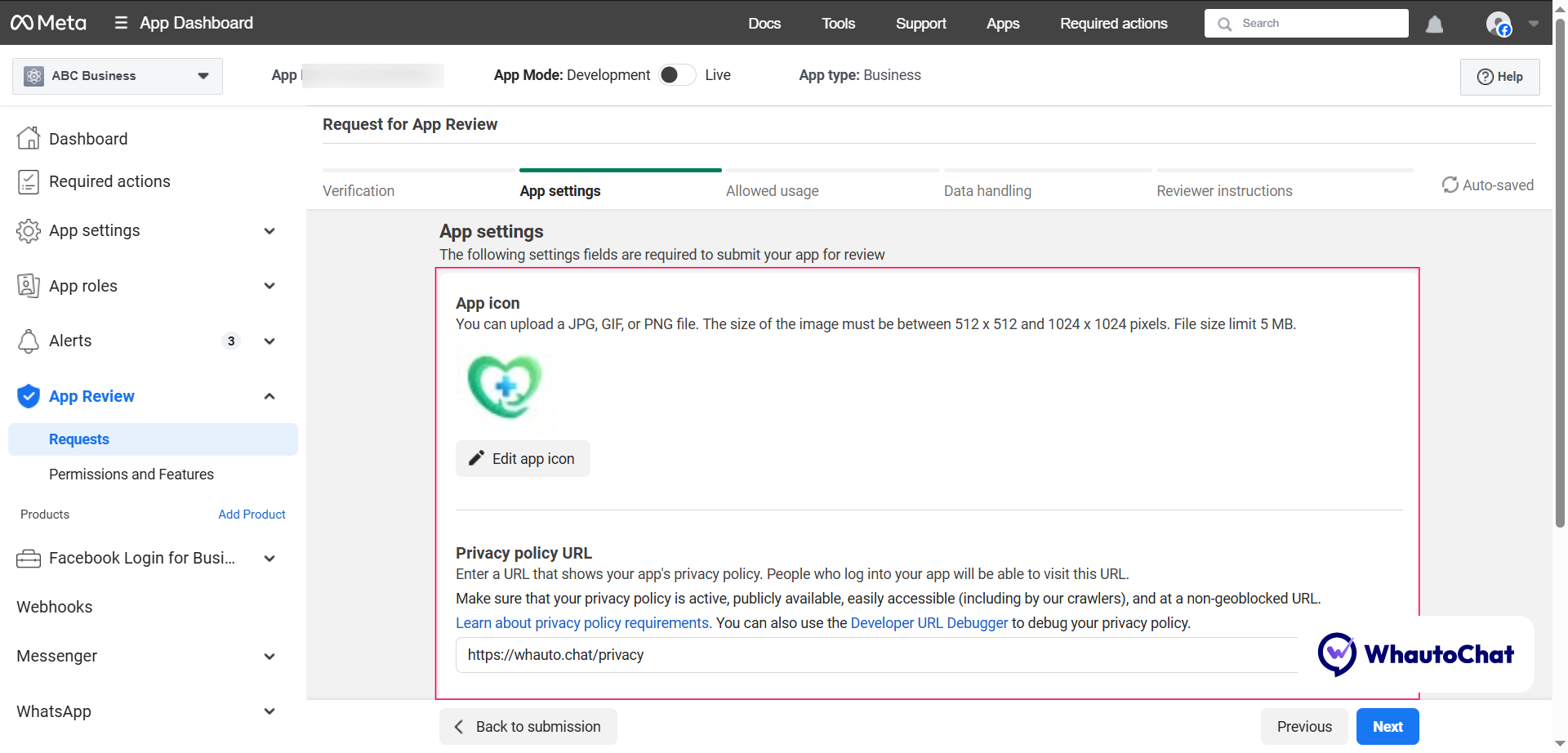
(ii) App Settings
Update the following if not already configured:
- App icon
- Privacy Policy URL
- App Category (e.g., "Messaging")
(iii) Allowed Usage
For each permission, complete the following:
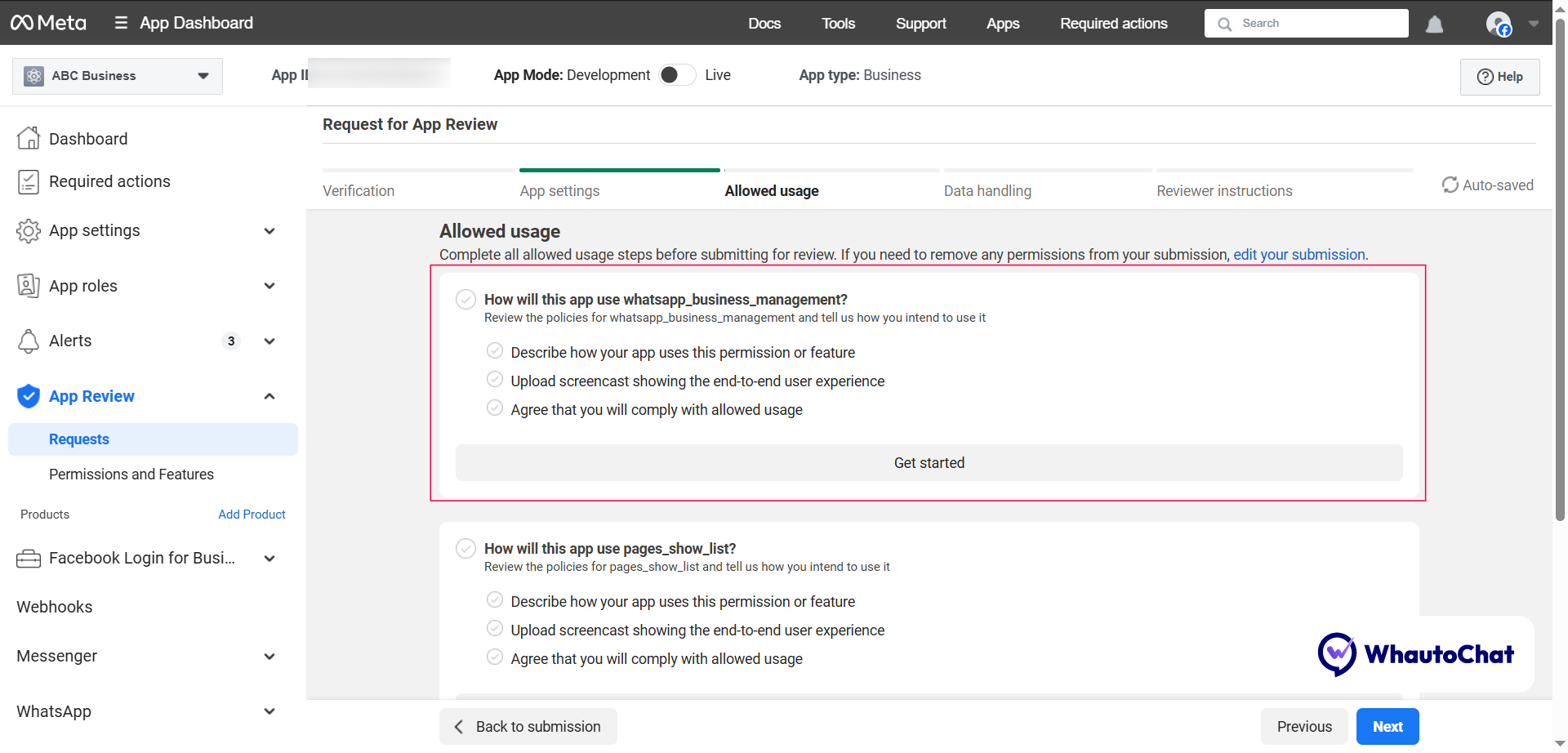
whatsapp_business_management
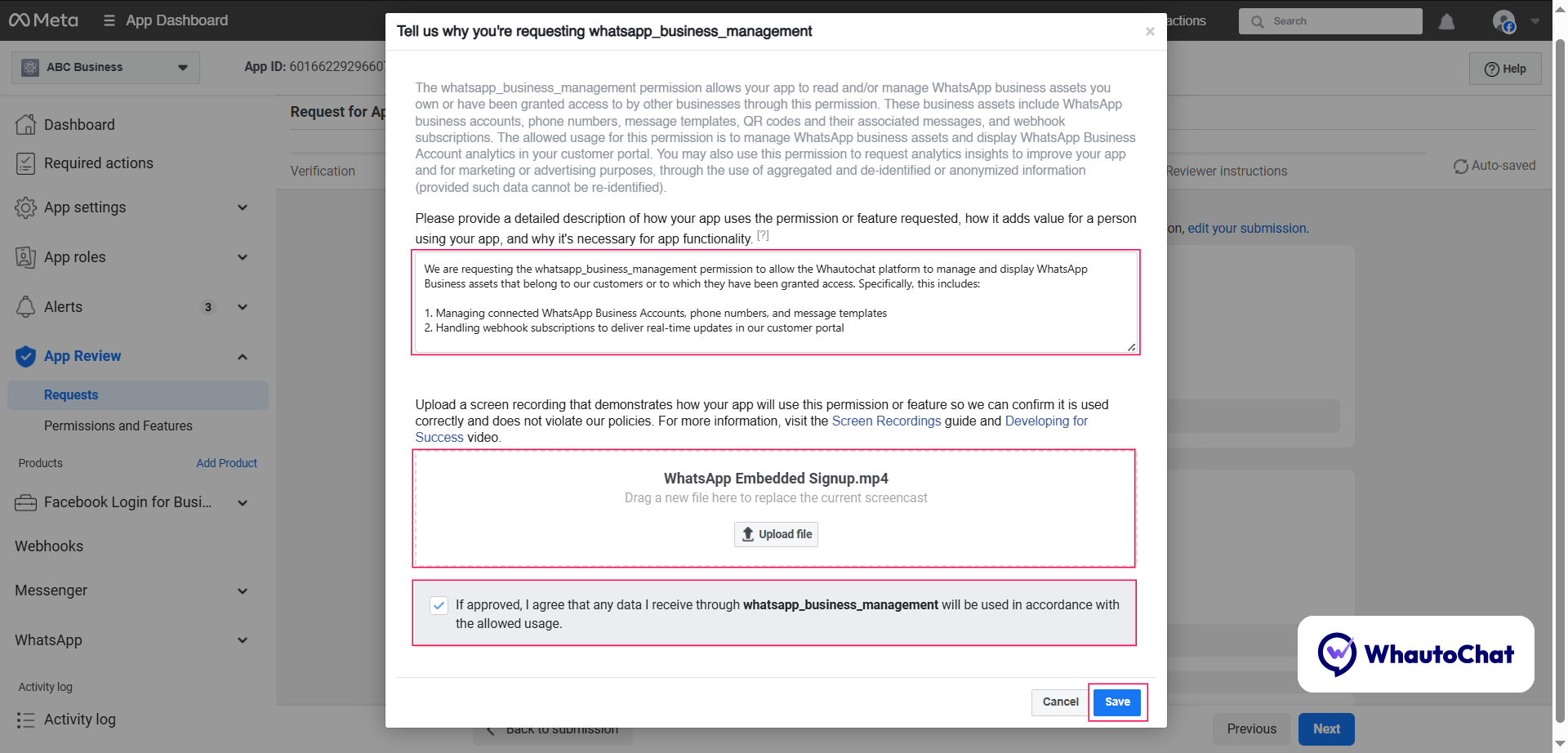
Description: We are requesting the whatsapp_business_management permission to allow the [Your App Name] platform to manage and display WhatsApp Business assets that belong to our customers or to which they have been granted access. Specifically, this includes:
- Managing connected WhatsApp Business Accounts, phone numbers, and message templates
- Handling webhook subscriptions to deliver real-time updates in our customer portal
Actions:
- Upload the recorded WhatsApp channel video
- Check the box: "Agree that you will comply with the allowed usage"
- Click Save
whatsapp_business_messaging
Description: [Your App Name] uses whatsapp_business_messaging to allow businesses to send and receive messages, including media, on the connected phone number to create automated messaging experiences on WhatsApp.
Actions:
- Upload the recorded WhatsApp channel video
- Check the compliance checkbox
- Click Save
pages_show_list
Description: [Your App Name] uses the pages_show_list permission to retrieve and display the list of Facebook Pages a user manages. This allows us to verify the user's ownership and ensure that [Your App Name] connects only to the specific Pages the user explicitly authorizes, helping maintain secure and accurate integration with their Facebook assets.
Actions:
- Upload the recorded Messenger channel video
- Check the compliance checkbox
- Click Save
pages_manage_metadata
Description: [Your App Name] uses the pages_manage_metadata permission to subscribe to webhooks for Facebook and Instagram Pages. This enables real-time notifications and updates, allowing [Your App Name] to instantly receive alerts about new messages or events on the connected Pages. With this, the app can deliver timely, automated responses to user inquiries, ensuring faster and more efficient communication.
Actions:
- Upload the recorded Messenger channel video
- Check the compliance checkbox
- Click Save
pages_messaging
Description: [Your App Name] uses the pages_messaging permission to access and manage Page conversations on Messenger. This permission allows the app to create interactive, user-initiated experiences, send customer support messages, and automate replies to common inquiries—helping businesses streamline and enhance their customer communication through Messenger.
Actions:
- Upload the recorded Messenger channel video
- Check the compliance checkbox
- Click Save
instagram_basic
Description: [Your App Name] uses the instagram_basic permission to access basic metadata from an Instagram Business account, specifically the Instagram account ID. This permission is essential for retrieving the connected account ID after authorization, which allows the app to interact with Instagram's endpoints and enable related features within [Your App Name].
Actions:
- Upload the recorded Instagram channel video
- Check the compliance checkbox
- Click Save
business_management
Description: [Your App Name] uses the business_management permission to access and manage Pages and Instagram accounts that are connected through Facebook Business Manager. This permission is necessary to retrieve and connect Pages where the user's access was granted via Business Manager, ensuring that business-managed assets can be properly linked to [Your App Name].
By enabling this permission, [Your App Name] allows businesses to seamlessly manage and respond to customer inquiries across their connected Pages and Instagram accounts, delivering efficient and unified communication through our platform.
Reference: Facebook Graph and Marketing API v17
Actions:
- Upload the recorded Instagram channel video
- Check the compliance checkbox
- Click Save
instagram_manage_messages
Description: [Your App Name] uses the instagram_manage_messages permission to enable businesses to send, receive, and manage Instagram messages directly within the platform. This permission allows [Your App Name] to automate messaging, handle customer inquiries, and manage support requests efficiently, ensuring businesses can deliver seamless and effective communication on Instagram.
Actions:
- Upload the recorded Instagram channel video
- Check the compliance checkbox
- Click Save
human_agent
Description: Businesses can provide a hybrid experience to end users using the [Your App Name] platform. When an end user is in a hybrid experience receiving automated responses, they can escalate the chat to a human agent. We use the human agent tag when responses are made by human agents. Additionally, when the business is not available over the weekend or after hours, the human agent tag allows the end user to receive a response to their query within 7 days.
Important Note: Since the [Your App Name] app is currently under review for the Human Agent and other permissions, kindly use the Facebook and Instagram test credentials provided below. These accounts already have access to the [Your App Name] Meta App, so please use them during the review process.
Actions:
- Upload the recorded Human Agent video
- Check the compliance checkbox
- Click Save
public_profile
Note: This permission does not require app review submission. It will be approved immediately after completing the request.
Actions:
- Click "Request Advanced Access" for public_profile
- Check the compliance checkbox
- Click Confirm
- Complete the Data Handling questions
- Click Submit
Important: The public_profile permission will be approved immediately upon submission. You do not need to wait for the app review process for this permission. However, all other permissions listed above require the full app review submission process.
(iv) Data Handling
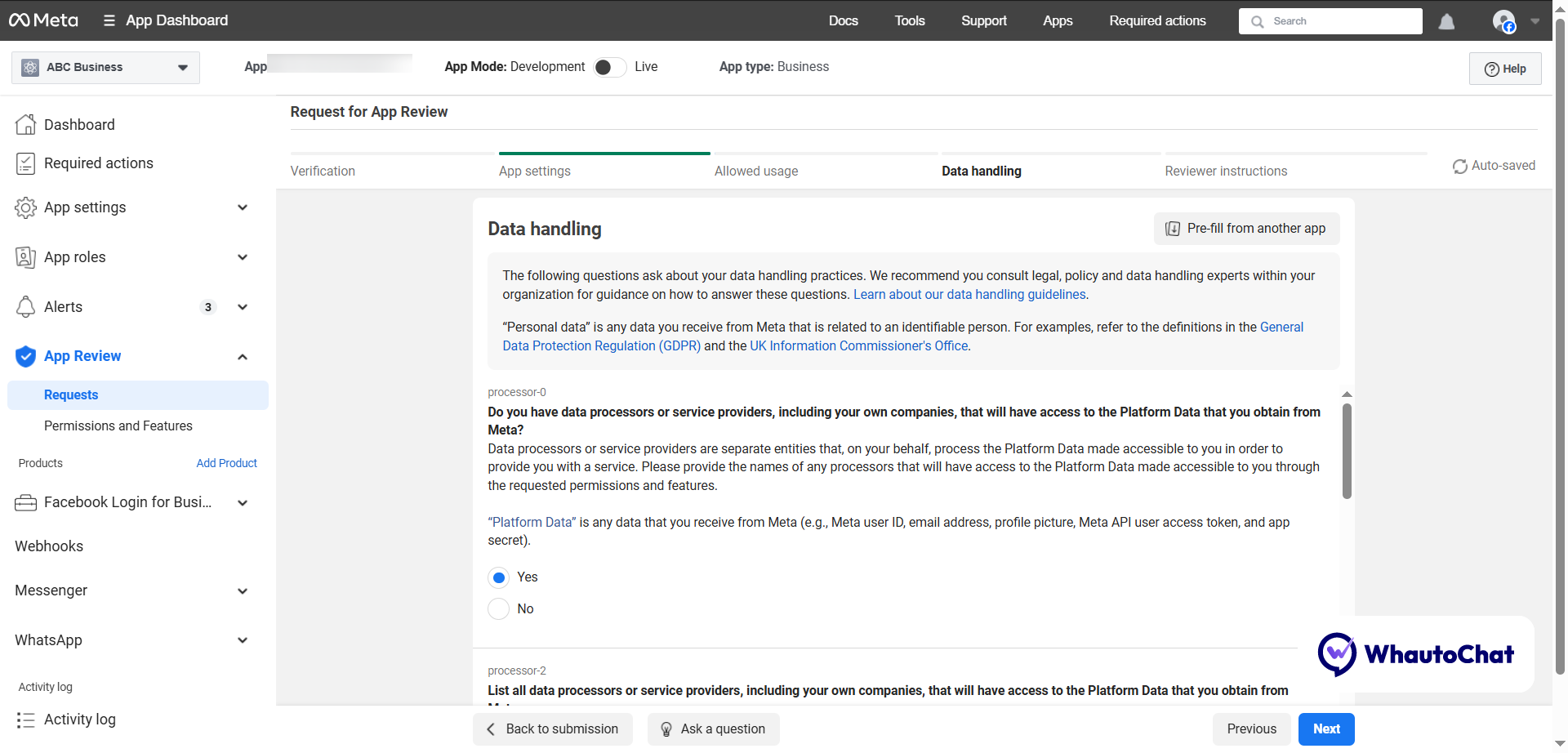
Processor-0: Do you have data processors or service providers, including your own companies, that will have access to the Platform Data that you obtain from Meta?
Answer: Yes
Processor-2: List all data processors or service providers:
Answer: AWS, CloudFlare, etc.
Responsible-1: Who is the person or entity that will be responsible for all Platform Data Meta shares with you?
Answer: [Your Business Name] (e.g., ABC Business)
Responsible-2: Select the country where this person or entity is located:
Answer: [Your Business Country] (e.g., Singapore)
Requests-3: Have you provided the personal data or personal information of users to public authorities in response to national security requests in the past 12 months?
Answer: No
Requests-4: Which of the following policies or processes do you have in place regarding requests from public authorities for the personal data or personal information of users?
Answer: None of the above
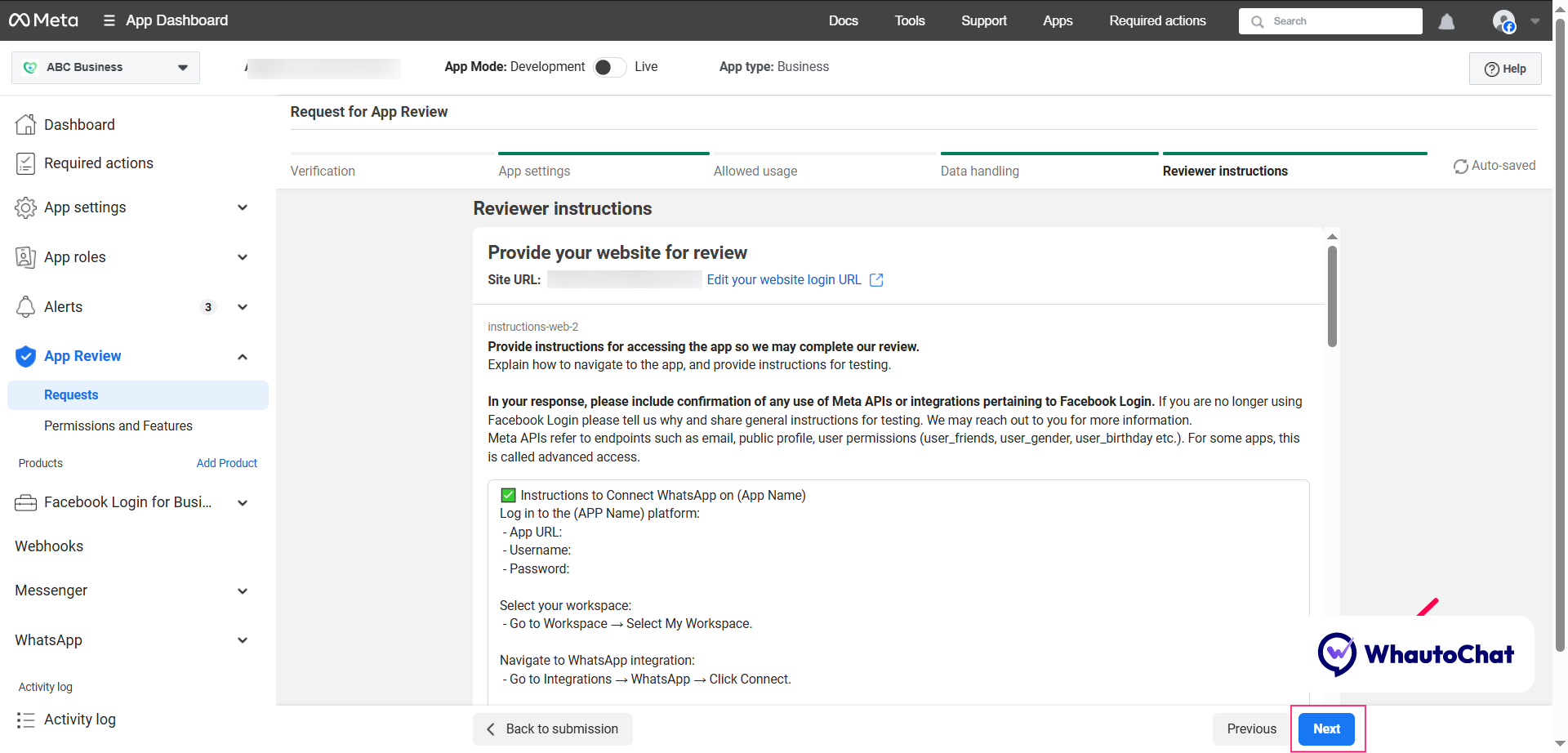
(v) Reviewer Instructions
Go to Settings and scroll down
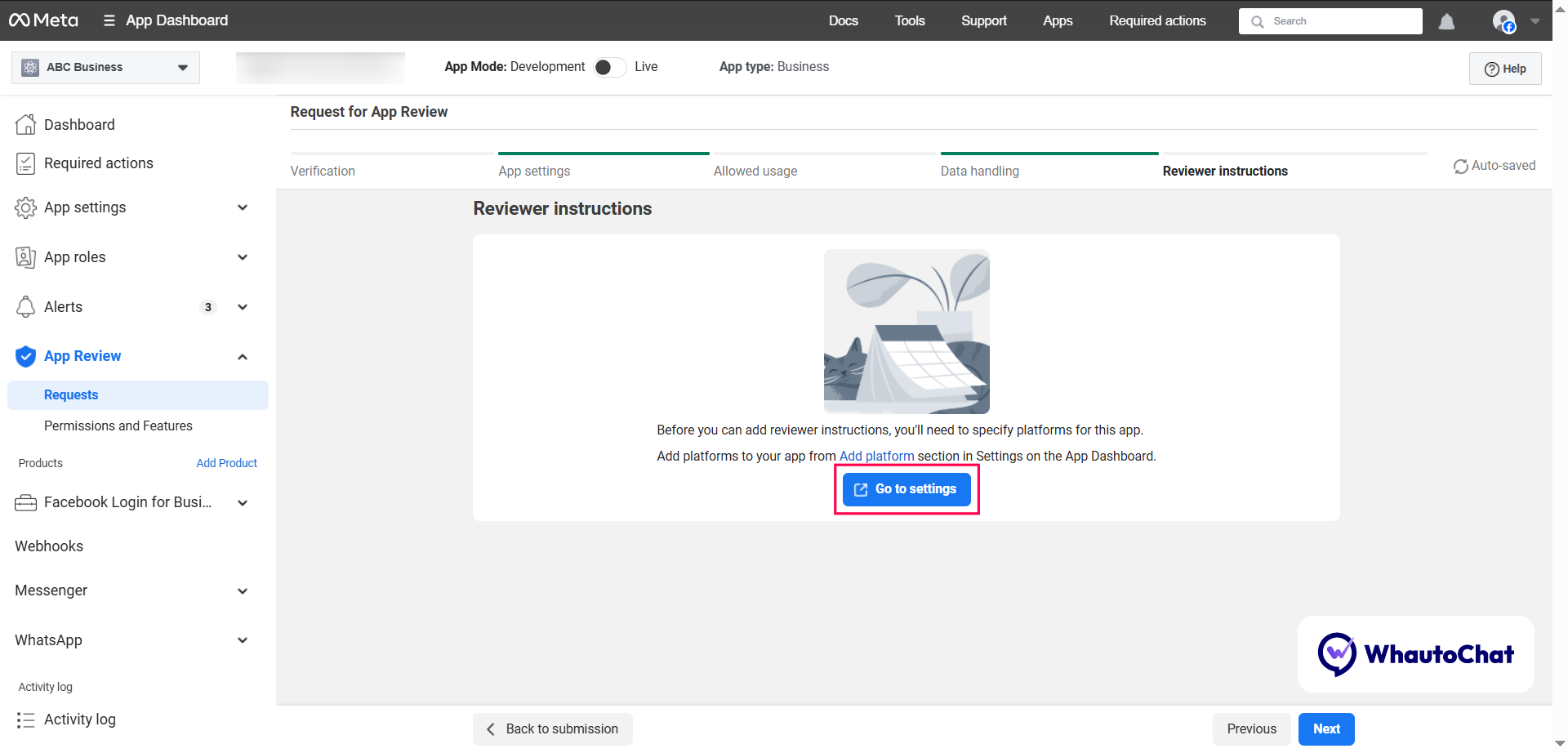
Complete Access Verification:
- Enter relevant details and submit
- Approval typically takes up to 5 days
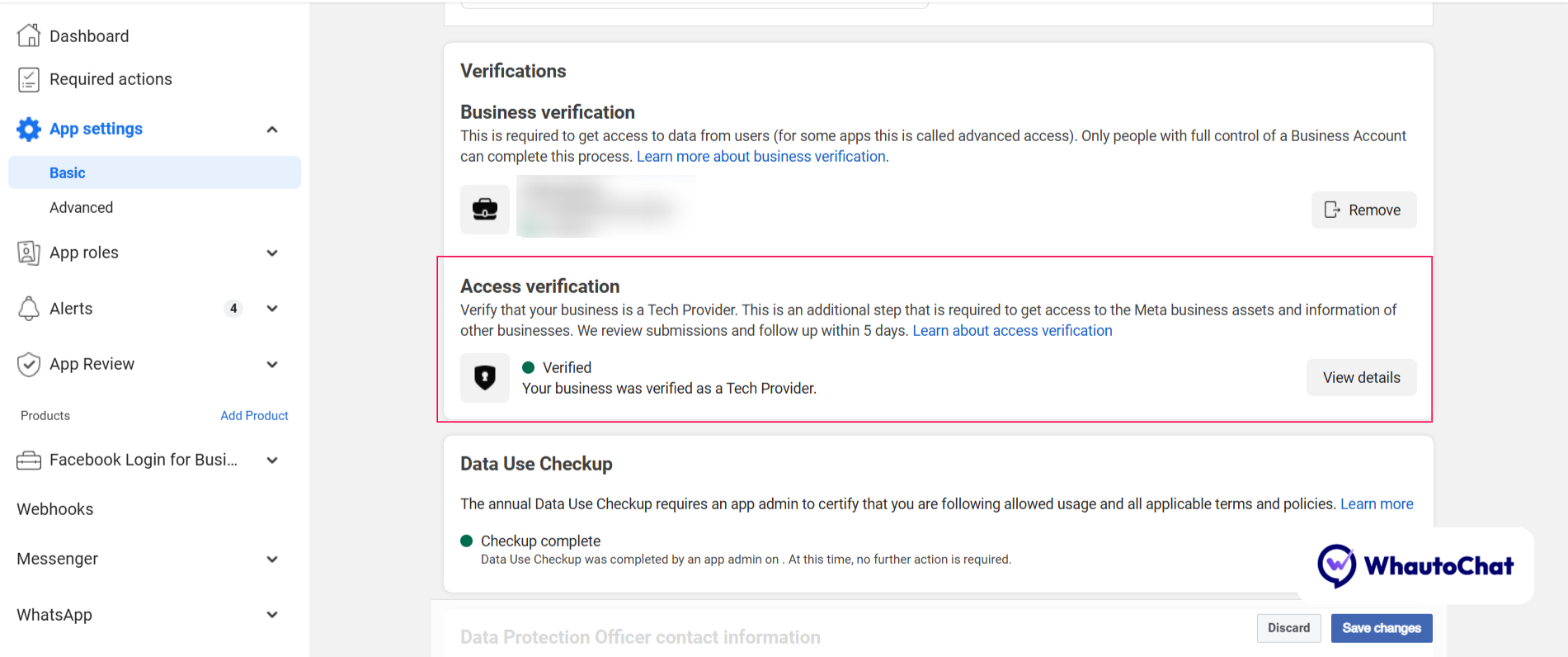
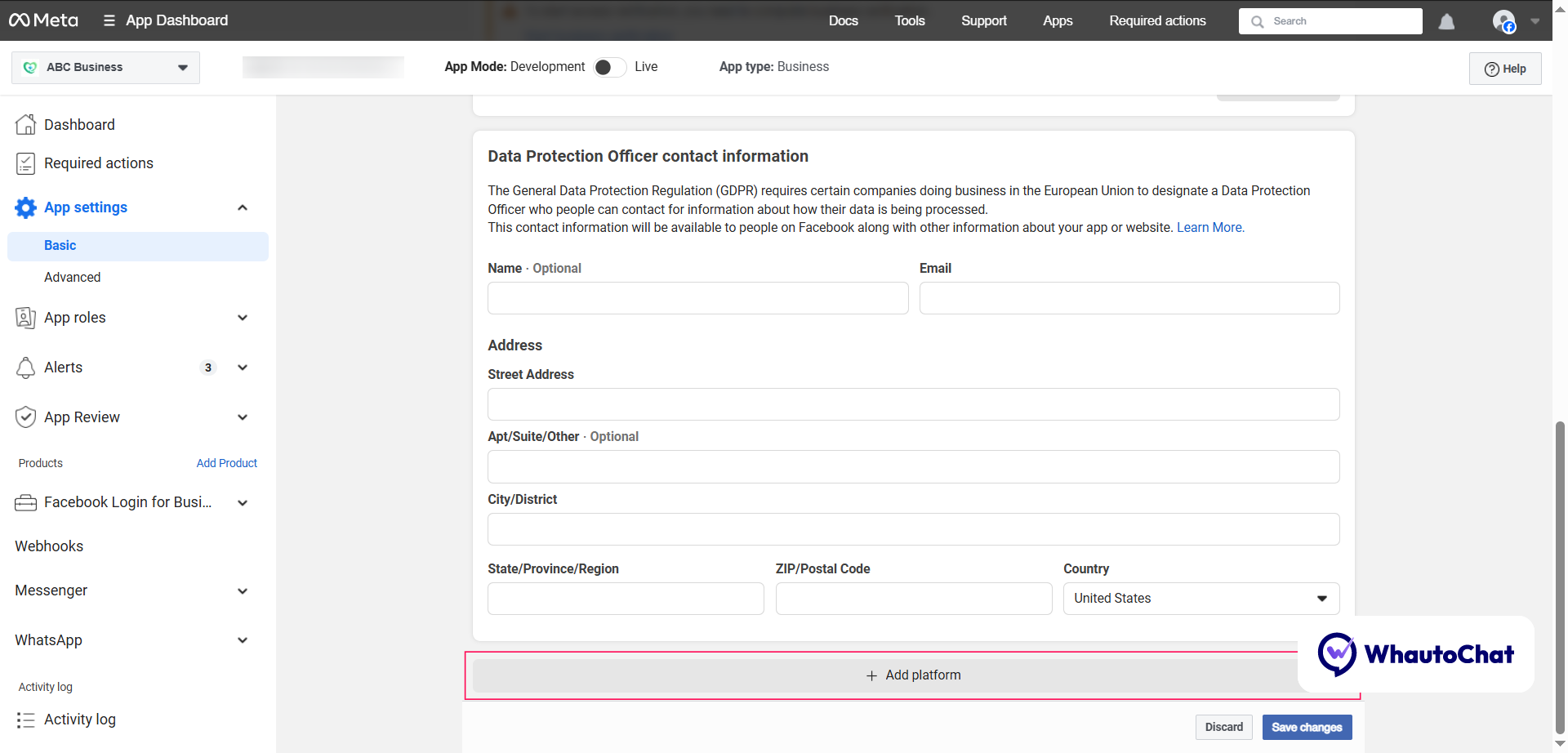
Enter Data Protection Officer Contact Information:
- Name
- Address details
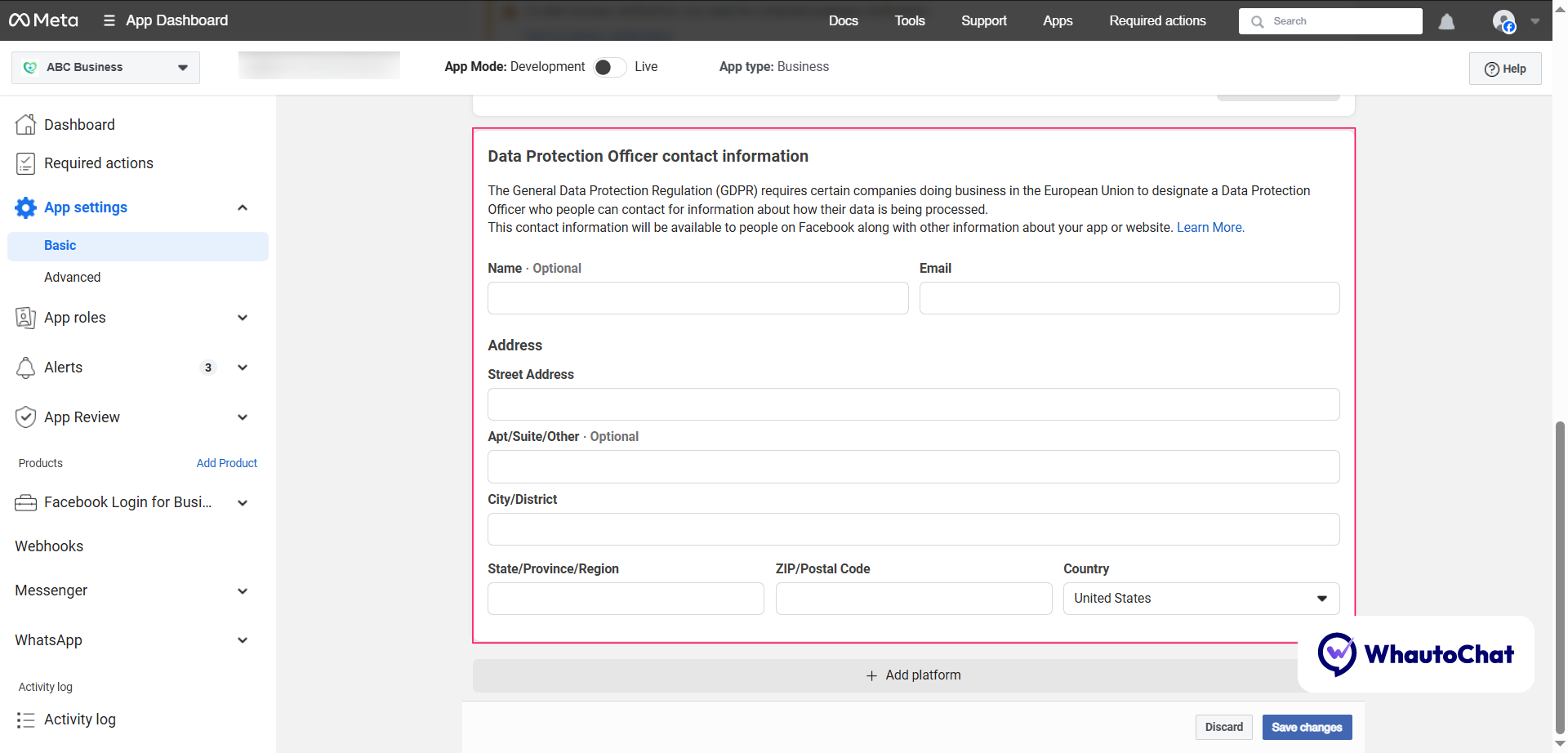
Add Platform:
- Click "Add Platform" button
- Choose Website option
- Enter your website URL
Add or Update Instructions:
Click "Add or Update Instructions" and provide the following information:
Where can we find the app?
https://yourappdomain.com/
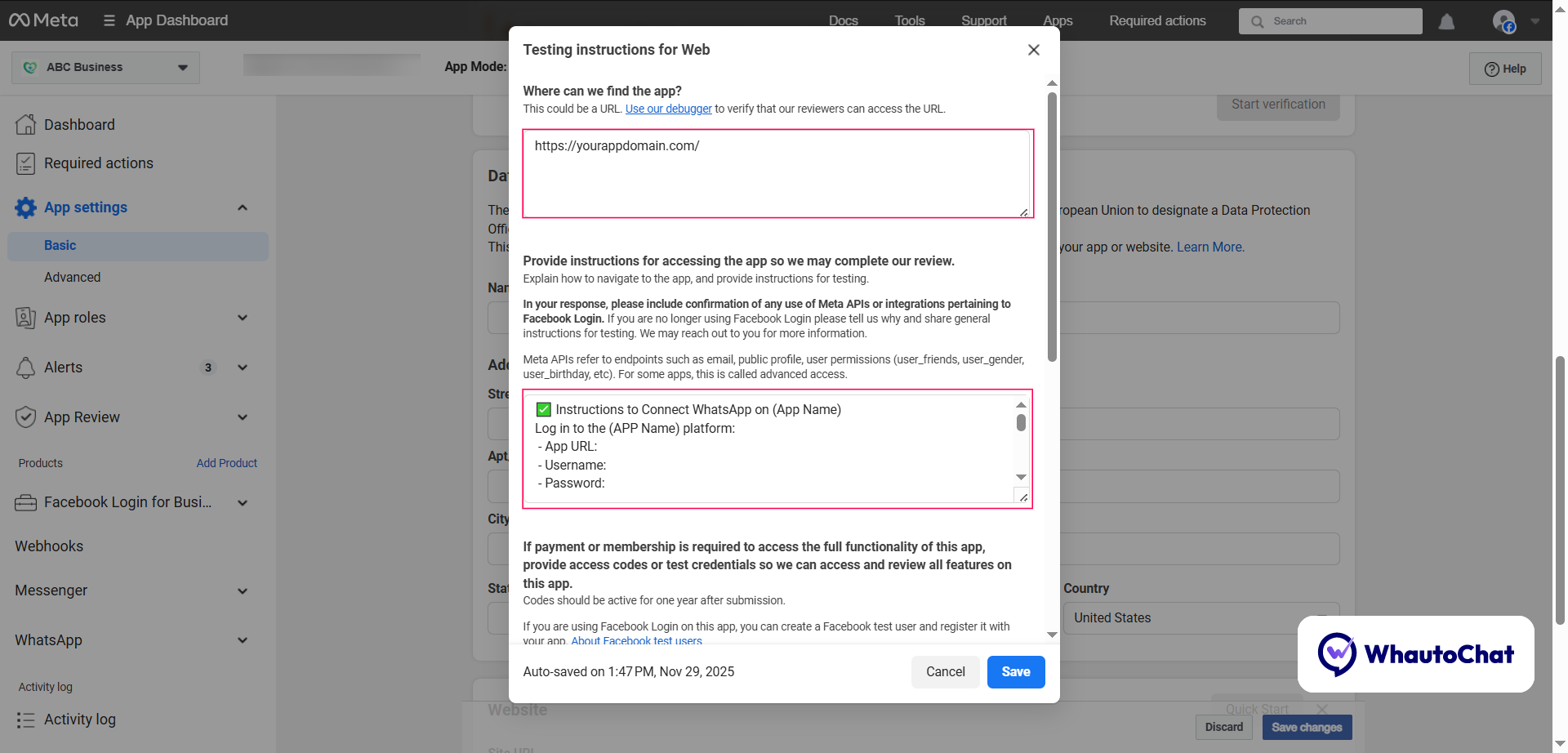
Provide instructions for accessing the app:
✅ Instructions to Connect WhatsApp on [App Name]
-
Log in to the [App Name] platform:
- App URL: [URL]
- Username: [Username]
- Password: [Password]
-
Select your workspace:
- Go to Workspace → Select My Workspace
-
Navigate to WhatsApp integration:
- Go to Integrations → WhatsApp → Click Connect
-
Complete embedded signup:
- Follow the signup flow and connect your WhatsApp phone number
-
Test the integration:
- Go to Team Inbox → Test both incoming and outgoing messages
Facebook Messenger Testing Instructions
Instructions to Connect Facebook Messenger on [App Name] and Test the Messaging Experience:
-
Log in to the [App Name] platform:
- Username: [Username]
- Password: [Password]
-
Select your workspace:
- Go to Workspace → Select My Workspace
-
Navigate to Messenger integration:
- Go to Integrations → Facebook Messenger → Click Connect
-
If a Facebook page is already authorized:
- You can either test the end-user experience, or
- Click Disconnect Messenger to go through the authorization flow again
-
Authorize using the test Facebook account:
- Click Connect with Messenger and follow the authorization flow using:
- Facebook Username: [Username]
- Facebook Password: [Password]
- Click Connect with Messenger and follow the authorization flow using:
-
Select the correct page and business during setup:
- Choose Page: [Facebook Page]
- Choose Business: [Business]
- Complete the authorization flow
-
Finalize the connection inside [App Name]:
- Go to Messenger Settings → Select [Page] → Click Connect
-
Test the integration:
- Send a message to the page to experience the automated responses
- Navigate to Team Inbox in [App Name] to try out the human agent handover
Messenger direct link: https://www.messenger.com/
Instagram Testing Instructions
Instructions to Connect Instagram on [App Name] & Test the Integration:
-
Log in to the [App Name] platform:
- App URL: [URL]
- Username: [Username]
- Password: [Password]
-
Select your workspace:
- Go to Workspace → Select [Workspace Name]
-
Navigate to Instagram integration:
- Go to Integrations → Instagram Integration → Click Connect
-
Authorize using the test Facebook account:
- Click Connect with Messenger and follow the authorization flow:
- Facebook Username: [Username]
- Facebook Password: [Password]
- Click Connect with Messenger and follow the authorization flow:
-
During setup, select the correct assets:
- Choose Page: [Page Name]
- Choose Business: [Business Name]
- Instagram Account: [Instagram Account]
- Complete the authorization flow
-
Finalize connection in [App Name]:
- Go to Instagram Settings → Select [Page] → Click Connect
-
Test the Integration:
- Send a message to the connected Instagram account to experience the automated responses
- Navigate to Team Inbox in [App Name] to try out the human agent handover
Test Instagram User credentials:
- Instagram Username: [Username]
- Instagram Password: [Password]
- Instagram Page Link: [Your Instagram Page Link]
App Login Credentials
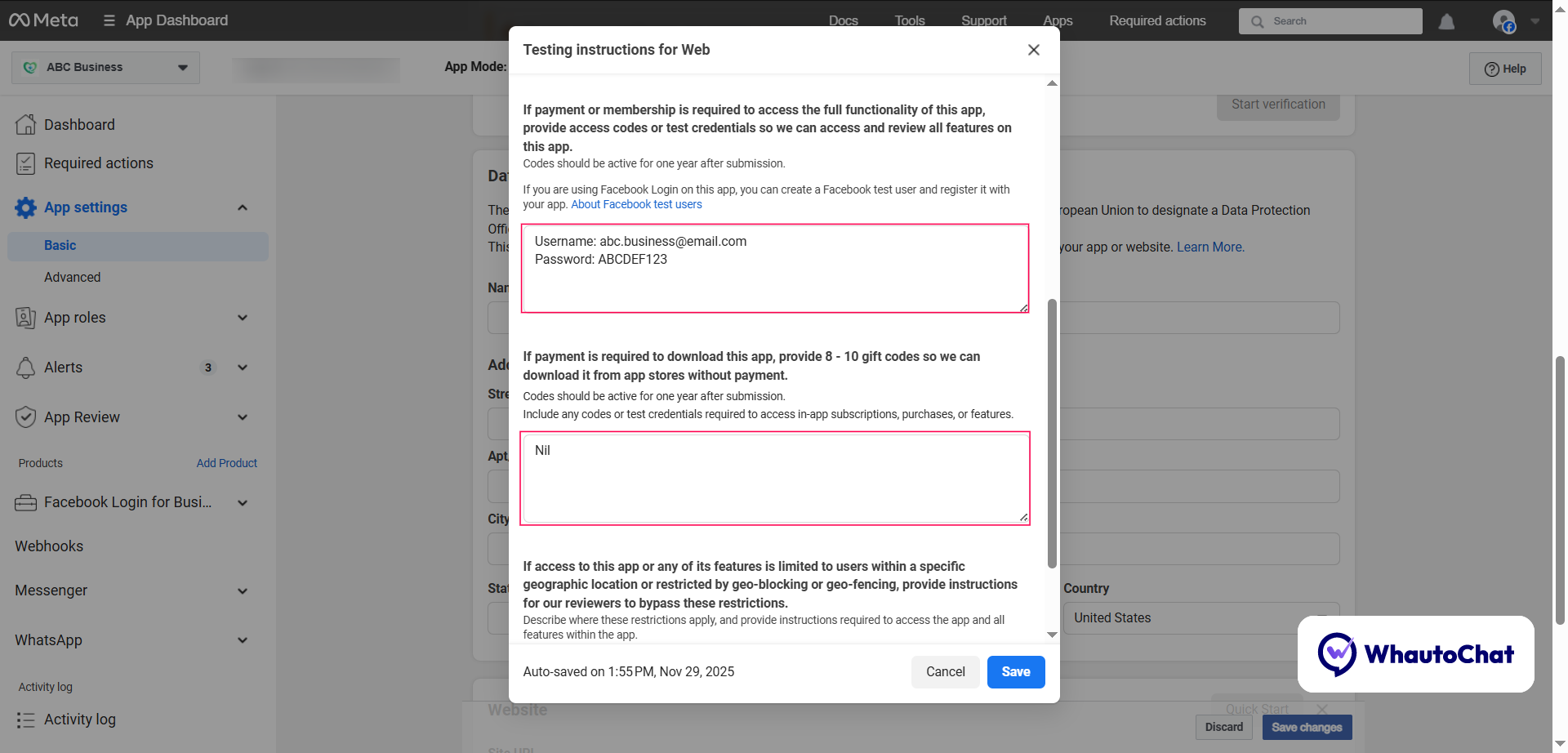
Your app login credentials:
Username: [email protected]
Password: ABCDEF123
If payment is required to download this app, provide 8-10 gift codes:
N/A
If access to this app or any of its features is limited to users within a specific geographic location:
N/A
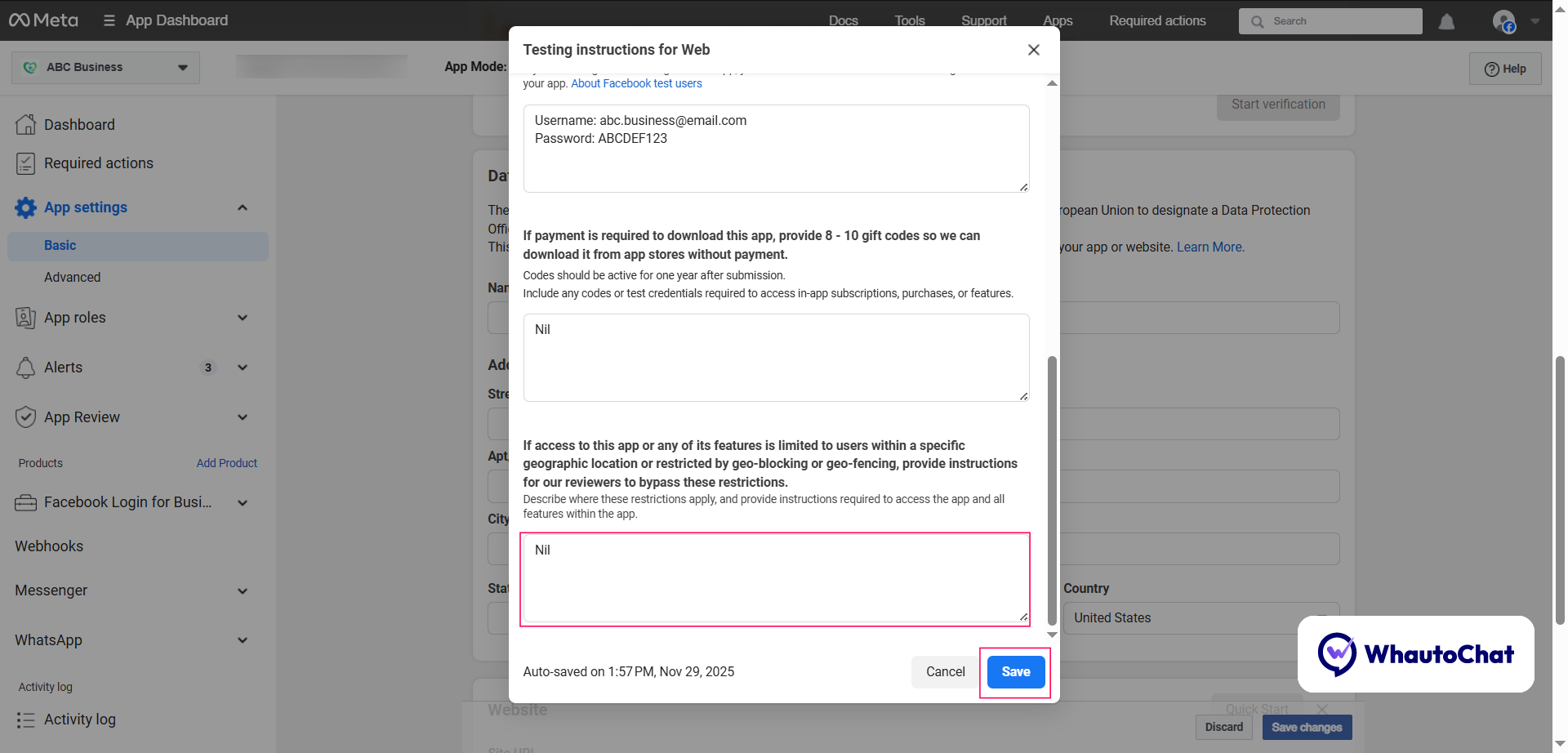
Click Save
Go back to Reviewer Instructions and click Next
5. Final Submission
Once you have completed all sections:
- (i) Business Verification
- (ii) App Settings
- (iii) Allowed Usage
- (iv) Data Handling
- (v) Reviewer Instructions
Click the "Submit for Review" button.
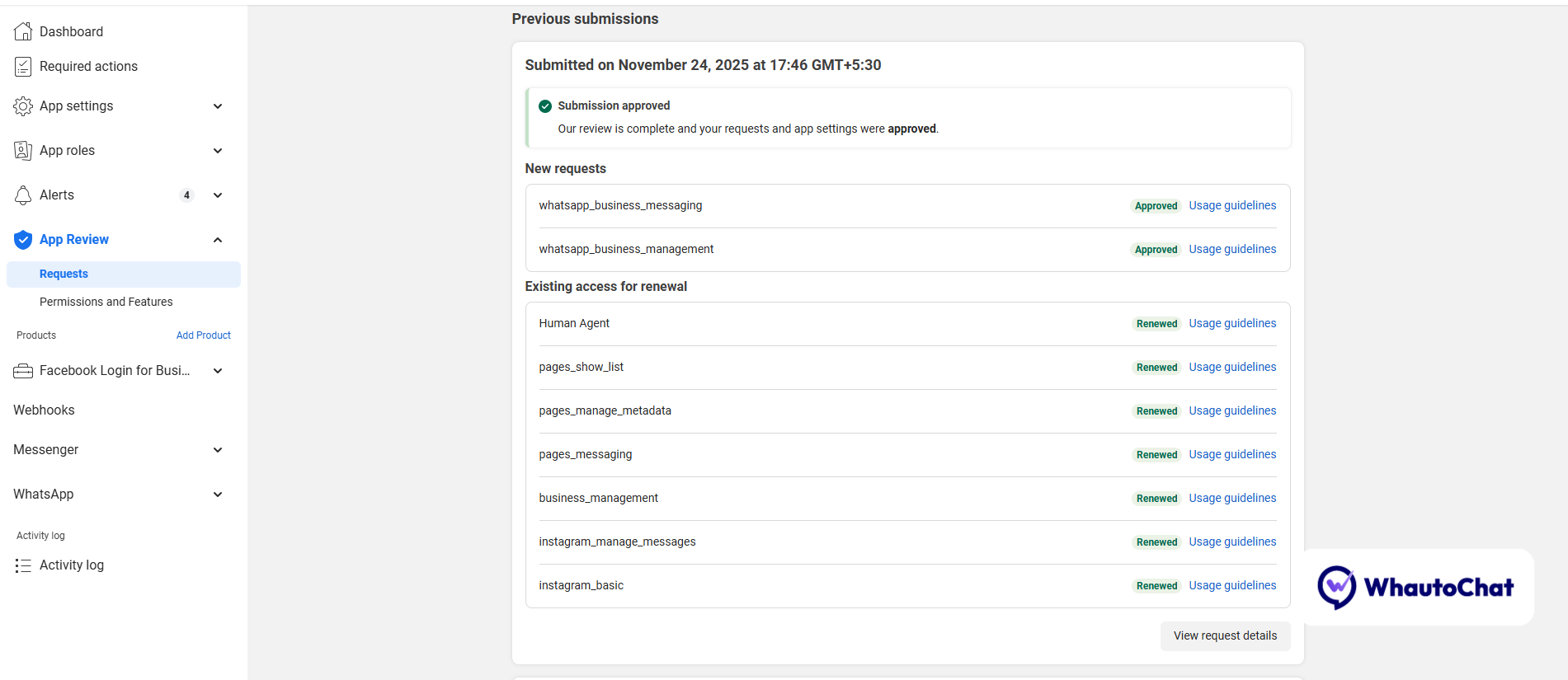
Note: Most submissions are reviewed within 10 business days. If Meta requires additional information after the review, update the relevant details and resubmit. Once all permissions are approved, you will see an approved status in your dashboard.
6. Becoming a WhatsApp Tech Provider
After your permissions are approved, follow these steps to become a WhatsApp Tech Provider:
Step 1: Start Onboarding
- In the Meta Developer app page, go to WhatsApp → Quickstart
- Click the "Start Onboarding" button near the "Become a Tech Provider" section
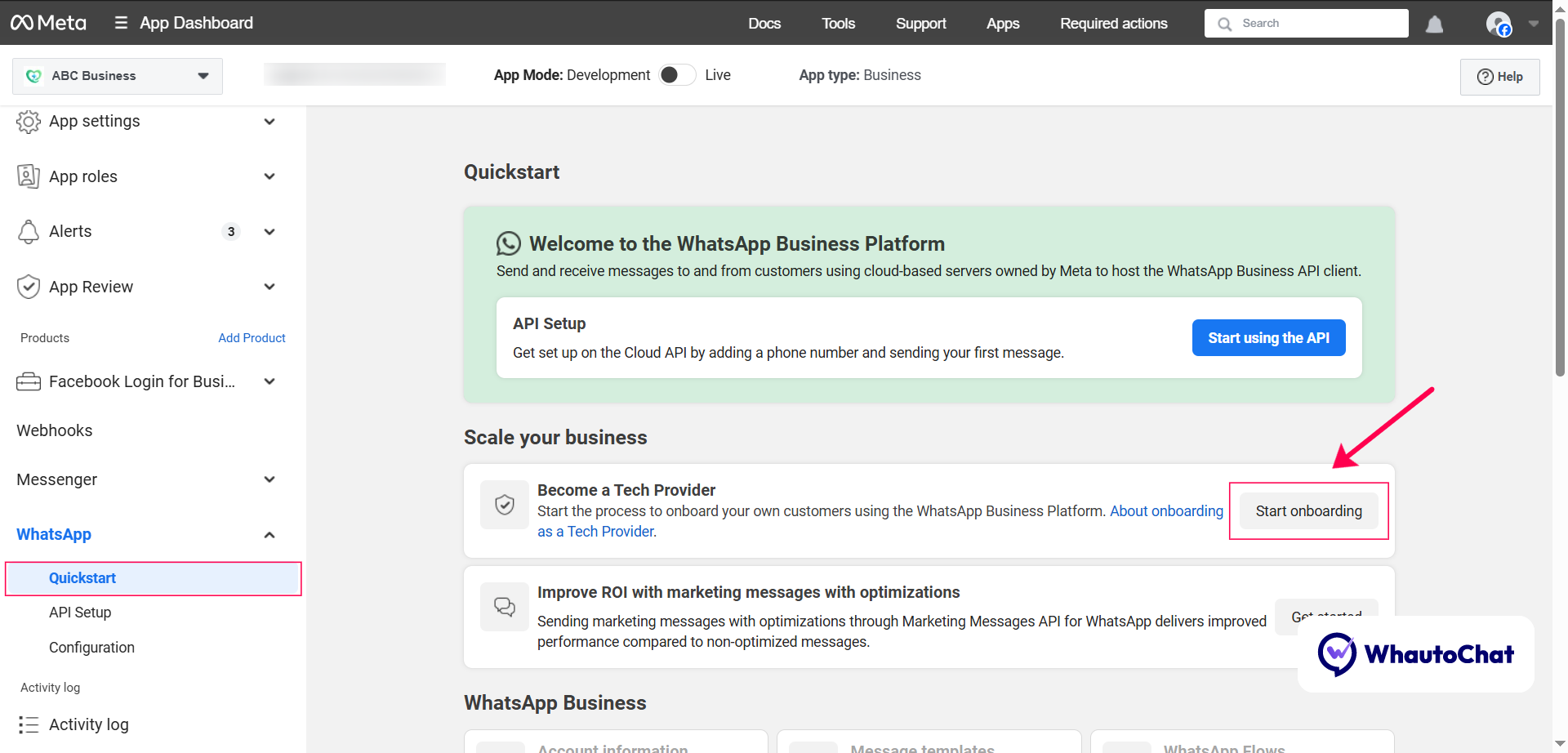
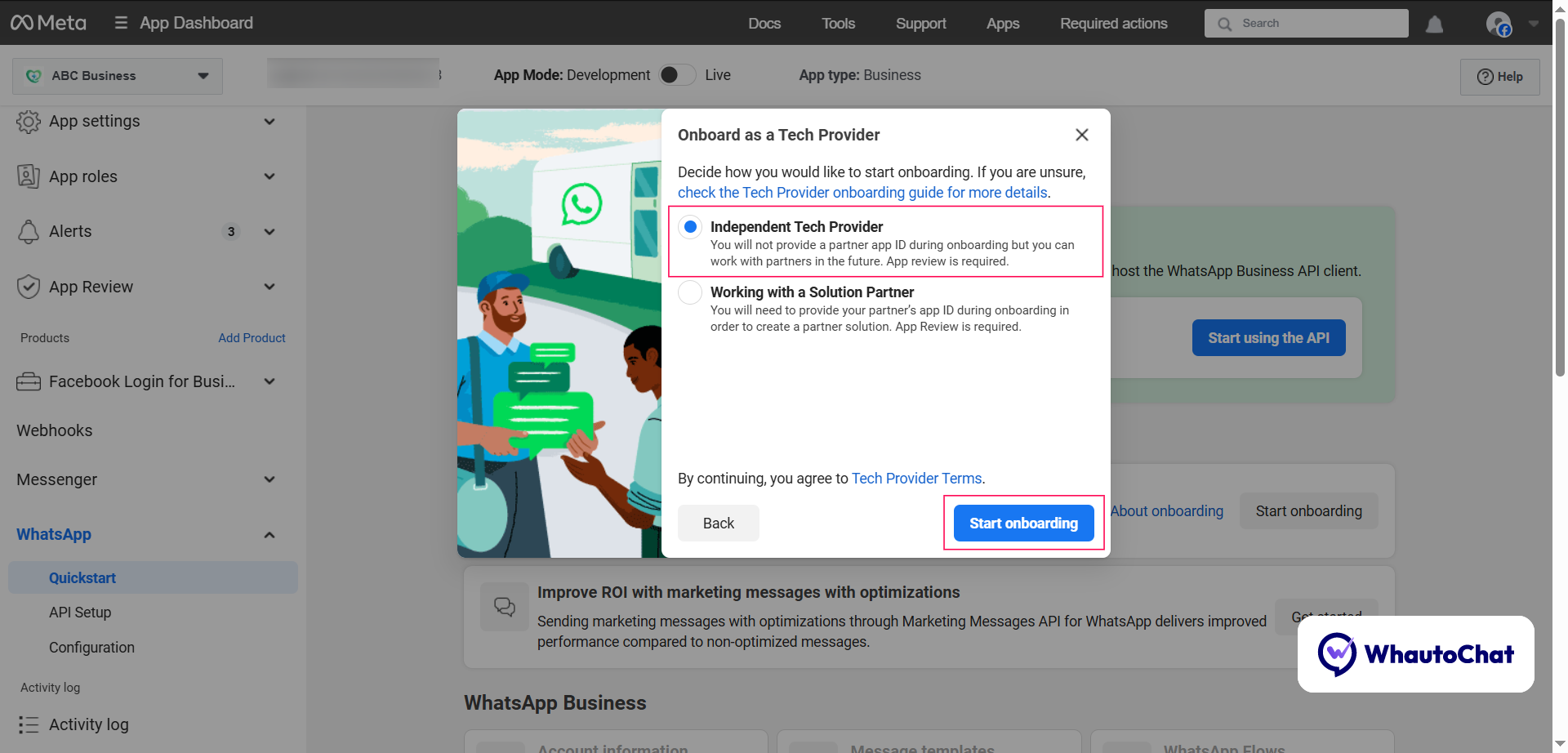
- Click Continue
- Choose the "Independent Tech Provider" option
- Click "Start Onboarding"
Step 2: Complete Requirements
1. Business Verification
If not already completed, verify your business:
- Provide business information to confirm your account belongs to a legitimate business or organization
- Complete the business verification application
- Note: Only an admin user can complete business verification
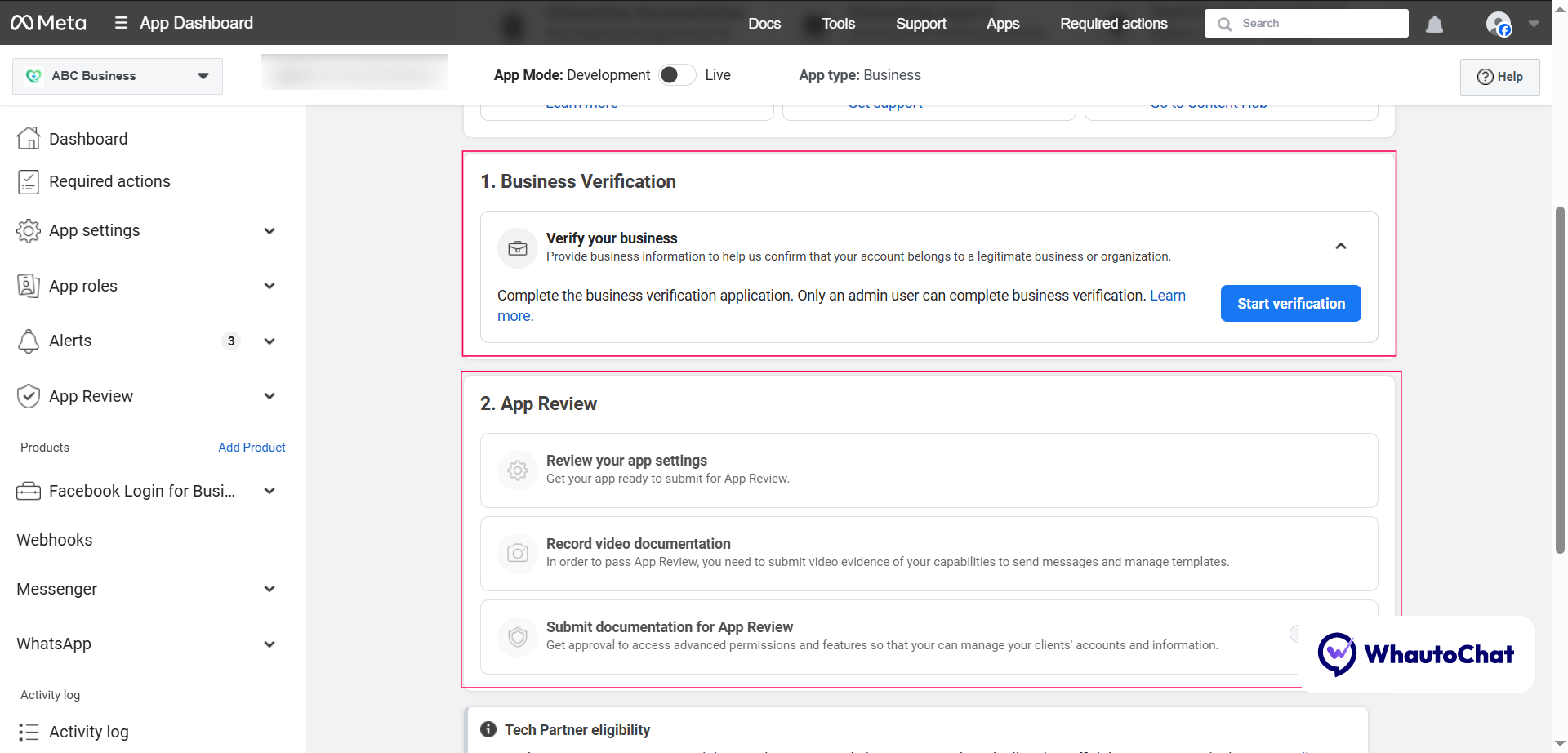
2. App Review
Complete the following:
-
Review your app settings
- Ensure your app is ready to submit for App Review
-
Record video documentation
- Submit video evidence of your capabilities to send messages and manage templates
-
Submit documentation for App Review
- Get approval to access advanced permissions and features
- Required permissions:
- whatsapp_business_management
- whatsapp_business_messaging
Note: If you have already submitted these permissions for app review, simply wait for approval.
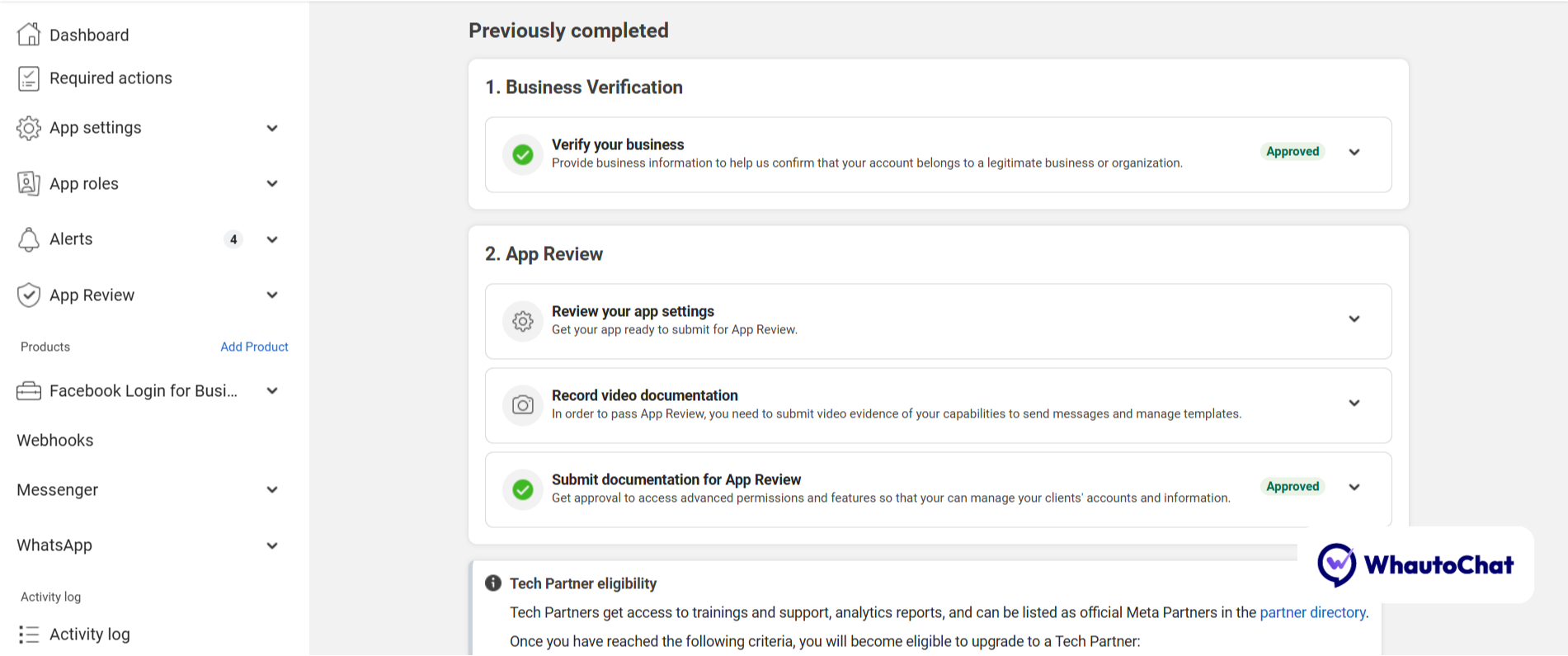
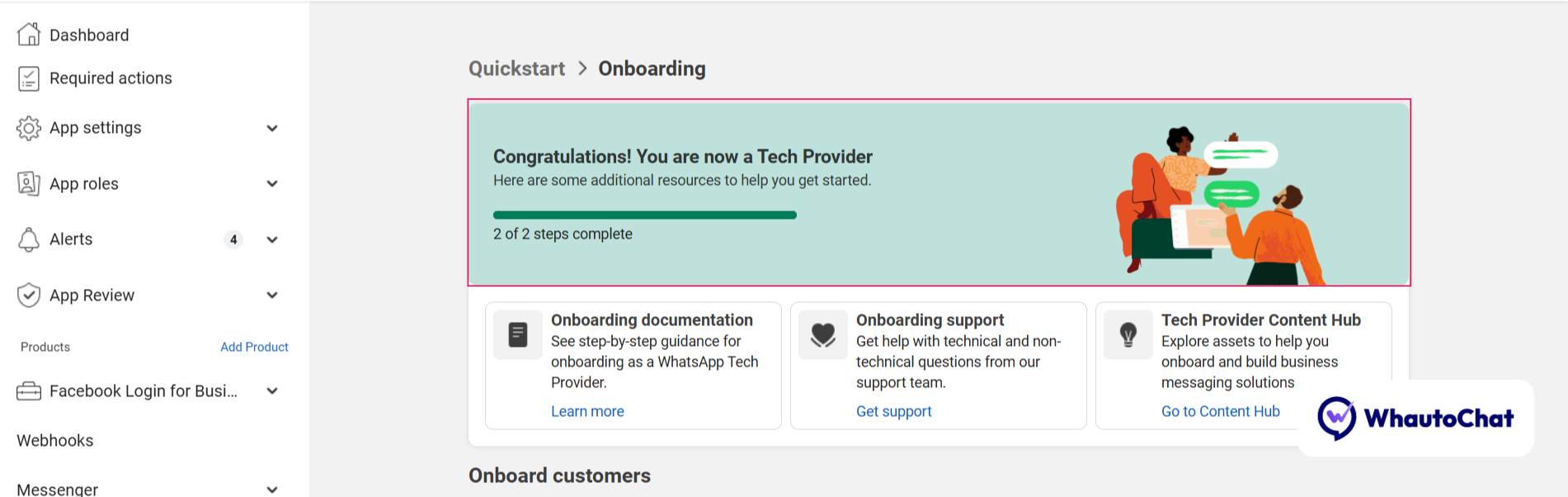
Once both steps are completed, you will officially become a WhatsApp Tech Provider.
Support and Additional Resources
For questions or issues during the submission process, refer to Meta's official documentation or contact our support team Email: [email protected]