Stripe Integration (Only for Resellers to Setup Subscriptions for Their Customers)
Integrating Stripe with your WhautoChat Reseller SaaS deployment allows you to manage customer subscriptions and automate billing. This guide covers the steps to connect your Stripe account, configure webhooks, and update your environment variables.
Why Integrate Stripe?
- Automate subscription billing for your customers
- Manage recurring payments, upgrades, and cancellations
- Receive real-time notifications of subscription events
How to Set Up Stripe Integration
Step 0: Locate the Configuration File
- Open the installation folder shared by the WhautoChat team.
- Locate the
web-server.envfile. - You will need to configure the following variables:
# Stripe Integration (Only for Resellers to setup Subscriptions for their customers)
STRIPE_SECRET_KEY='your_stripe_secret_key'
STRIPE_WEBHOOK_SECRET='your_stripe_webhook_secret'
Step 1: Create or Log in to Stripe
- Go to the Stripe dashboard: Stripe account.
- Log in with your existing Stripe account.
- If you don’t have a Stripe account, sign up and complete the onboarding process.
Step 2: Get Your Stripe Webhook Secret
Stripe uses webhooks to notify WhautoChat about subscription events.
Create a Webhook Destination
- In the Stripe dashboard, search for Webhooks in the top search bar and open it.
- Click + Add destination.
- Configure the destination:
- Events from: Your Account
- API Version: Leave as default (latest)
- Scroll to the Events section and enable the following events:
customer.subscription.createdcustomer.subscription.pausedcustomer.subscription.resumedcustomer.subscription.updatedcustomer.subscription.deletedinvoice.payment_failedinvoice.payment_succeeded
- Click Continue.
Configure Webhook Endpoint
- Set the following:
- Destination Type: Webhook Endpoint
- Destination Name: Your app name
- Endpoint URL:
https://your-backend-server-url/stripe/webhook
Replace your-backend-server-url with the domain you configured during license installation.
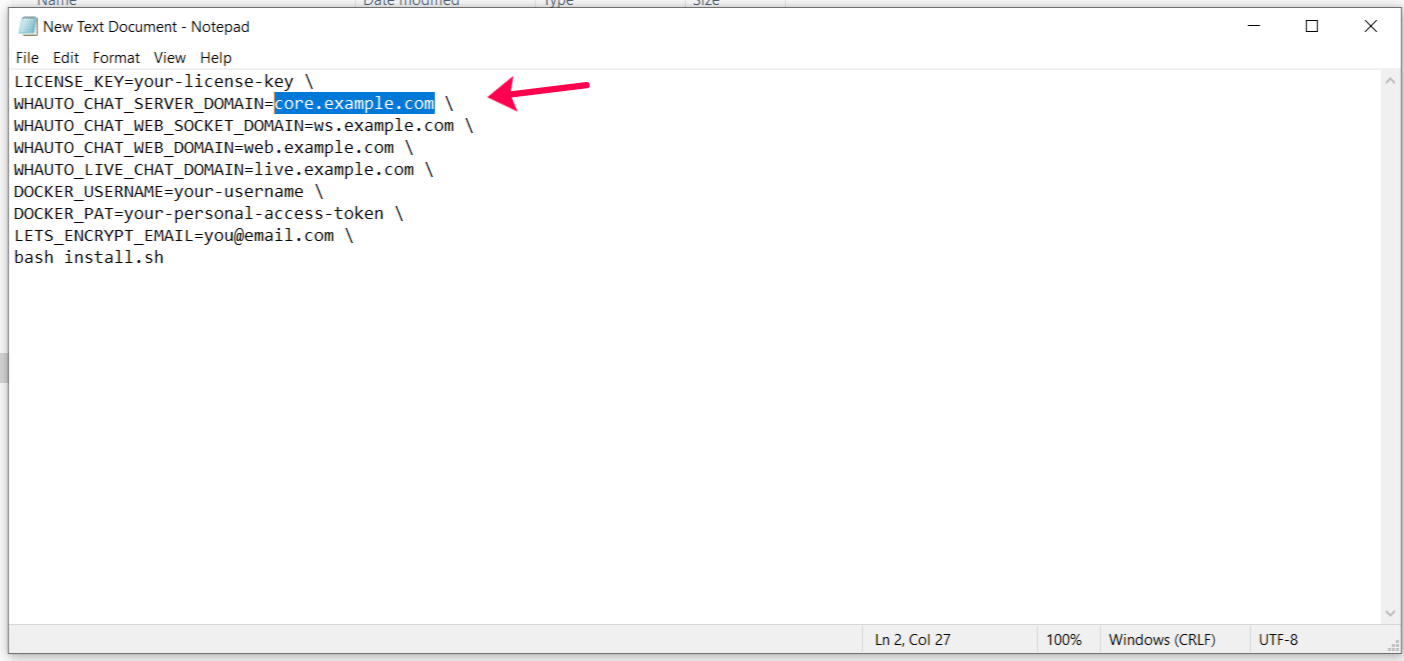
Example: https://core.example.com/stripe/webhook
- Click Create Destination.
- After creation, locate the Signing secret (e.g., whsec_XXXXXXXX).
- Click Reveal and copy the webhook secret.
Update Configuration
- Open your
web-server.envfile and update:
# Stripe Integration for Subscription Billing
STRIPE_SECRET_KEY='your_stripe_secret_key'
STRIPE_WEBHOOK_SECRET='your_stripe_webhook_secret'
Replace your_stripe_webhook_secret with the copied webhook signing secret.
Step 3: Get Your Stripe Secret Key
- In the Stripe dashboard, search for API Keys.
- Go to the API keys section.
- Copy your Secret Key (starts with sk_).
Update Configuration
Update the web-server.env file:
# Stripe Integration for Subscription Billing
STRIPE_SECRET_KEY='your_stripe_secret_key'
STRIPE_WEBHOOK_SECRET='your_stripe_webhook_secret'
Replace your_stripe_secret_key with your actual Stripe Secret Key.
Final Verification
- Save the updated web-server.env file.
- Load the updated configuration into your app installation and restart the service if required.
- Create a test subscription plan from your backend dashboard.
- Verify that subscription events are correctly processed via Stripe.
Note: Stripe integration is only required for Reseller deployments that need to manage customer subscriptions and payments.
Additional Resources
Enabling Stripe integration allows you to automate and manage customer subscriptions directly from your WhautoChat Reseller SaaS platform. For further help, refer to Stripe support or the WhautoChat documentation.