👤 Profile & Preferences
Manage your personal account details and preferences in WhautoChat with ease. Here’s how:
🔧 Accessing Profile Settings
- Log in to your WhautoChat account.
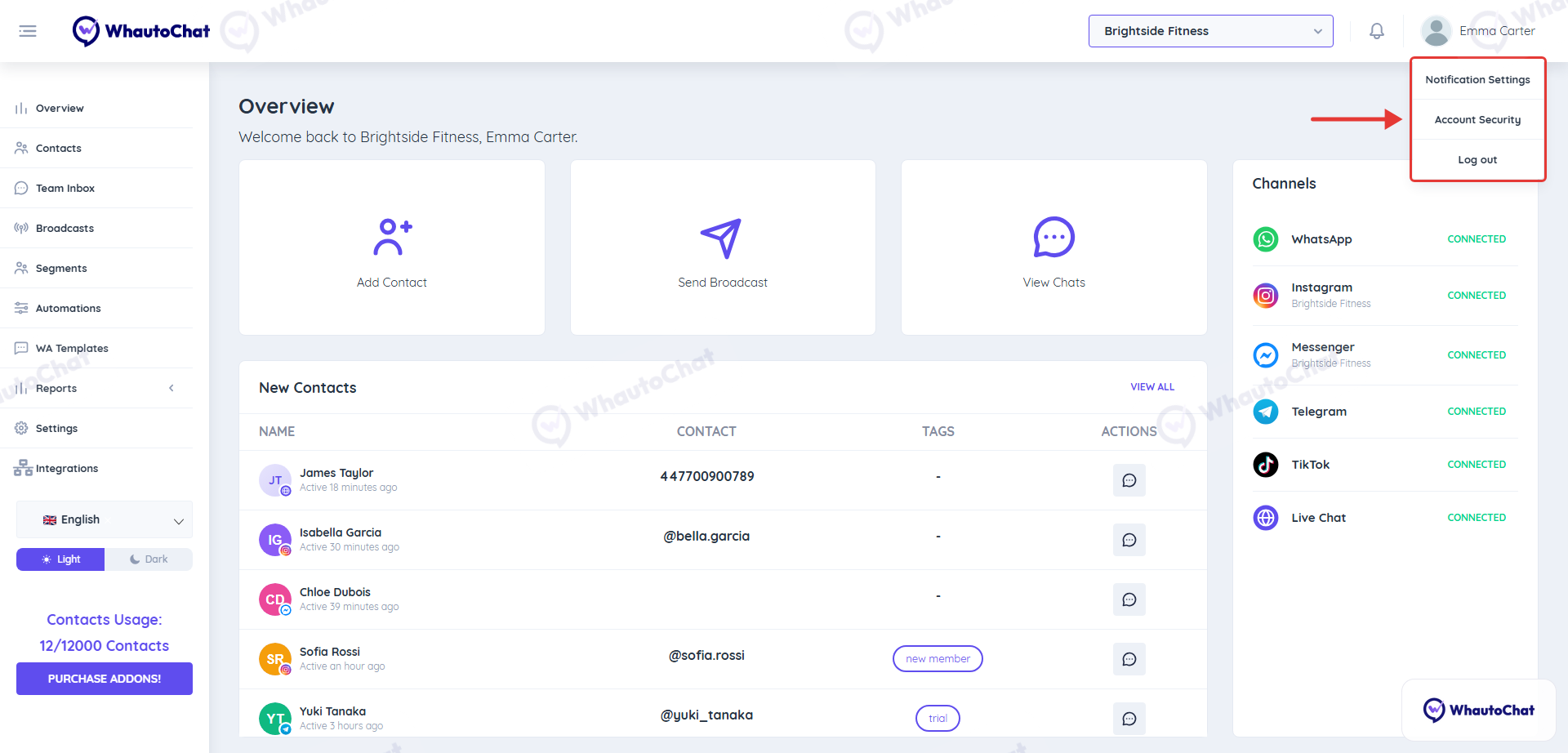
- Click on your name or profile icon (top right corner).
- Select Notification Settings or Account Security from the dropdown menu.
📬 Notification Settings
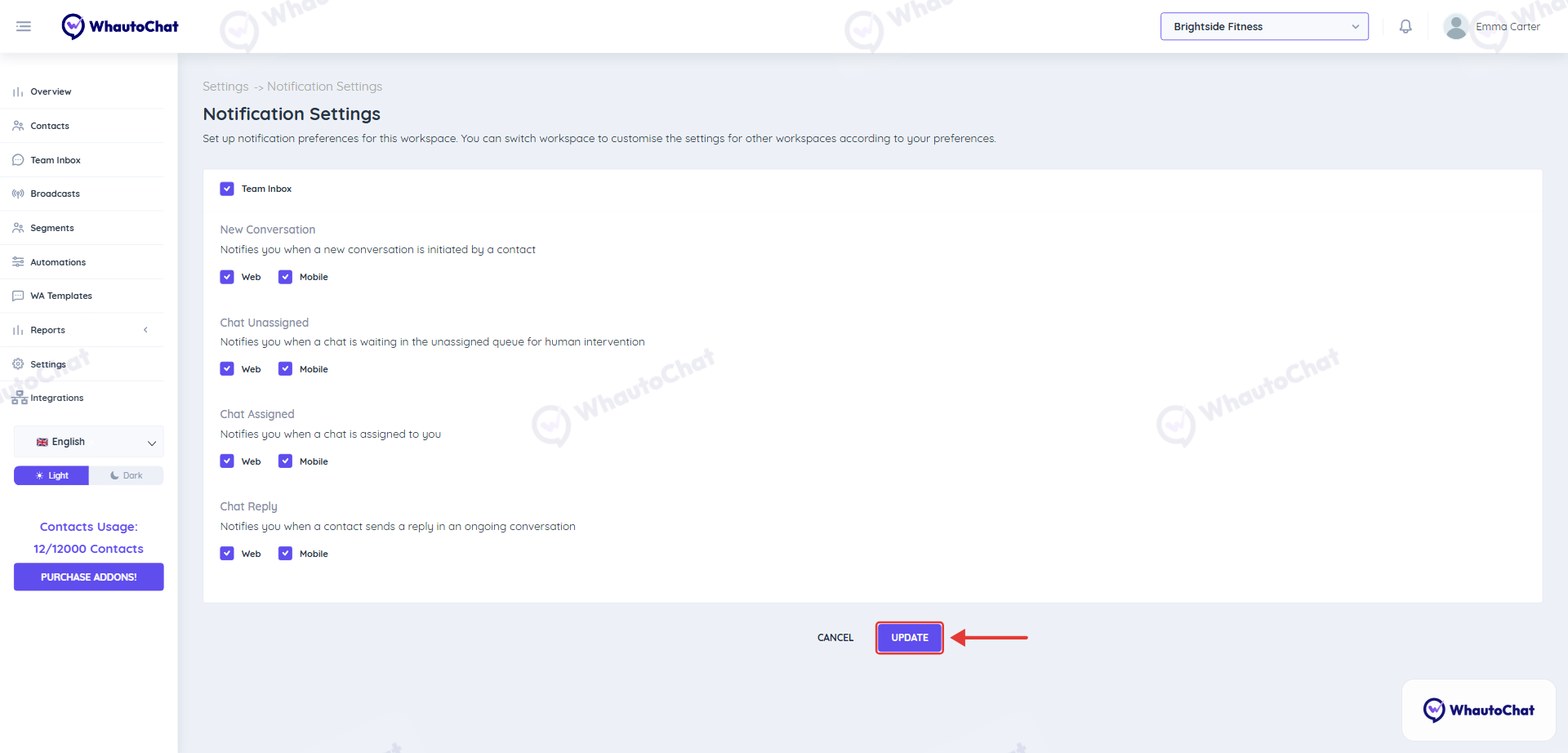
- Go to Notification Settings in your profile menu.
- Set your preferences for each workspace. Switch workspace to set different preferences for another one. For each notification, tick Web and/or Mobile:
- New Conversation: Notifies you when a contact initiates a new conversation
- Chat Unassigned: Notifies you when a chat is waiting in the unassigned queue for human intervention
- Chat Assigned: Notifies you when a chat is assigned to you
- Chat Reply: Notifies you when a contact sends a reply in an ongoing conversation
- Click Update to confirm.
🔒 Security Settings
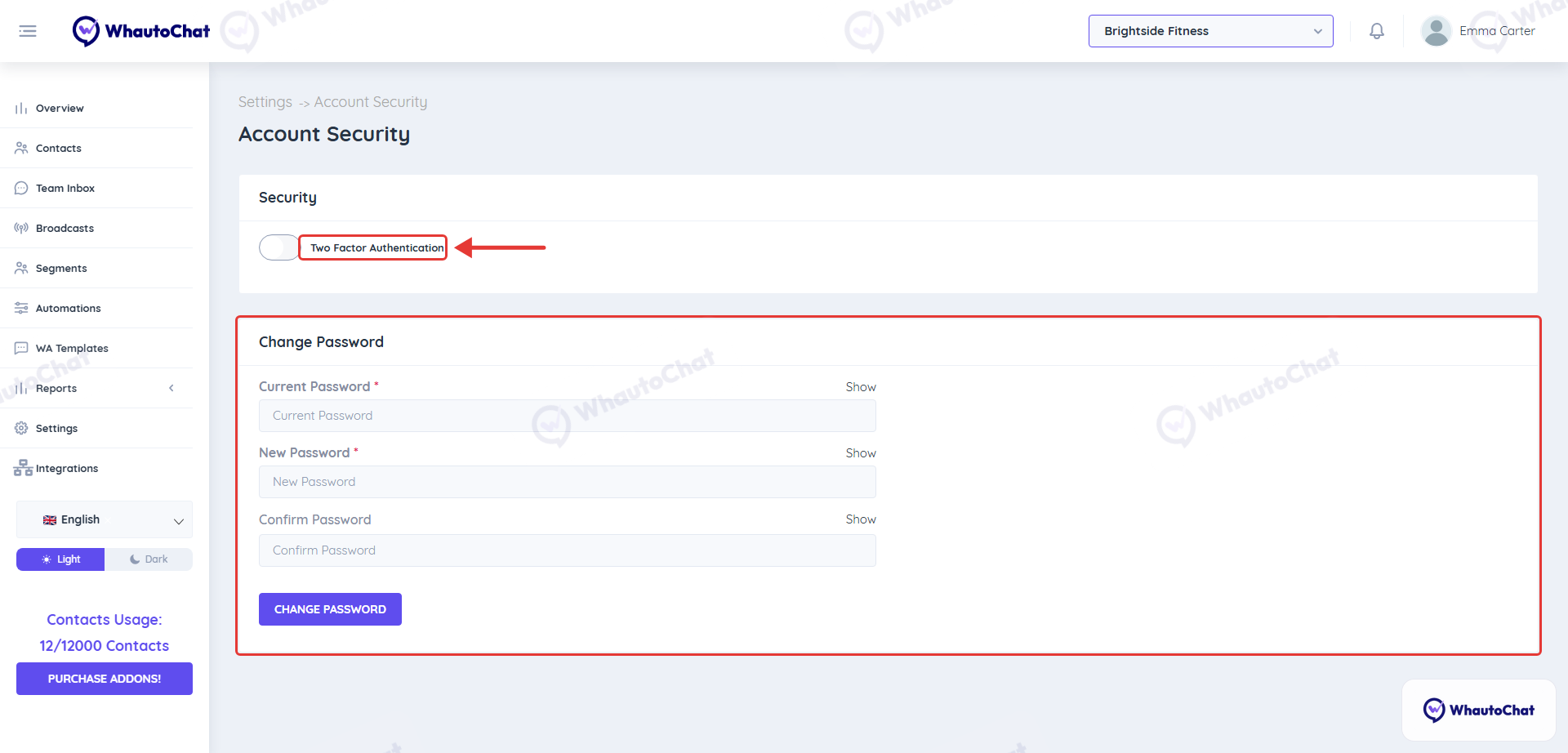
- From your profile menu, go to Account Security.
- You can:
- Enable Two Factor Authentication (2FA).
- Change your password: enter your Current Password, a New Password and Confirm Password, then click Change Password.
tip
If you need help updating any of your profile or preference settings, feel free to reach out to our Support Team: [email protected]