Step 5: Prepare Build Assets
Now that you've configured everything, it's time to prepare the visual assets and information needed for WhautoChat to build your apps.
1-2 days (depending on design resources)
What You'll Prepare
This step focuses on build assets only - the files WhautoChat needs to build your apps:
- App Icon
- App Icon Foreground (Android)
- Splash Screens (Light and Dark)
- App Information (Name, Bundle ID)
Screenshots, descriptions, and other store listing content are prepared after you receive the built apps. See Step 7: Prepare Store Listings.
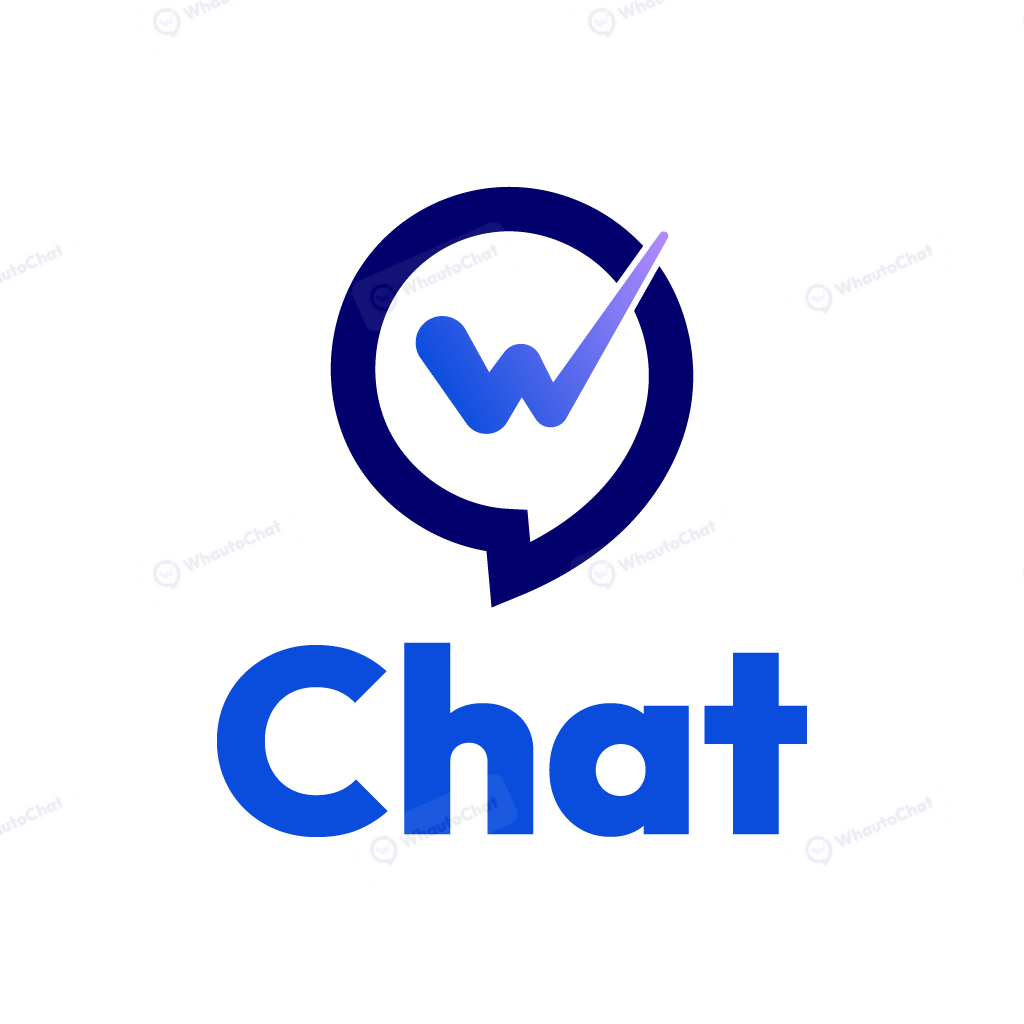
1. App Icon
Specifications
Dimensions: 1024 x 1024 pixels
Format: PNG (no transparency)
File name: app-icon.png
Design Guidelines
- Square format (1:1 ratio)
- No rounded corners (iOS and Android handle this automatically)
- Solid background (no transparency)
- High resolution for all device sizes
- Simple and recognizable at small sizes
- Centered design with padding from edges
Design Tips
✅ Do:
- Use your brand colors
- Keep it simple and bold
- Ensure it's recognizable at 60x60 pixels
- Test on both light and dark backgrounds
- Use vector graphics for crisp edges
❌ Don't:
- Add text (hard to read at small sizes)
- Use photos (doesn't scale well)
- Include transparency
- Add rounded corners yourself
- Make it too detailed
Example
2. App Icon Foreground (Android Adaptive Icon)
Specifications
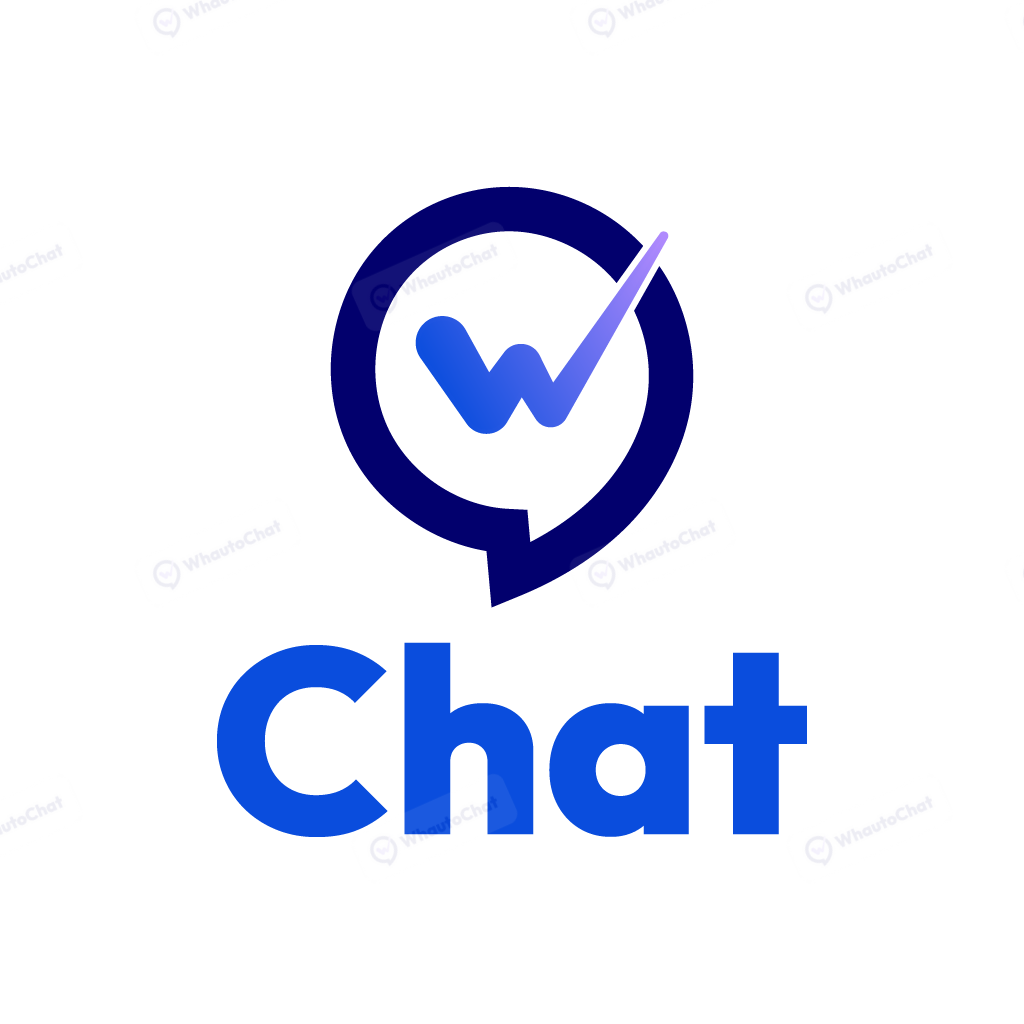
Dimensions: 1024 x 1024 pixels
Format: PNG (transparency allowed)
File name: app-icon-foreground.png
Design Guidelines
- Safe zone: Keep important content within center 66% (684 x 684 px)
- Transparency allowed: Can have transparent background
- Works on any shape: Android displays this on various shapes (circle, square, rounded square)
- Layered design: This is the foreground layer only
Why This Is Needed
Android uses "adaptive icons" that can be displayed in different shapes depending on the device manufacturer. The foreground layer ensures your icon looks good in all shapes.
Design Tips
- Keep your logo/icon centered
- Avoid placing important elements near edges
- Test how it looks in circle, square, and rounded square shapes
- Can be the same as your main icon, just with transparent background
Example
3. Splash Screen (Light Mode)
Specifications
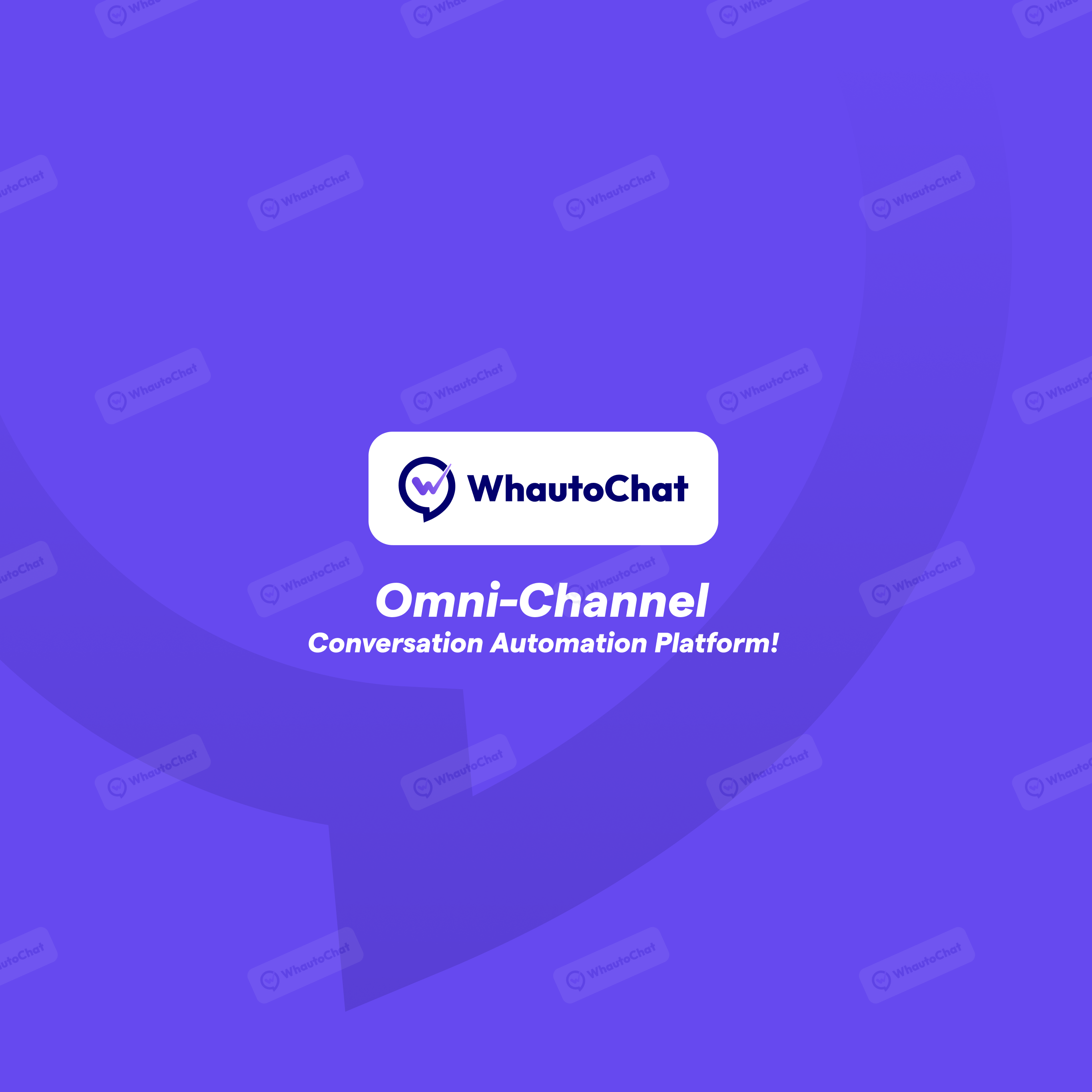
Dimensions: 2732 x 2732 pixels
Format: PNG
File name: splash-light.png
Design Guidelines
- Square format works for all device orientations
- Center your branding in the middle
- Use brand colors matching your app theme
- Simple and clean design
- Avoid text that might be cut off on different screens
Design Tips
✅ Do:
- Center your logo
- Use solid background color
- Keep it minimal
- Match your app's light theme
- Leave safe margins (200px from edges)
❌ Don't:
- Add too much detail
- Use busy backgrounds
- Place elements near edges
- Include version numbers or text
Example
4. Splash Screen (Dark Mode)
Specifications
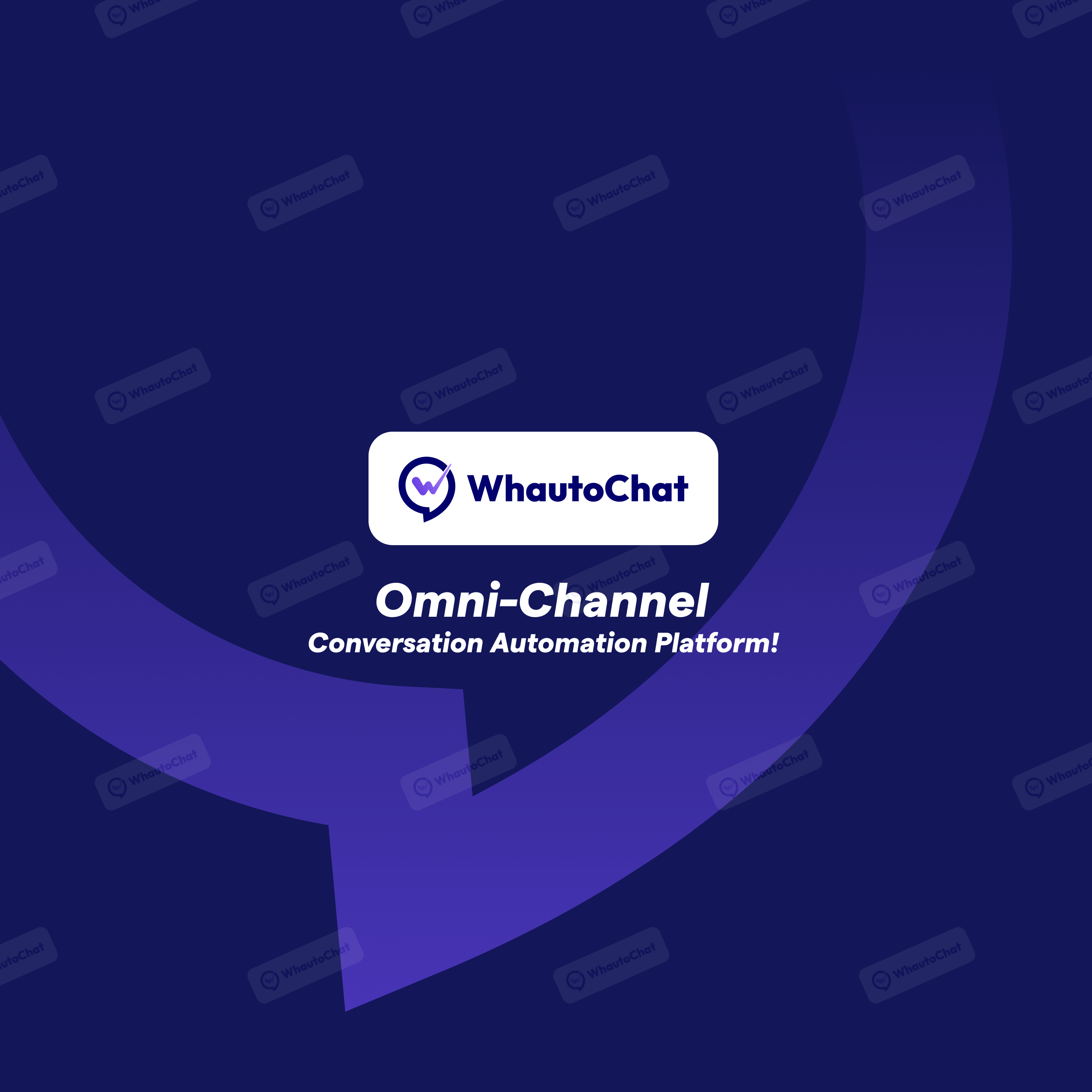
Dimensions: 2732 x 2732 pixels
Format: PNG
File name: splash-dark.png
Design Guidelines
- Same layout as light mode splash
- Optimized for dark backgrounds
- Good contrast for visibility
- Matches app's dark theme
Design Tips
- Use the same layout as light splash
- Adjust colors for dark background
- Ensure logo is visible
- Test on actual dark backgrounds
Example
5. App Information
App Name
Choose your app's display name carefully.
Example: WhautoChat Business
Requirements:
- Maximum 30 characters (iOS)
- Maximum 50 characters (Android)
- Must be unique in each app store
- Should match your brand name
Tips:
- Keep it short and memorable
- Avoid special characters
- Check availability in both app stores
- Consider international markets
Bundle ID / Package Name
This uniquely identifies your app globally.
Format: com.yourcompany.appname or chat.yourbrand.app
Example: chat.whauto.app
Requirements:
- Must be globally unique
- Cannot be changed after first submission
- Use lowercase letters, numbers, and periods only
- Typically follows reverse domain notation
- Same ID for both iOS and Android
Tips:
- Use your domain name reversed (e.g.,
com.yourdomain.app) - Keep it simple and professional
- Avoid using generic names
- Double-check spelling - you can't change this later!
Version Information
For your first build:
- Version Code:
1 - Version Name:
1.0.0
These will be incremented for future updates.
6. Organize Your Files
Create a folder with all your assets:
whautochat-mobile-assets/
├── app-icon.png
├── app-icon-foreground.png
├── splash-light.png
├── splash-dark.png
└── app-info.txt
app-info.txt Template
Create a text file with your app information:
App Name: WhautoChat Business
Bundle ID: chat.whauto.app
Version Code: 1
Version Name: 1.0.0
Asset Checklist
Before proceeding, ensure you have:
- App Icon (1024 x 1024 px, PNG, no transparency)
- App Icon Foreground (1024 x 1024 px, PNG)
- Splash Screen Light (2732 x 2732 px, PNG)
- Splash Screen Dark (2732 x 2732 px, PNG)
- App Name decided (within character limits)
- Bundle ID decided (unique, lowercase, cannot be changed)
- All files properly named
- All files organized in one folder
Design Tools
If you need help creating these assets:
Free Tools
- Canva - Easy online design tool
- Figma - Professional design tool (free tier)
- GIMP - Free Photoshop alternative
Paid Tools
- Adobe Photoshop - Professional image editing
- Sketch - Mac-only design tool
- Affinity Designer - One-time purchase alternative
Hire a Designer
If you're not comfortable designing:
- Fiverr - Budget-friendly designers ($20-100)
- Upwork - Professional designers ($50-500)
- 99designs - Design contests ($299+)
Quality Check
Before submitting, verify:
App Icon
- Exactly 1024 x 1024 pixels
- PNG format
- No transparency
- Looks good at small sizes (test at 60x60)
- Recognizable and professional
App Icon Foreground
- Exactly 1024 x 1024 pixels
- PNG format
- Important content within safe zone (center 66%)
- Works on different background shapes
Splash Screens
- Both exactly 2732 x 2732 pixels
- PNG format
- Logo centered
- Light and dark versions provided
- Clean and professional
App Information
- App name within character limits
- Bundle ID follows correct format
- Bundle ID is unique (checked in both stores)
- No typos or errors
Common Issues
"Icon has transparency"
Solution: Remove transparency and use solid background color. Save as PNG without alpha channel.
"Image dimensions wrong"
Solution: Resize exactly to specified dimensions. Don't scale proportionally - crop to square if needed.
"Bundle ID already taken"
Solution: Choose a different Bundle ID. Each must be globally unique.
"Icon too detailed"
Solution: Simplify your design. Test how it looks at 60x60 pixels.
"Splash screen looks cut off"
Solution: Keep important elements within center safe zone. Leave 200px margins from edges.
Next Step
Once all assets are prepared and verified, proceed to:
You'll gather all credentials and submit everything to WhautoChat for the app build.