How to Reach Out to Meta Support for WhatsApp Issues and Queries?
If you are a WhautoChat Self-Hosted Reseller and your customers are experiencing issues or have questions related to WhatsApp Business API, or Meta Business, you can contact the Meta Support team directly for assistance.
You can contact Meta Support for issues such as:
- Meta Business Verification delays or verification issues
- WhatsApp registration and onboarding issues
- WhatsApp payment-related issues
- WhatsApp API-related issues
- WhatsApp Business Profile issues
- WhatsApp Template Message issues
- Other WhatsApp-related errors and queries
Follow the steps below to create a support ticket with Meta.
Important Note
The Meta Support option described in this guide is available only to Meta Tech Provider businesses.
If your business is not yet a Meta Tech Provider, you must complete the Meta App Review process first.
You can follow our guide to learn how to complete the app review process:
Meta App Review Guide:
https://help.whauto.chat/self-hosted-version/reseller-saas/meta-app-review/
Once your business becomes a Meta Tech Provider, you can contact Meta Support for eligible WhatsApp and Meta-related issues.
How to Contact Meta Support
Step 1: Open Meta Direct Support
Go to the Meta Business Direct Support page:
https://business.facebook.com/direct-support/
Step 2: Log In to Your Facebook Account
Log in using the Facebook account that manages your Meta Business Portfolio and Meta Developers App.
Make sure you are using an account that has the required access to the relevant business portfolio and developer app.
Step 3: Select Your Meta Business Portfolio
Select the Meta Business Portfolio that is connected to your Meta Developers App and platform.
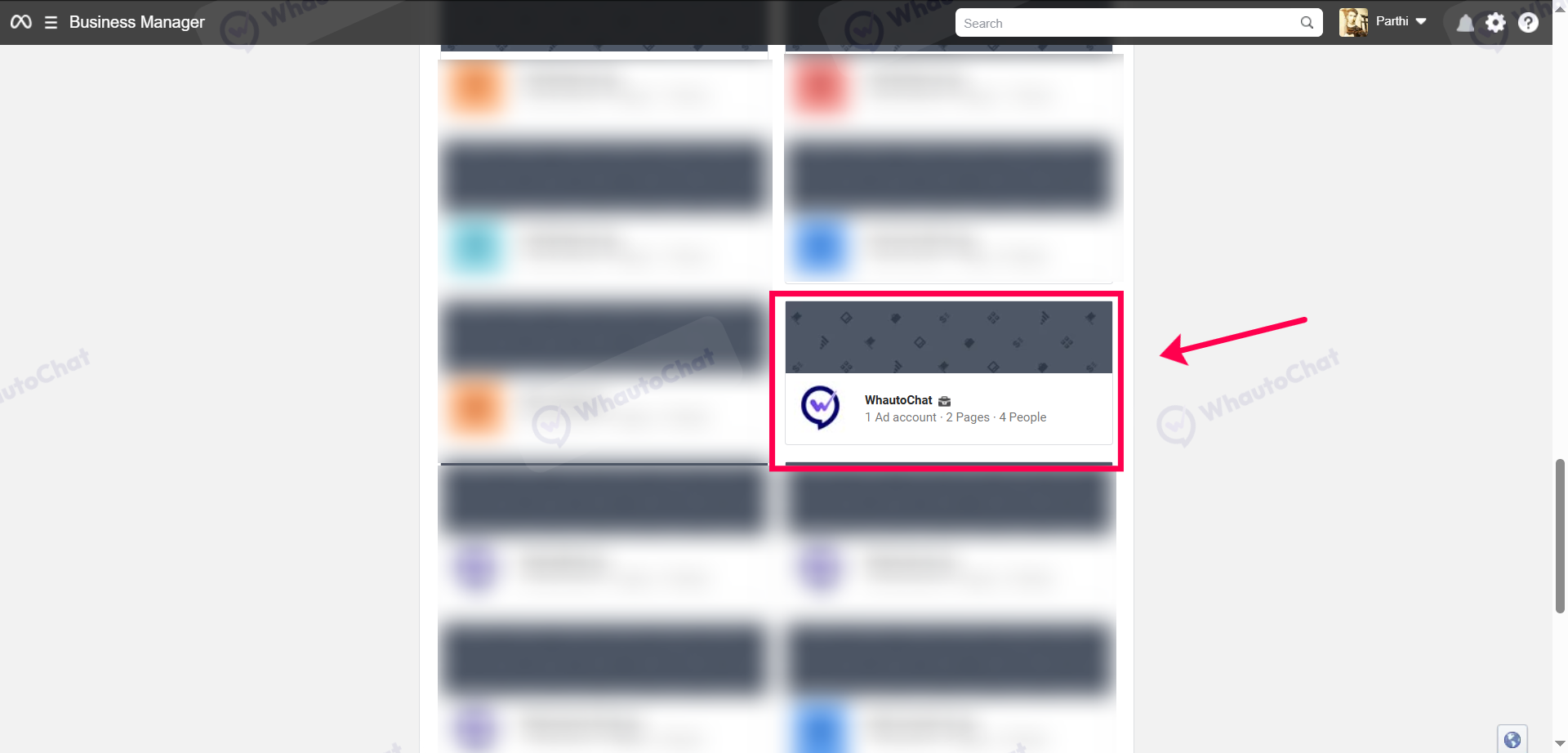
For example, in this case, we have selected the business portfolio named WhautoChat.
Make sure you select the correct business portfolio before creating your support ticket.
Step 4: Click "Ask a Question"
Click the Ask a Question button to create a new support request.
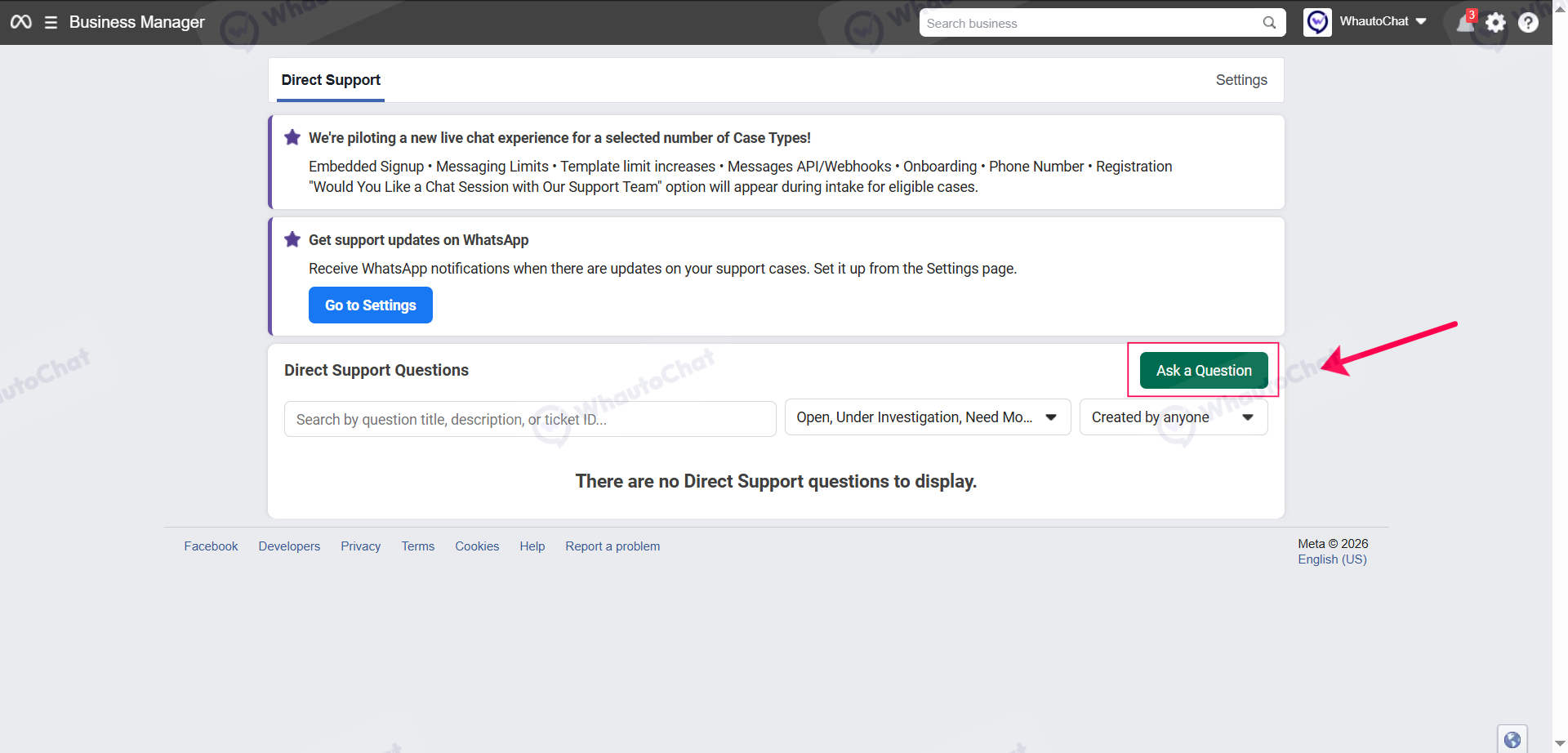
On this page, you can also view your existing Meta Support cases.
Depending on the status of your cases, you may be able to see tickets that are:
- Open
- Under Investigation
- Closed
- Other available case statuses
You can check your existing cases from here and follow up on ongoing issues when applicable.
Step 5: Select Your Case Topic
Select the topic that best matches the issue you are experiencing.
For example, if you are contacting Meta Support about a delayed Meta Business Verification, you can select:
Dev: Onboarding
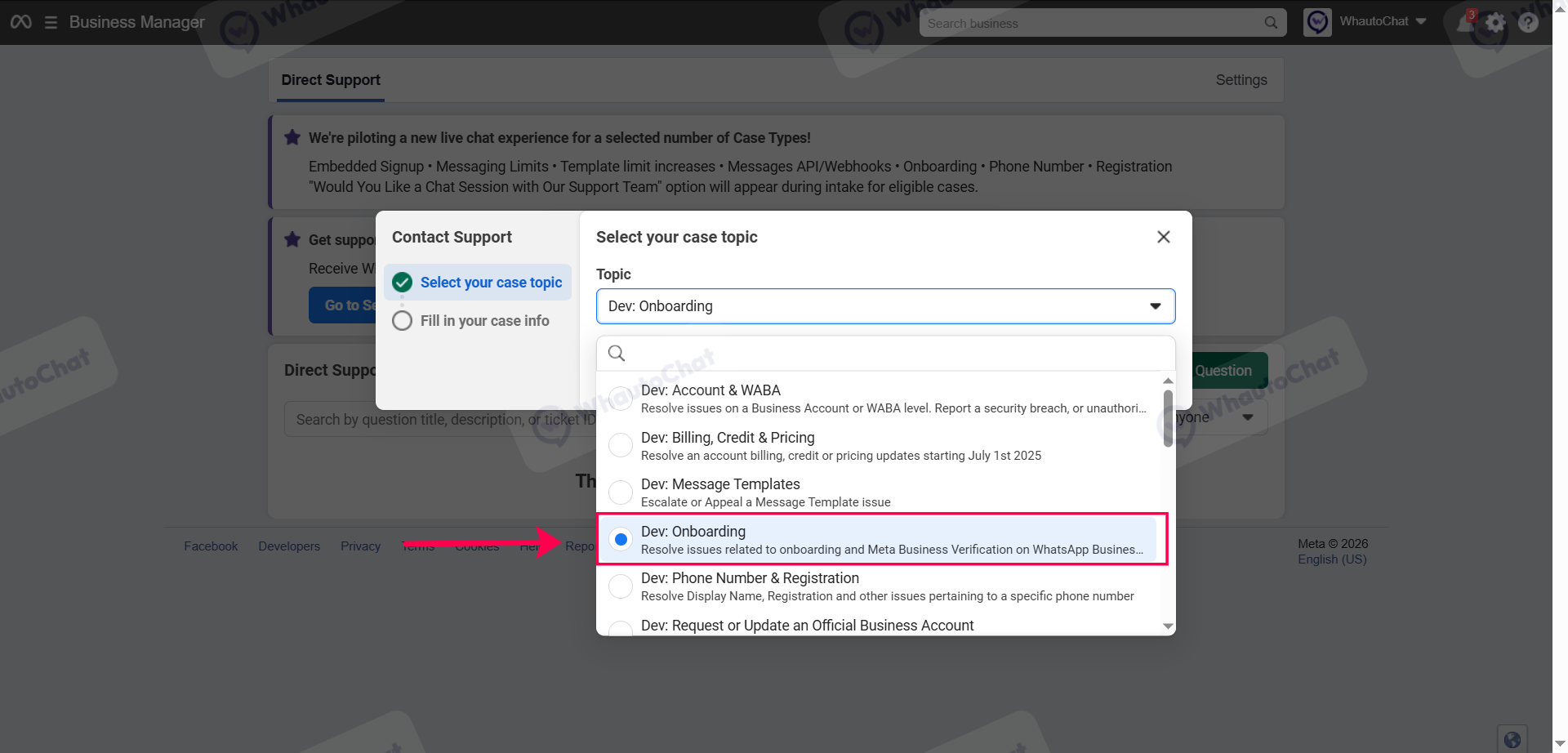
The available topics and options may vary depending on your Meta Business account and the type of issue you are reporting.
Choose the topic that most closely matches your problem.
Step 6: Click "Next"
After selecting the appropriate case topic, click the Next button to continue.
Step 7: Enter Your Case Information
Provide all the required information about your issue.
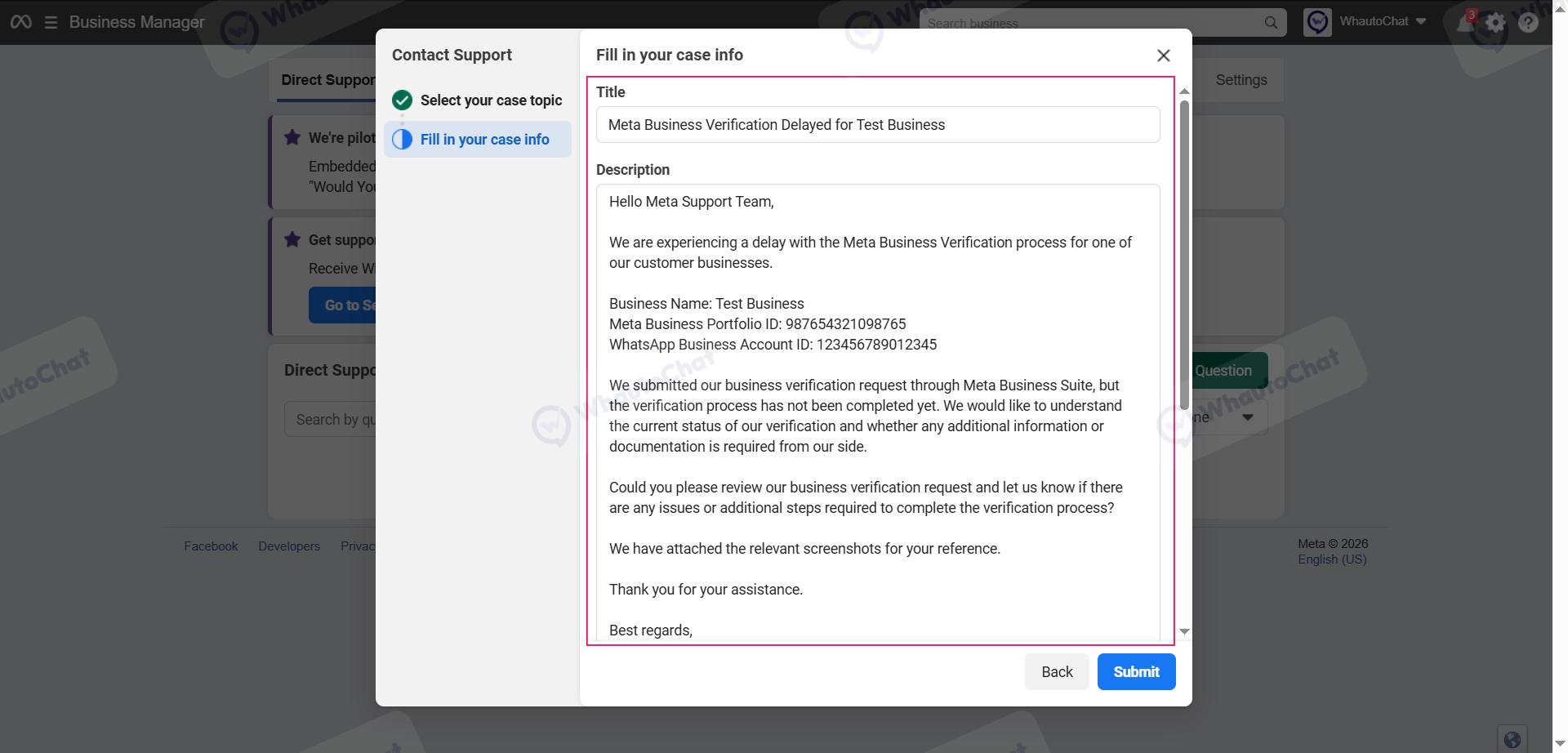
Depending on the selected case topic, Meta may ask you to provide information such as:
- Title
- Description
- Request Type
- WhatsApp Business Account ID
- Business information
- Other relevant account or technical details
Make sure you provide accurate information so the Meta Support team can understand and investigate your issue.
Sample Meta Support Ticket for Meta Business Verification
Below is a sample support ticket for a test business. You can use this as a reference and replace the information with your actual business details.
Title:
Meta Business Verification Delayed for Test Business
Request Type:
Troubleshoot Meta Business Verification
WhatsApp Business Account ID:
123456789012345
Description:
Hello Meta Support Team,
We are experiencing a delay with the Meta Business Verification process for one of our customer businesses.
Business Name: Test Business
Meta Business Portfolio ID: 987654321098765
WhatsApp Business Account ID: 123456789012345
We submitted our business verification request through Meta Business Suite, but the verification process has not been completed yet. We would like to understand the current status of our verification and whether any additional information or documentation is required from our side.
Could you please review our business verification request and let us know if there are any issues or additional steps required to complete the verification process?
We have attached the relevant screenshots for your reference.
Thank you for your assistance.
Best regards,
WhautoChat Team
Important: The Business Portfolio ID and WhatsApp Business Account ID above are dummy examples. Do not use these IDs when creating your actual support ticket. Always provide the correct IDs associated with your customer business.
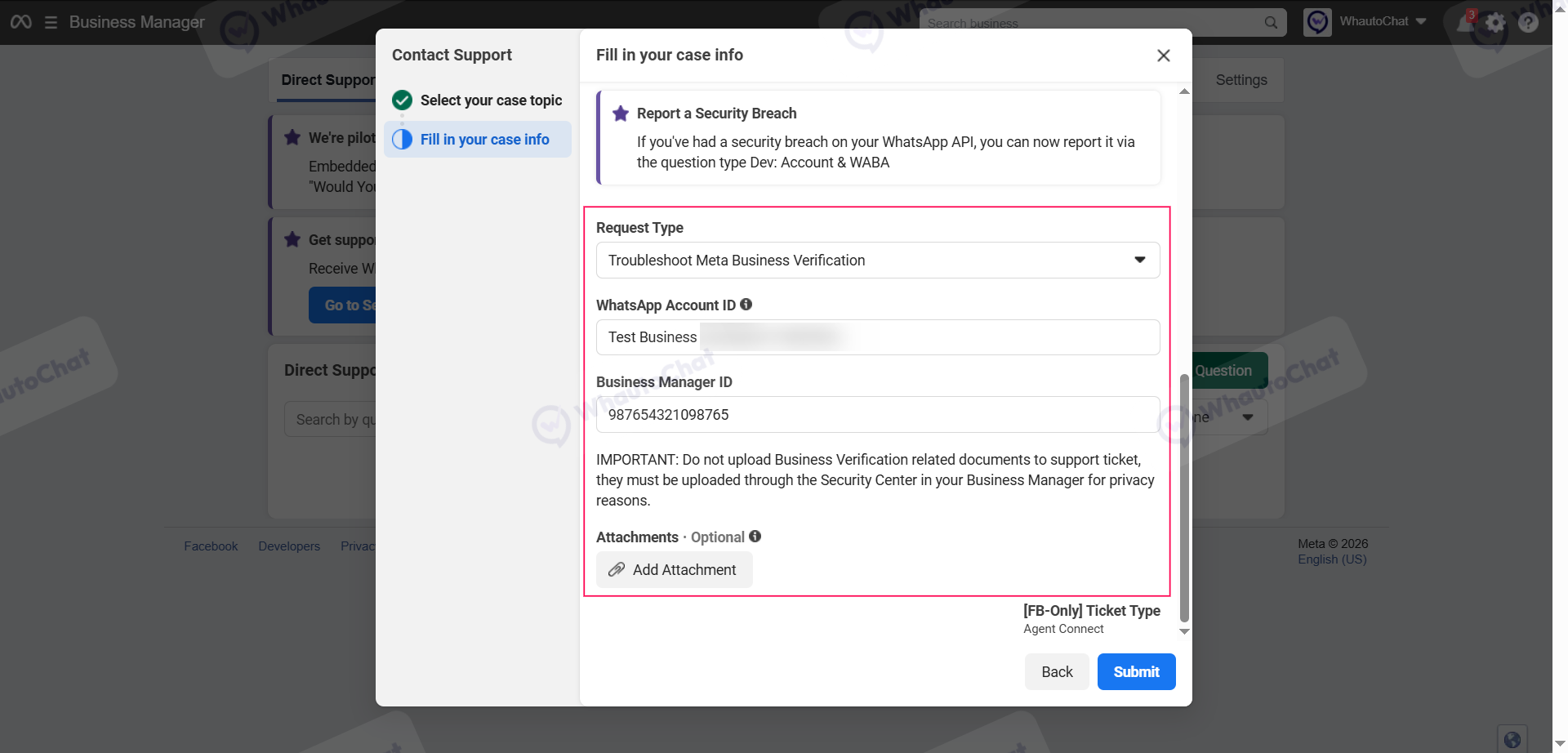
Step 8: Select the Request Type
Select the request type that best describes your issue.
For example, for a Meta Business Verification issue, you can select:
Troubleshoot Meta Business Verification
The available request types may vary depending on the case topic you selected.
Step 9: Add Attachments
If you have any screenshots, error messages, or screen recordings related to the issue, you can attach them to your support ticket.
Providing clear evidence can help the Meta Support team understand the issue and investigate it more effectively.
We recommend including:
- Screenshots of the error message
- Screen recordings showing the issue
- Relevant Meta Business pages
- WhatsApp Business Platform error details
- Other information requested by Meta Support
Make sure your attachments clearly show the issue you are reporting.
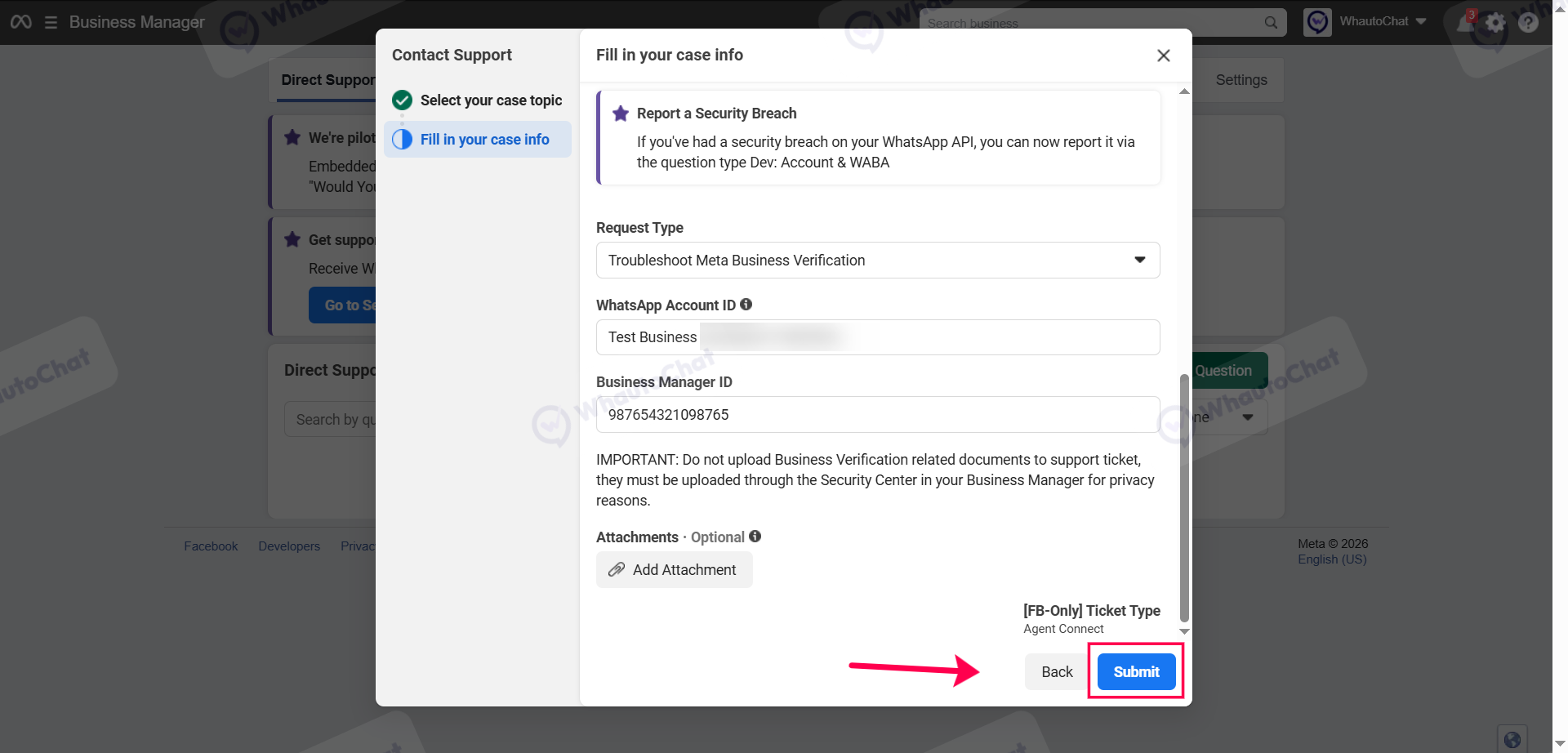
Step 10: Submit Your Support Ticket
Once you have entered all the required information and added any relevant attachments, review your details carefully.
Click the Submit button to create your support ticket with Meta.
After submitting the ticket, keep track of the case through the Meta Support page. Meta may contact you through the support case if they need additional information.
Important Information About Meta Support Response Times
Please note that WhatsApp and Meta-related support cases are handled directly by the Meta Support team.
The time required to resolve an issue can vary depending on the type and complexity of the case.
Some issues may be resolved quickly, while other cases may take longer to investigate.
You may receive a response:
- Within a few hours
- Within one or two days
- After additional investigation
The response time depends on factors such as the complexity of the issue, the information provided, and Meta Support team availability.
Respond to Meta Support Requests Promptly
In some cases, Meta Support may ask you to provide additional information, documents, screenshots, or other details.
If Meta requests additional information, please provide it as soon as possible.
Delays in responding to Meta Support may result in your support case being closed.
If your case is closed before the issue is resolved, you may need to create a new support ticket from the beginning and provide all the required information again.
For this reason, we recommend regularly checking your Meta Support cases and responding promptly to any requests from the Meta Support team.
Important Note for WhautoChat Self-Hosted Resellers
WhautoChat does not control the Meta Business and WhatsApp related issues or the resolution of issues handled directly by Meta.
Issues related to Meta Business Verification, WhatsApp registration, WhatsApp payments, Meta Business accounts, and other Meta platform services are managed by Meta.
If you are a Meta Tech Provider, you can contact Meta Support directly by following the steps in this guide.
If you are not yet a Meta Tech Provider, please complete the Meta App Review process first.
Meta App Review Guide:
https://help.whauto.chat/self-hosted-version/reseller-saas/meta-app-review/