Drip Campaign
Drip Campaigns in WhautoChat let you automate a series of messages to be sent to your contacts over time. This helps nurture leads, onboard new users, or keep your audience engaged with minimal manual effort.
What is a Drip Campaign?
A drip campaign is a sequence of scheduled messages sent automatically to contacts based on triggers or timing rules. Each message is designed to move the contact further along your customer journey.
How to Set Up a Drip Campaign in WhautoChat
🔁 Step 1: Create Your First Drip Campaign Rule
- Open WhautoChat App
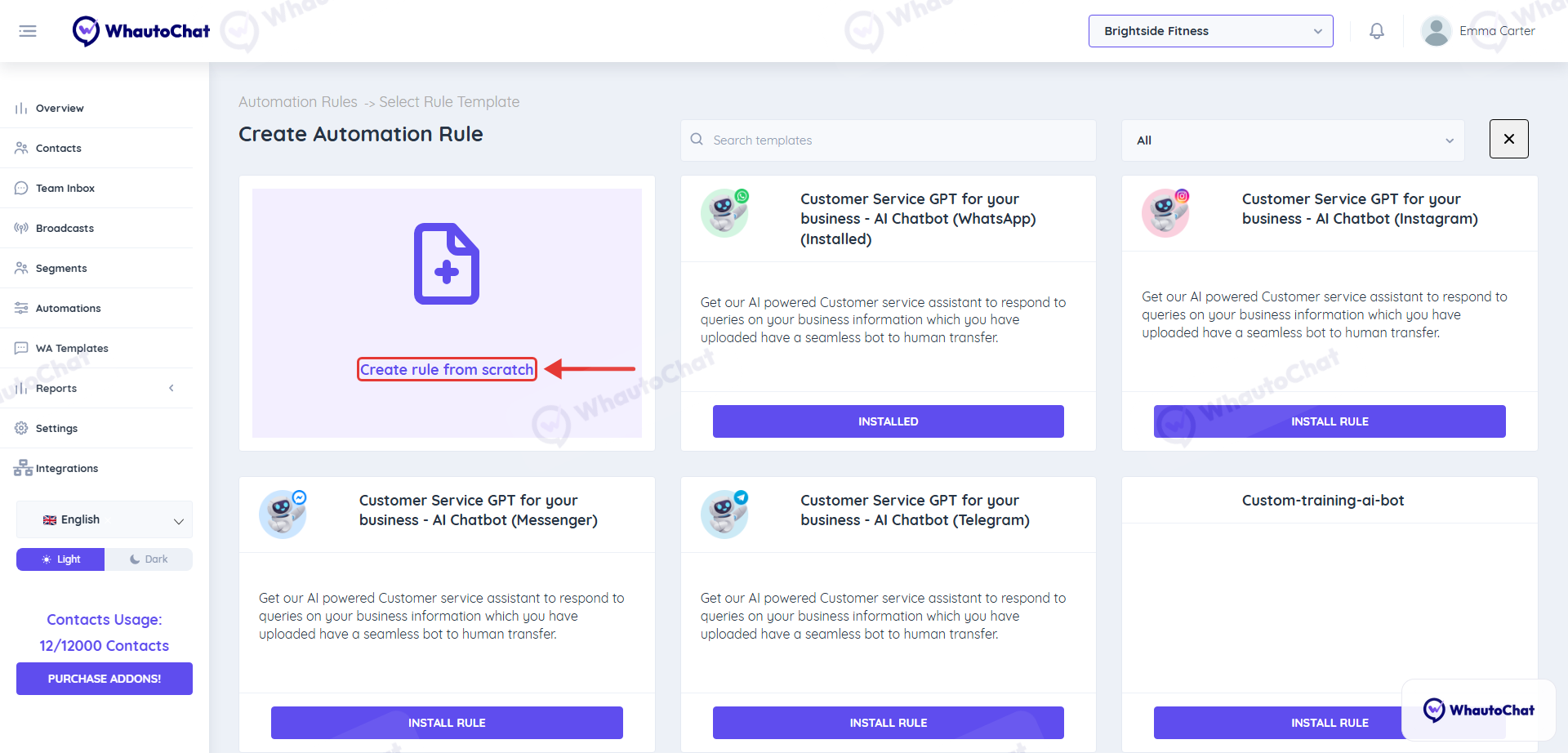
- Go to the Automations menu and click Add Rule.
- Start From Scratch
- Select Create rule from scratch.
- Name the Rule & Categorize
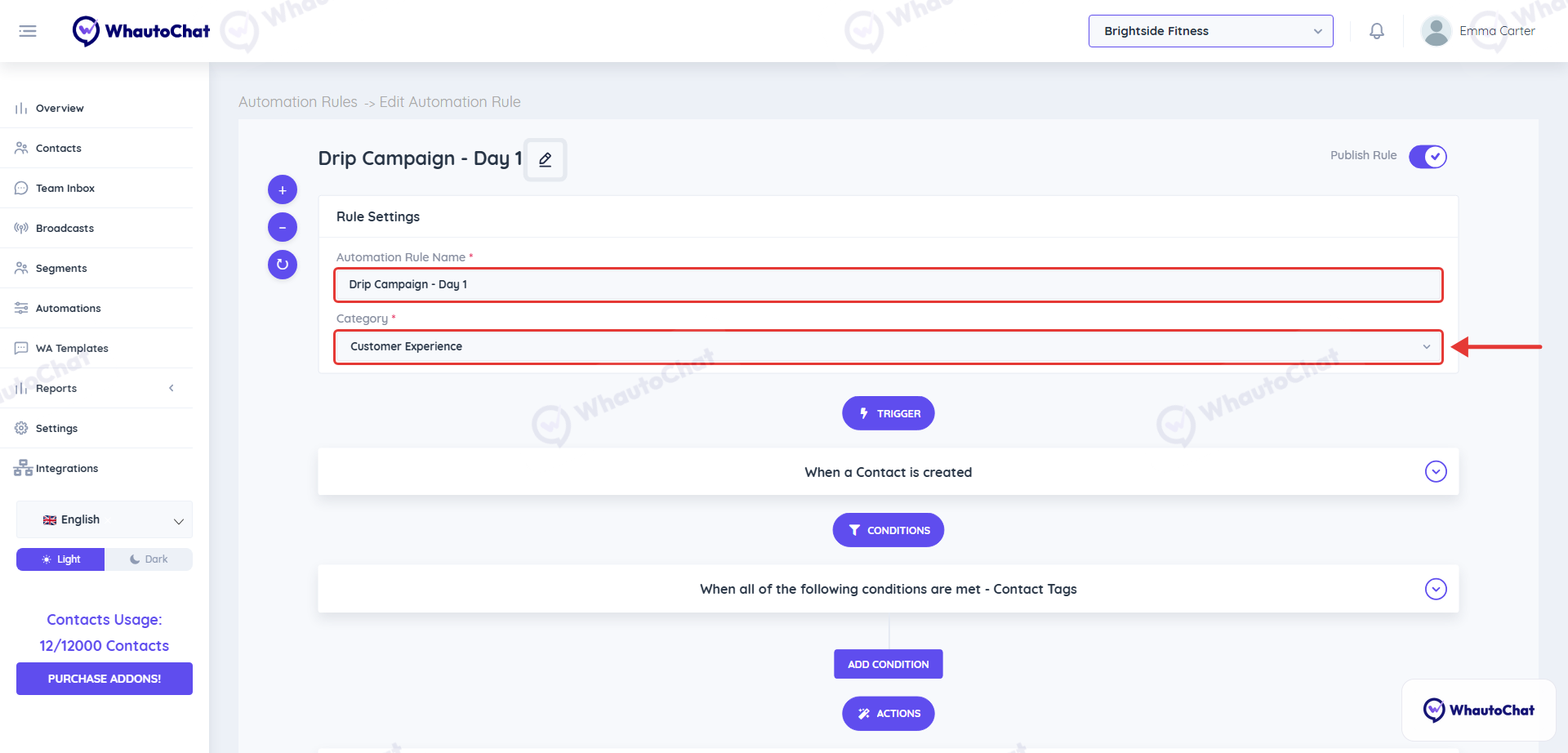
- Click the pencil icon next to Untitled Automation Rule to open Rule Settings.
- Automation Rule Name: e.g., "Drip Campaign - Day 1"
- Category: Select Customer Experience
- Set the Trigger
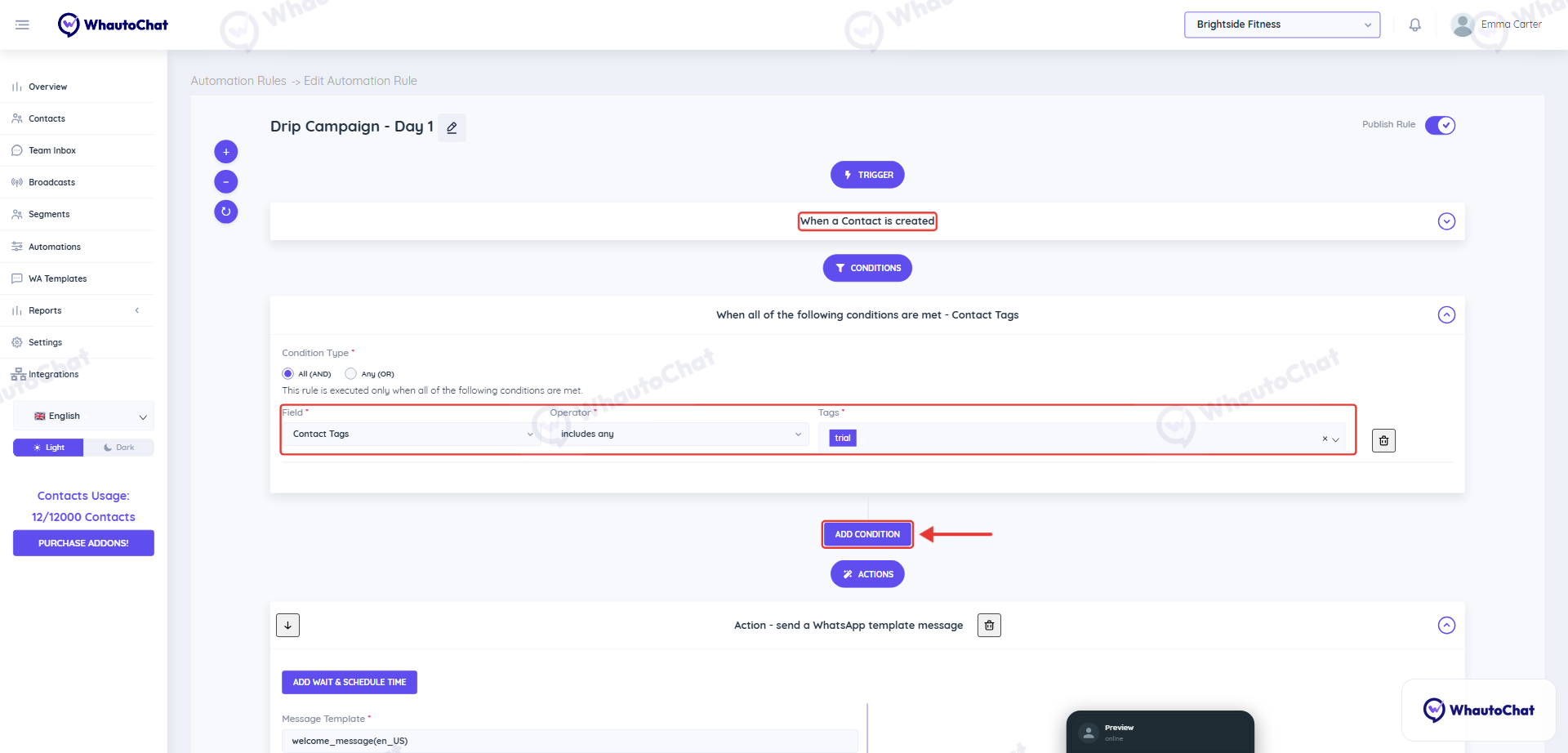
- Choose When a Contact is created
- (Optional) Add a Condition
- Click Add Condition (e.g., Contact Tags includes any "trial")
- This helps filter who enters this automation. You may skip this step if not needed.
- Add Action – Send WhatsApp Message
- Click Add Action → send a WhatsApp template message
- Select your pre-approved Day 1 template or create a new one
- Fill in variables like the client's name (
{{contact.name}}), image header, etc.
- Add Action – Tag Contact
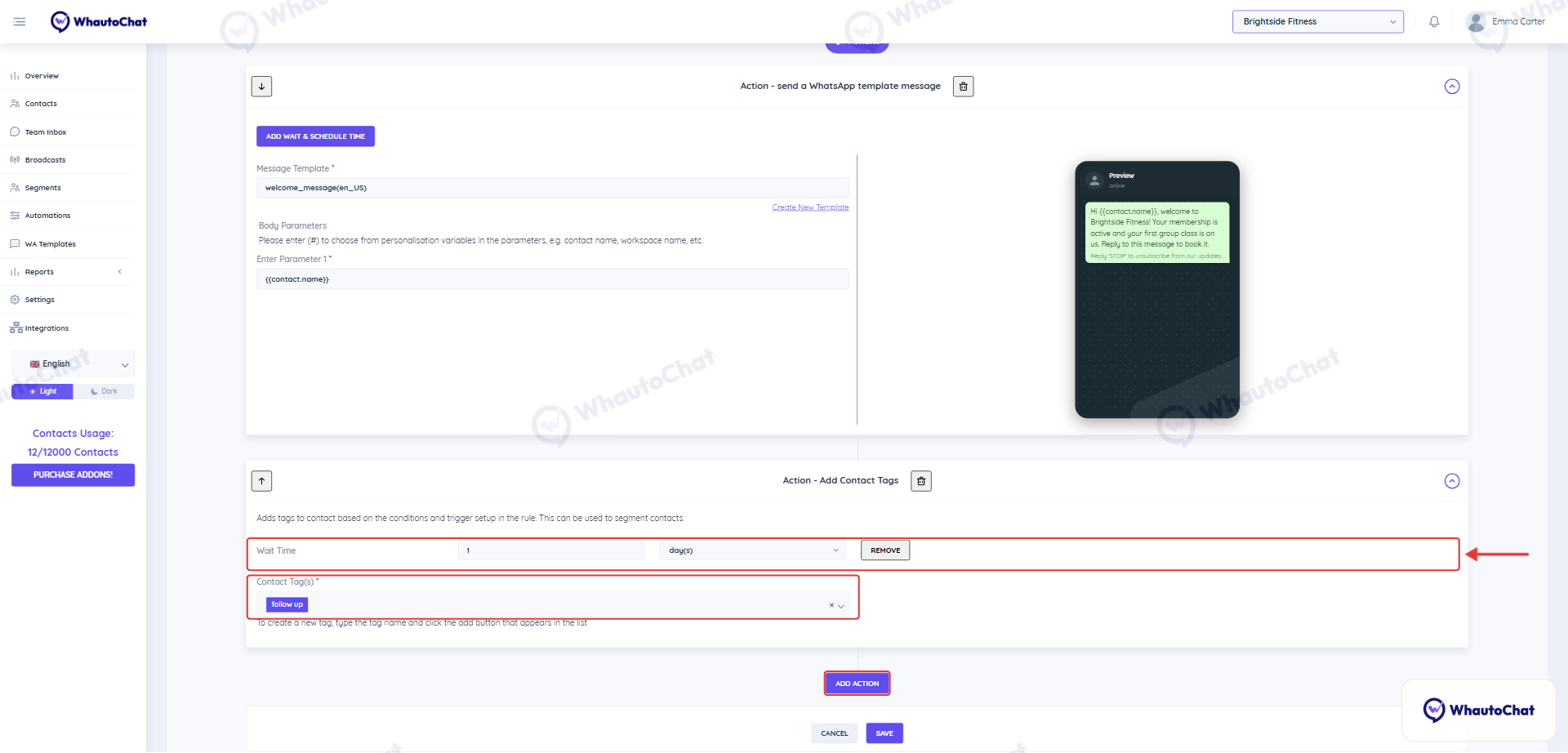
- Click Add Action → Add Contact Tags and add a tag (e.g., follow up) to indicate the contact has entered the drip sequence
- Add Wait Time
- In the Add Contact Tags action, click Add Wait Time and set it to 1 day(s)
- After 1 day, the tag (e.g., follow up) is added, which starts the next rule
- Save Rule
- Make sure Publish Rule is on, then click Save to finish creating the first rule
🔁 Step 2: Create the Second Drip Rule (Day 2)
- Click Add Rule Again
- Create rule from scratch
- Name the Rule & Categorize
- Automation Rule Name: e.g., "Drip Campaign - Day 2"
- Category: Customer Experience
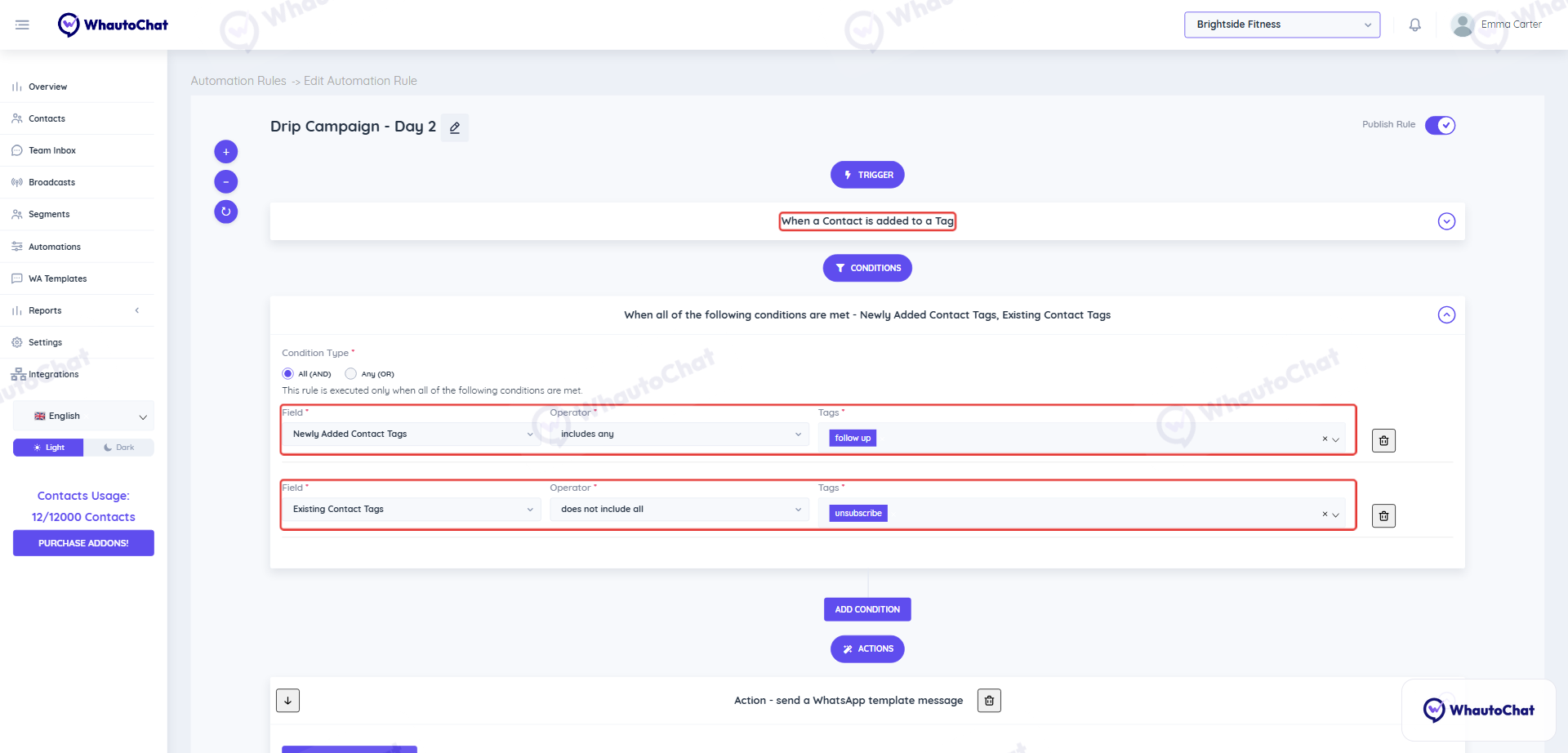
- Set Trigger
- Choose When a Contact is added to a Tag
- Add Conditions
- Add: Newly Added Contact Tags includes any "follow up" (the tag added by the Day 1 rule)
- Add: Existing Contact Tags does not include all "unsubscribe"
- Use the Marketing Opt-Out template to automatically tag clients who opt out by replying "Stop"
- Add Action – Send WhatsApp Message
- Use your Day 2 template and fill required fields
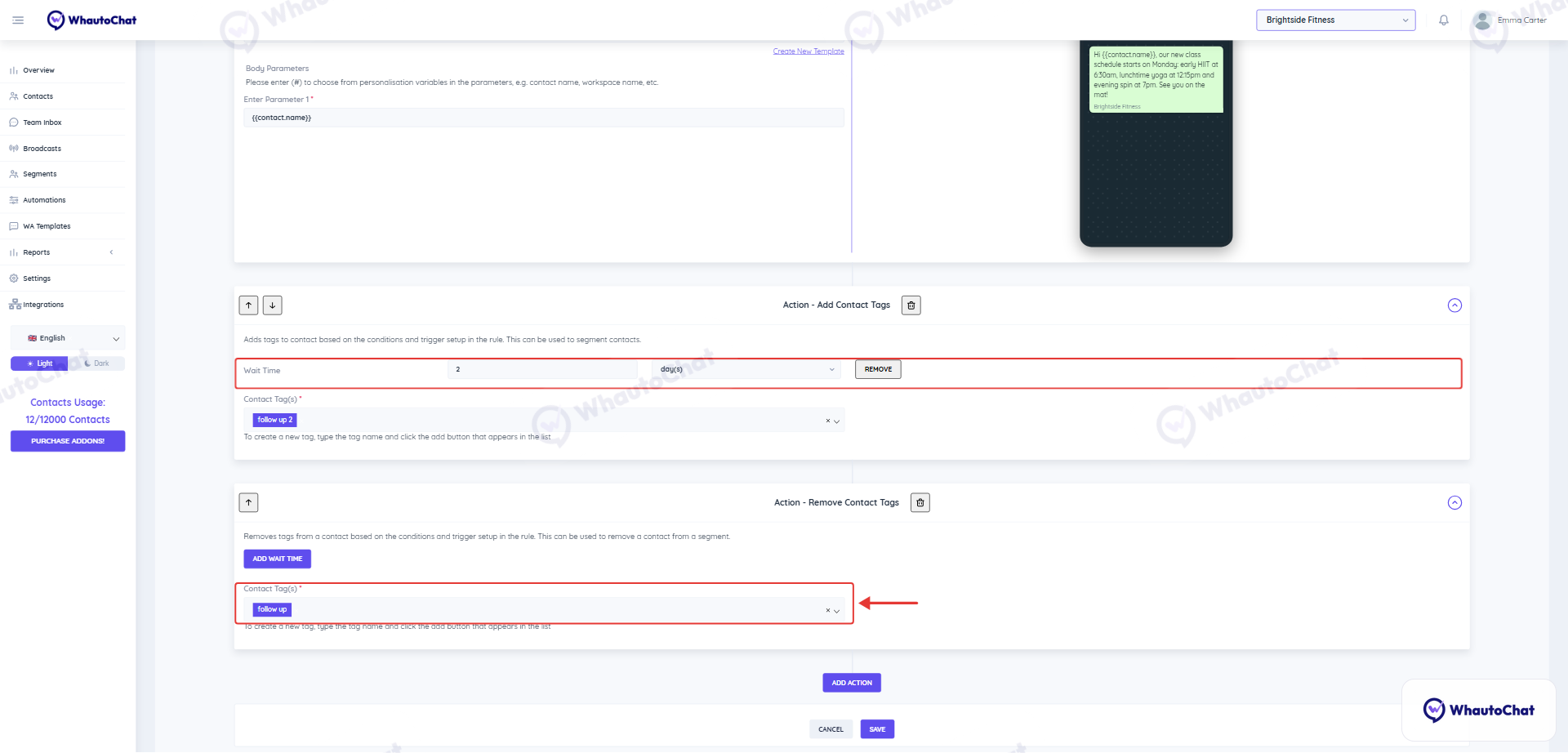
- Add Action – Tag Contact Again
- Add Contact Tags, tag: e.g., follow up 2
- Add Wait Time – 2 Days
- In that action, click Add Wait Time and set it to 2 day(s). This sets up the timing for Day 3 or the next message
- Remove Previous Tag
- Add action Remove Contact Tags
- Remove: follow up tag (so the system knows which step they’re currently in)
- Save Rule
- Save and continue the loop for Day 3, Day 4, etc.
🧠 Best Practices
- Pre-approve All Templates: Ensure all message templates are approved by WhatsApp before building the sequence.
- Chain with Tags: Use unique tags like Follow up 1, Follow up 2, etc., to track the user's stage.
- Unsubscribe Handling: Install the Marketing Opt-Out automation to respect opt-outs.
- Test Before Launch: Run a test contact to make sure the sequence works as expected.
💬 Need Help?
Reach out to our support team anytime – we’re here to help you connect smoothly. [email protected]
For detailed troubleshooting, refer to our Troubleshooting or contact support.