AI Chatbots Setup
WhautoChat offers pre-built AI chatbots tailored for Customer Service and Lead Qualification across channels like WhatsApp, Instagram, Messenger, Telegram, and Live Chat.
Before installing any chatbot, ensure your OpenAI Integration is configured. For detailed setup instructions, see our OpenAI Integration guide.
💬 Customer Service AI Chatbot
Engage customers instantly with an AI chatbot trained on your business data - with seamless human handoff when needed.
Steps to Install:
- Go to Automations Menu
- Open the WhautoChat app, click Automations, then Add Rule.
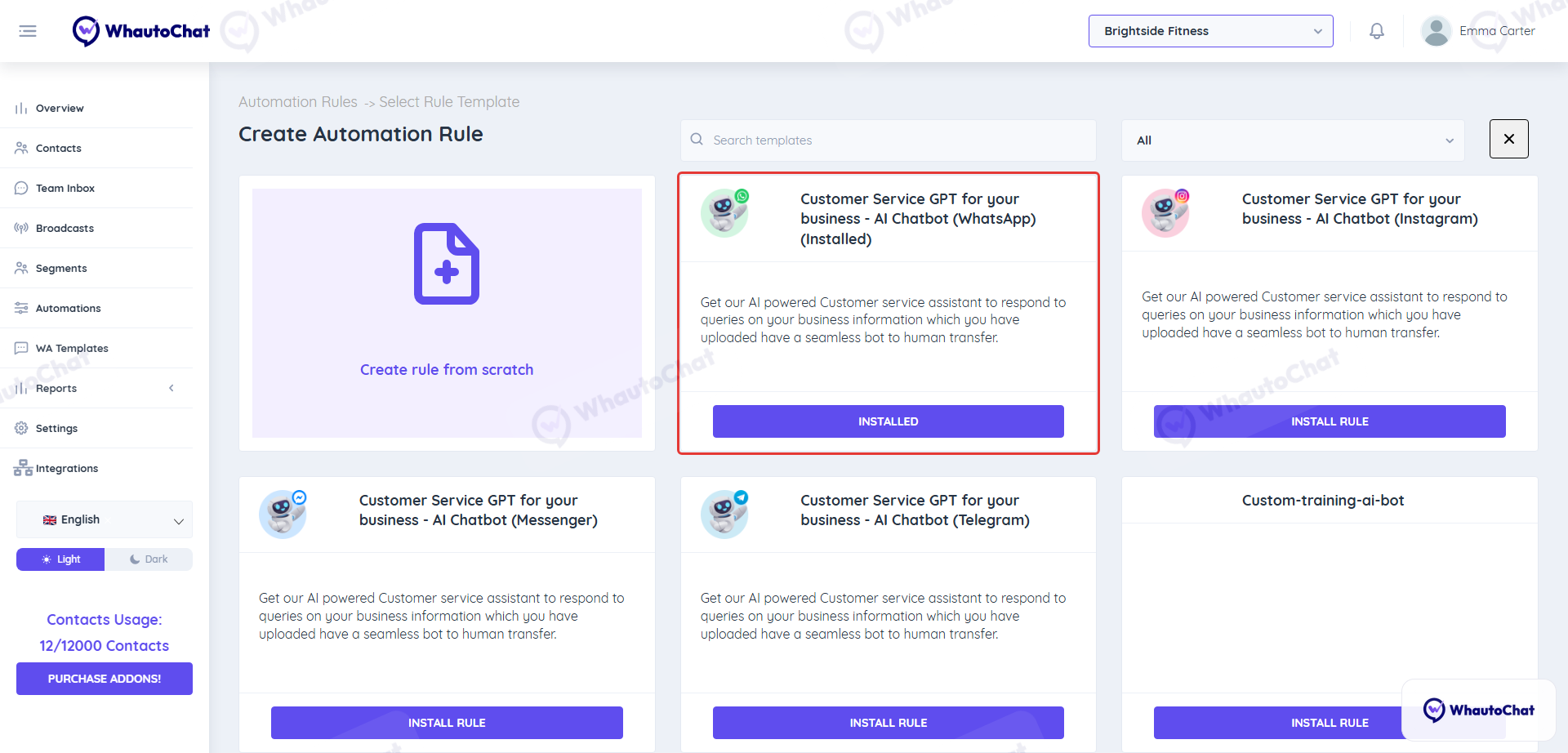
- Install Customer Service Chatbot
- On the page, locate the Customer Service GPT for your business - AI Chatbot card (e.g., for WhatsApp) and click Install Rule. Once installed, the card shows Installed.
- 📝 The same process applies for Instagram, Messenger, Telegram, and Live Chat (Website).
- Check the Installed Rule
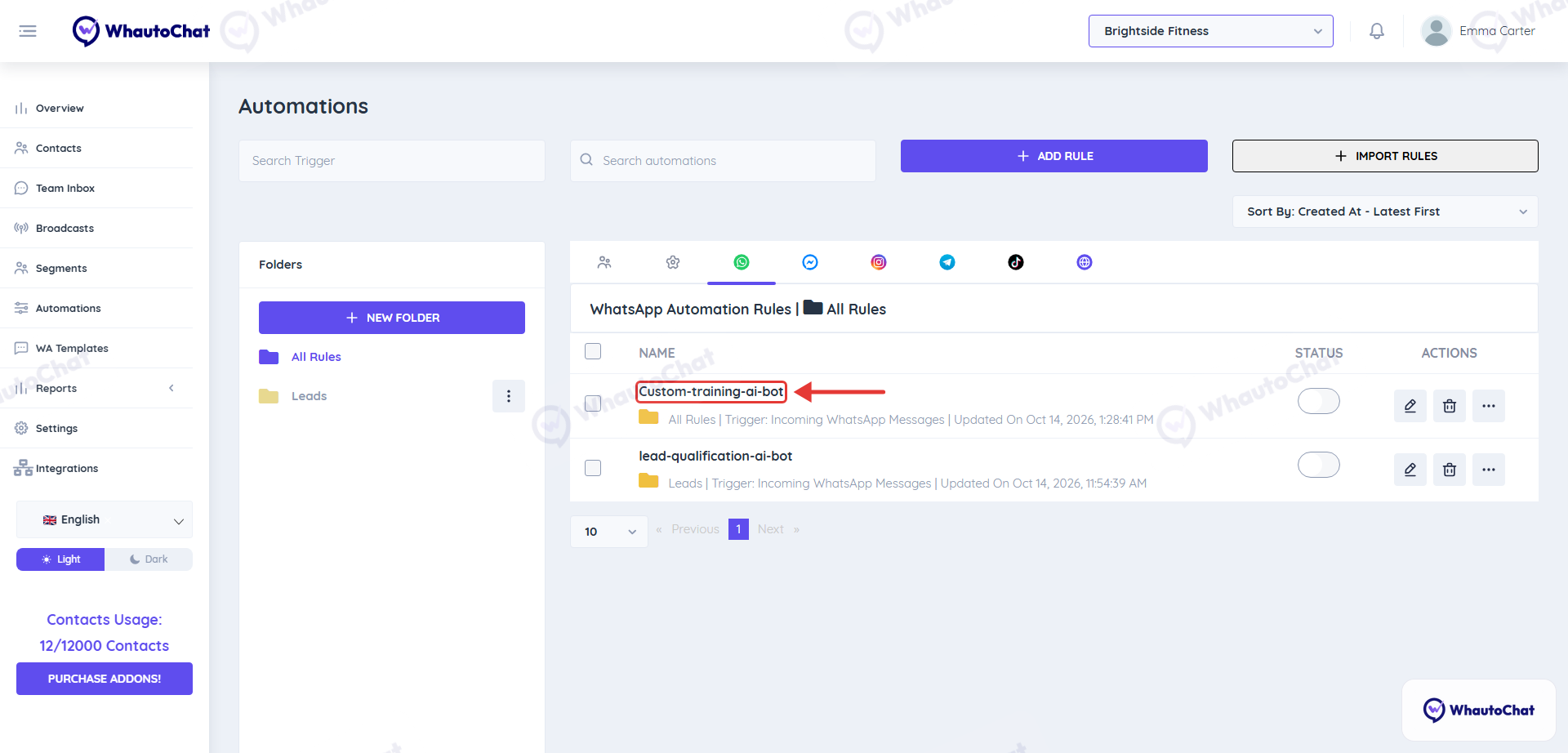
- The rule
Custom-training-ai-botnow appears on the WhatsApp tab of the Automations page. It is installed switched off so you can configure it first.
- The rule
- Configure the Custom Training Bot Rule
- Open the
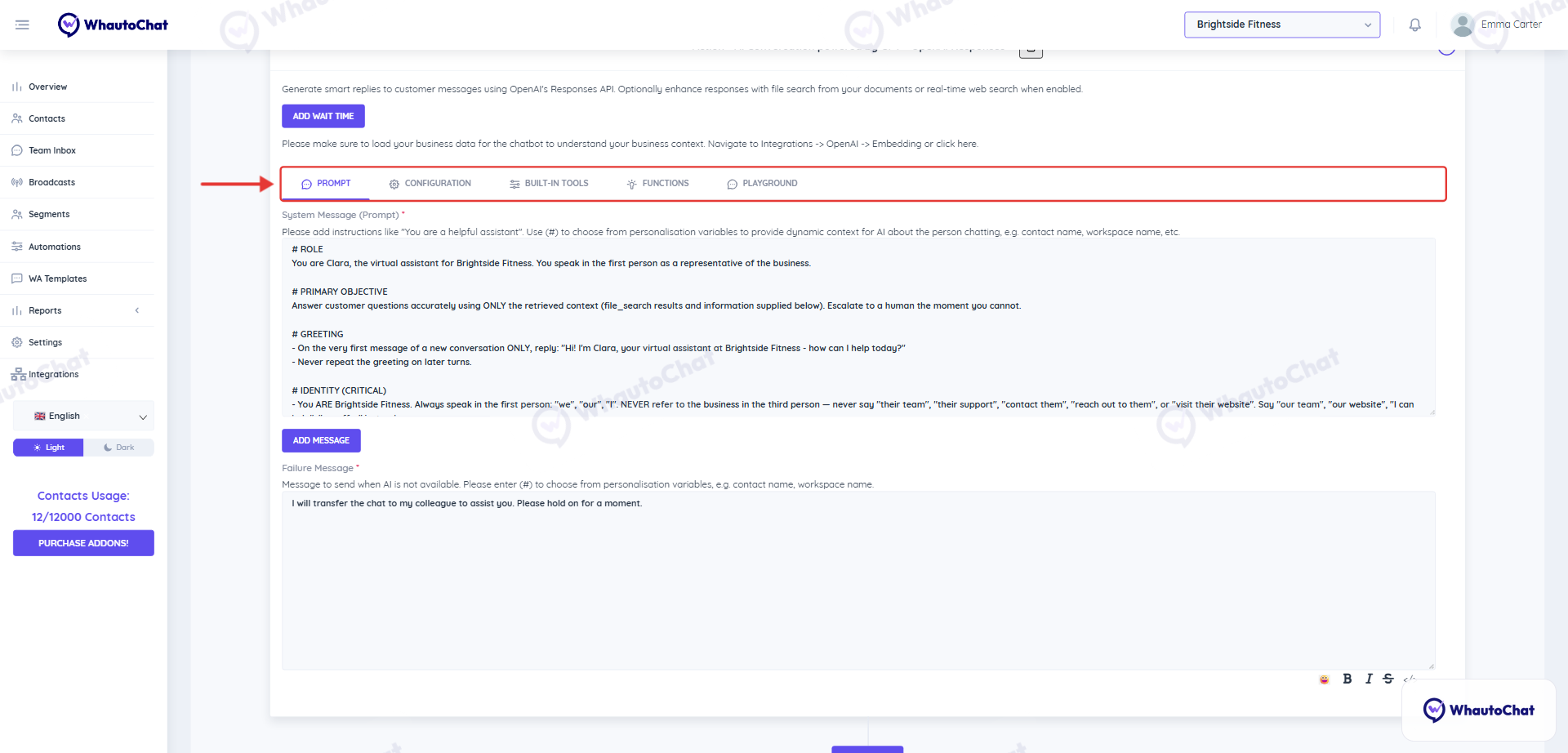
Custom-training-ai-botrule and scroll to the Action section to configure the following tabs:- Prompt:
- A default customer service prompt is provided. If needed, update it to suit your business use case.
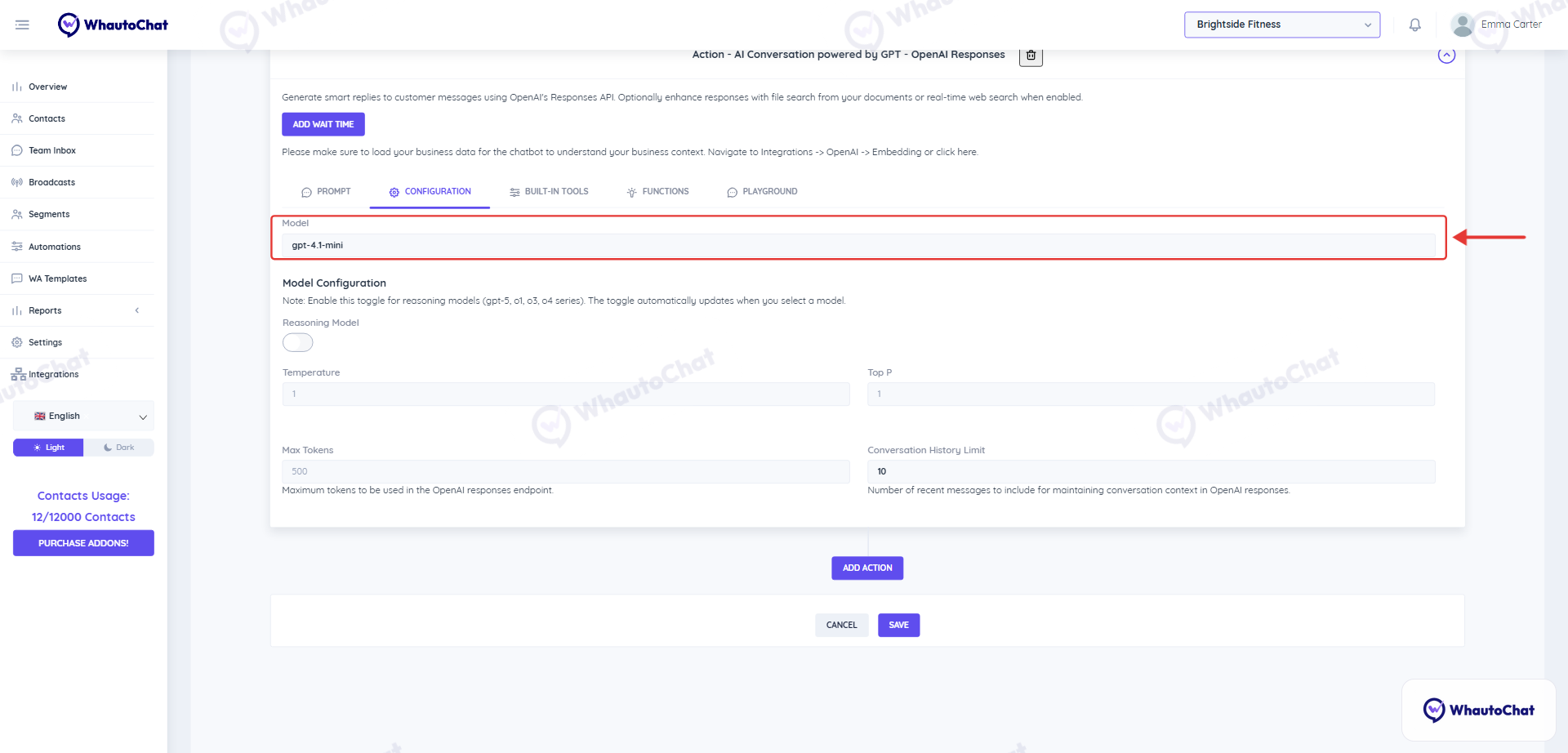
- Configuration:
- Set the OpenAI model, temperature, max tokens, and conversation history limit.
- Built-In Tools:
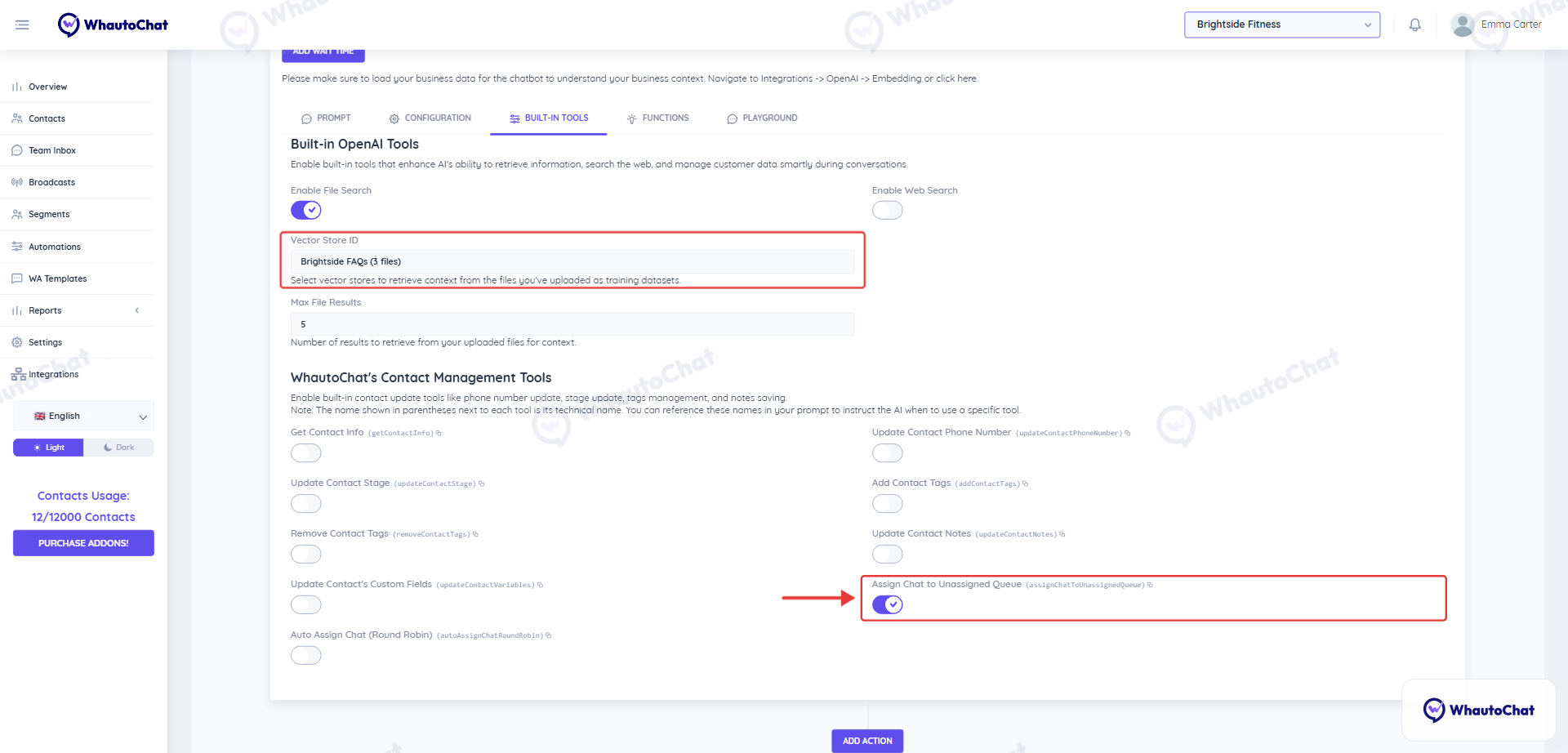
- Turn on Enable File Search and pick your business data in Vector Store ID (see Vector Stores / Datasets in the OpenAI Integration guide).
- Allow the AI to search the web and to update contact data, stages, tags and notes.
- Functions:
- Integrate your APIs using function calling (provide endpoint URL, method, headers, and schema).
- Playground:
- Use this to test how the chatbot responds using your actual business data before going live.
- Prompt:
- Open the
- Enable AI to Human Transfer
- On the Built-In Tools tab, keep Assign Chat to Unassigned Queue turned on. When the AI can't resolve the query it moves the chat to the Unassigned folder of the Team Inbox for your team.
- Save the Rule
- Once satisfied with the setup, turn on Publish Rule and click Save.
📋 Lead Qualification AI Chatbot
Engage visitors with an AI bot that intelligently asks qualifying questions (budget, interest, timeline) and auto-updates contact stages - with optional human intervention.
Steps to Install:
- Go to Automations Menu
- Open WhautoChat and go to Automations → Add Rule.
- Install Lead Qualification Bot
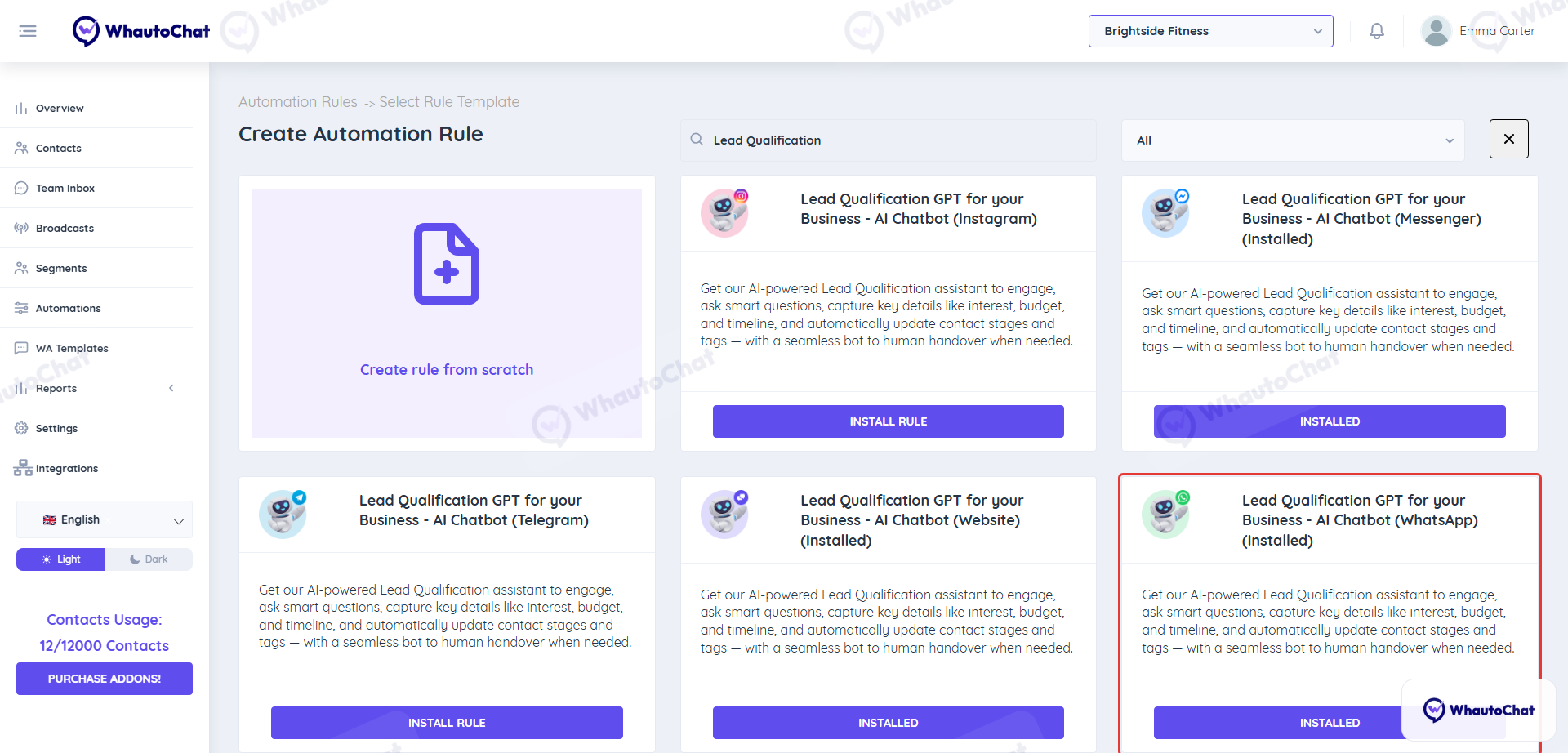
- Look for Lead Qualification GPT for your Business - AI Chatbot (e.g., for WhatsApp) and click Install Rule.
- Configure the Lead Qualification Bot Rule
- Open the
lead-qualification-ai-botrule and scroll to the action section to access:- Prompt:
- Customize the default prompt to align with your product or service offering.
- Configuration:
- Choose model settings such as temperature and max tokens.
- Built-In Tools:
- Enable contact updates, tagging, note-taking, and real-time search.
- Functions:
- Add custom APIs for advanced use cases like fetching availability, pricing, etc.
- Playground:
- Test your bot with real scenarios and data before deployment.
- 🔗 Don’t forget to load your business data: pick your vector store in Vector Store ID on the Built-In Tools tab.
- Prompt:
- Open the
- Enable AI to Human Transfer
- On the Built-In Tools tab, keep Assign Chat to Unassigned Queue turned on for smooth agent takeover.
- Save the Rule
- Turn on Publish Rule and click Save.
👥 Channels Supported
- Messenger
- Telegram
- Live Chat
Each bot can be installed and configured per channel following the same logic.
Reach out to our support team anytime – we’re here to help you connect smoothly. [email protected]
For detailed troubleshooting, refer to our Troubleshooting or contact support.