OpenAI Integration with WhautoChat
Enable powerful AI capabilities like smart customer support and lead qualification by connecting your OpenAI account to WhautoChat.
🔧 Step-by-Step: Connect OpenAI to WhautoChat
Login to WhautoChat
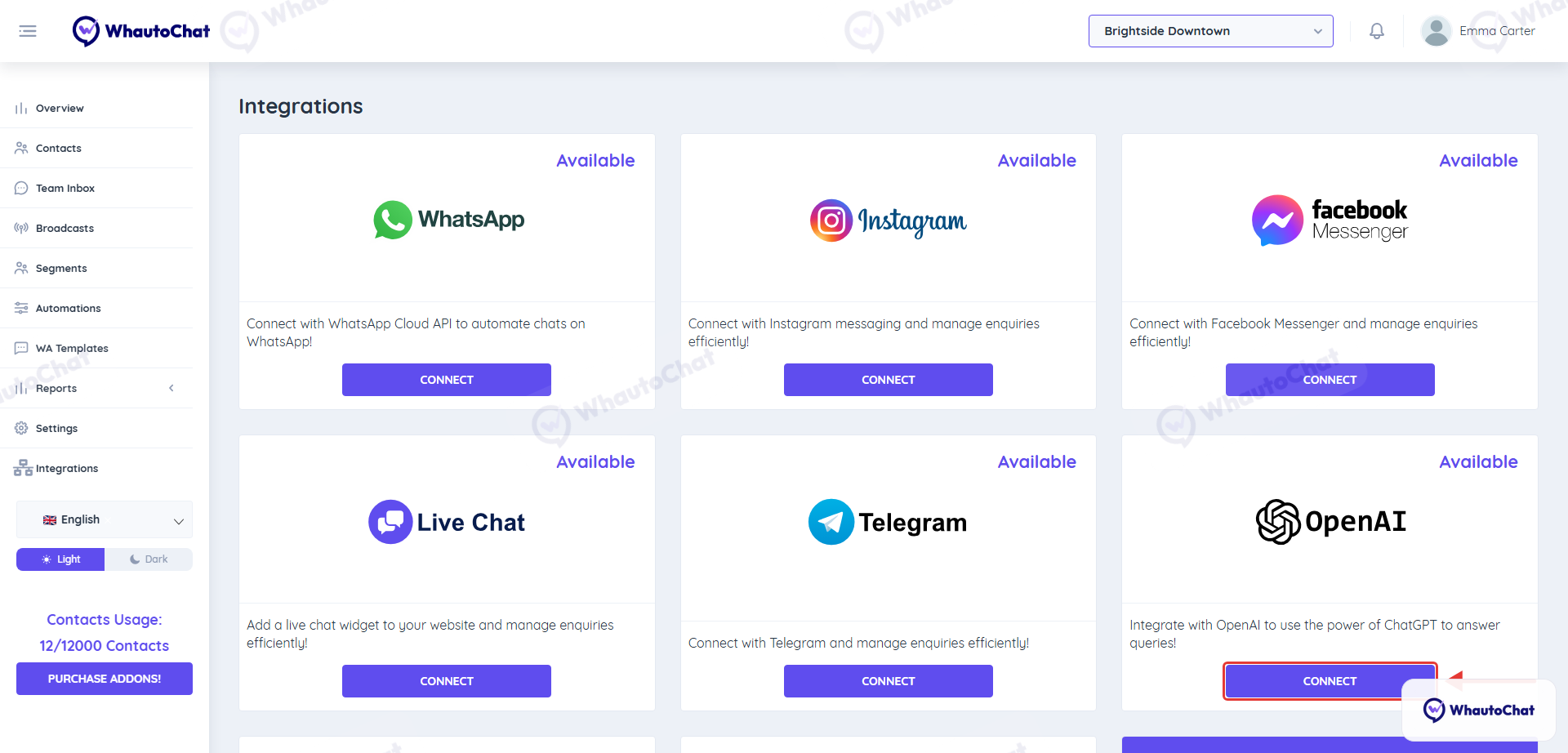
Go to the WhautoChat app, navigate to the Integrations menu, and click Connect on the OpenAI card.
Access OpenAI Platform
Visit https://platform.openai.com/ and log in or sign up for a new account.
Sign Up Steps (if creating a new account):
- Click Sign Up and enter your details (email, name, etc.).
- Verify your phone number via WhatsApp or SMS.
- Create your Organization and Project by entering the required information.
Set Up Billing
- Click the Settings icon on the top-right corner.
- On the left menu, select Billing → Overview, then click Add Payment Details.
- Enter your card details, name, and billing address to complete the setup.
Generate Your API Key
- Go to the API Keys section in the left menu.
- Click Create New Secret Key, give it a name (e.g., WhautoChat), and click Create.
- Copy the API key immediately (it won’t be shown again).
Paste API Key in WhautoChat
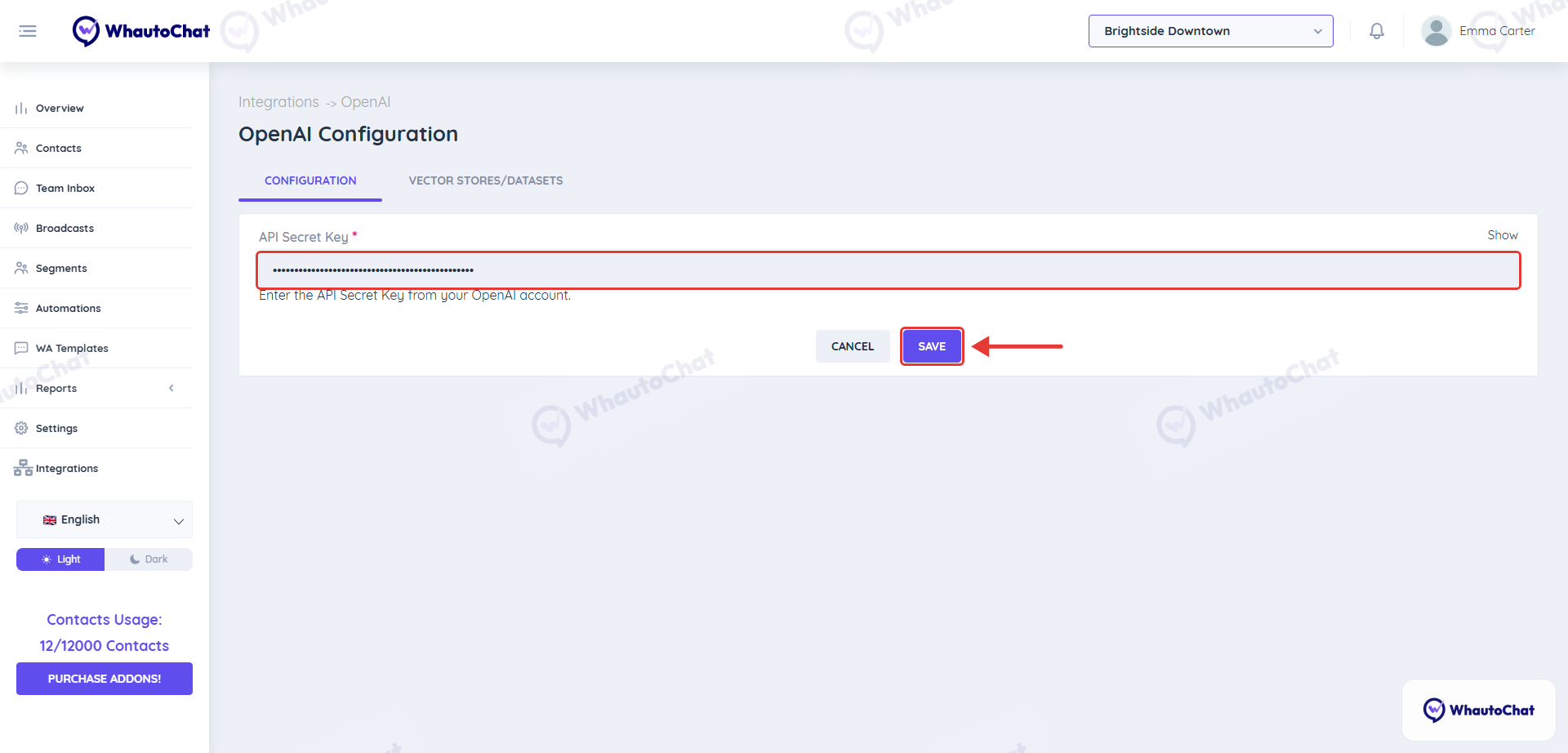
- Go back to the OpenAI Integration section in WhautoChat.
- Paste your API key in the API Secret Key field and click Save to complete the integration.
📂 Upload Business Data for Chatbot Training
Go to Vector Stores Tab
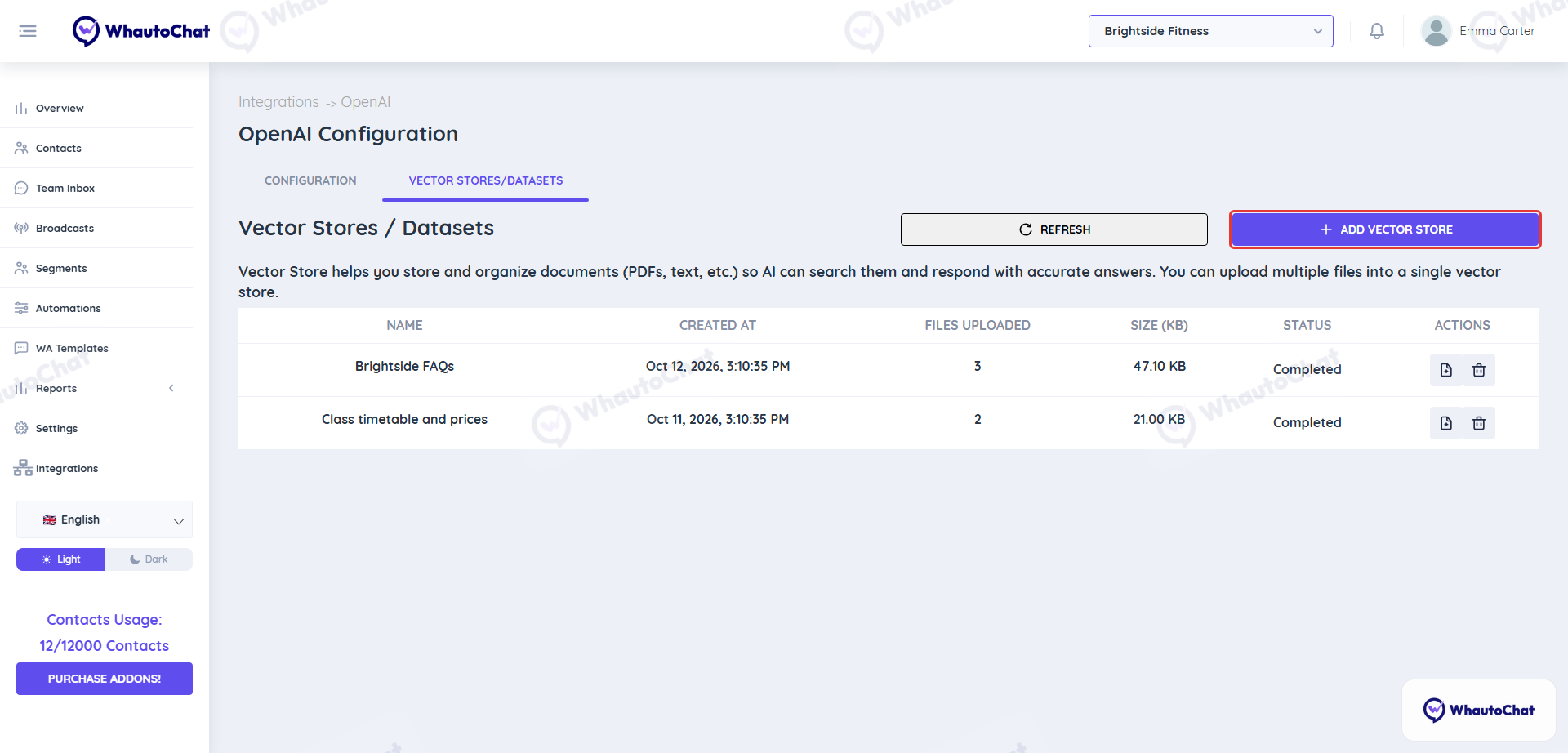
After connecting OpenAI, go to the Vector Stores/Datasets tab in WhautoChat.
Create a Vector Store
- Click + Add Vector Store
- Enter a name for reference (e.g., FAQs, Product Docs, etc.).
Upload Files
- Click the file icon in the Actions column of your vector store, then click + Add File to upload documents containing your business information.
- Supported formats: PDF, DOC, DOCX, PPTX, TXT, HTML.
These documents will train your AI chatbot to give accurate, context-aware answers.
📌 Note: This data helps power your Customer Support & Lead Qualification AI Chatbots to respond instantly, 24/7, using your own content. Need help setting up your AI chatbot? 👉 Click here for the AI Chatbot Setup Guide
Security & Best Practices
- Keep your API key private and never share it publicly.
- Monitor usage and costs in your OpenAI dashboard.
- Rotate your API key periodically for security.
Troubleshooting
- If you encounter errors, double-check your API key and permissions.
- Review OpenAI’s status page for outages: https://status.openai.com/
- Contact WhautoChat support if issues persist.
For detailed setup help, refer to the official OpenAI documentation or contact our support team at [email protected].