Live Chat
Easily add a branded live chat widget to your website and connect multiple messaging channels like WhatsApp, Instagram, Messenger, and Telegram-all in one place.
🔧 How to Set Up Live Chat
-
Log in to WhautoChat
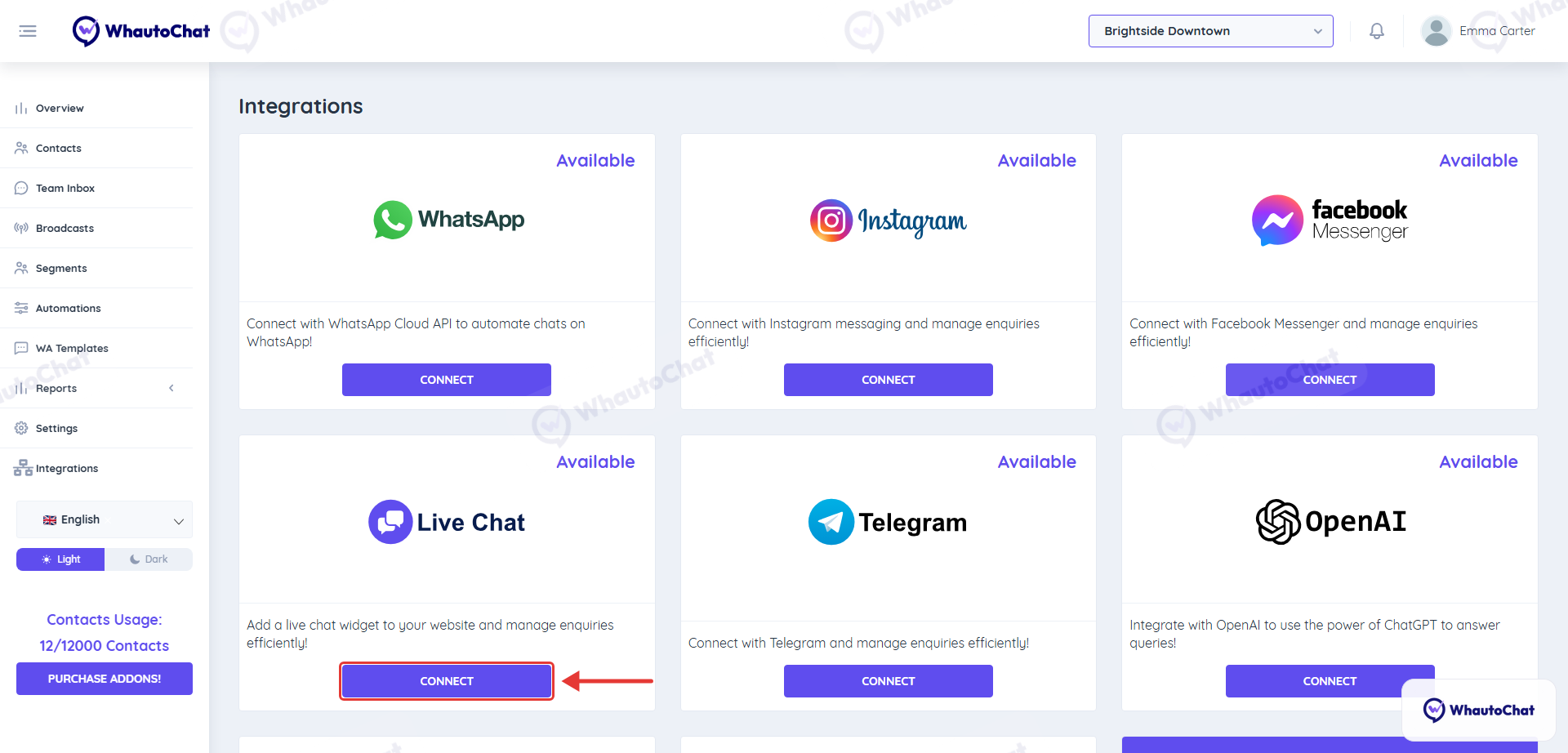
- Go to the WhautoChat app, and select the Integrations menu.
-
Click Connect on the Live Chat card
- Begin setup.
-
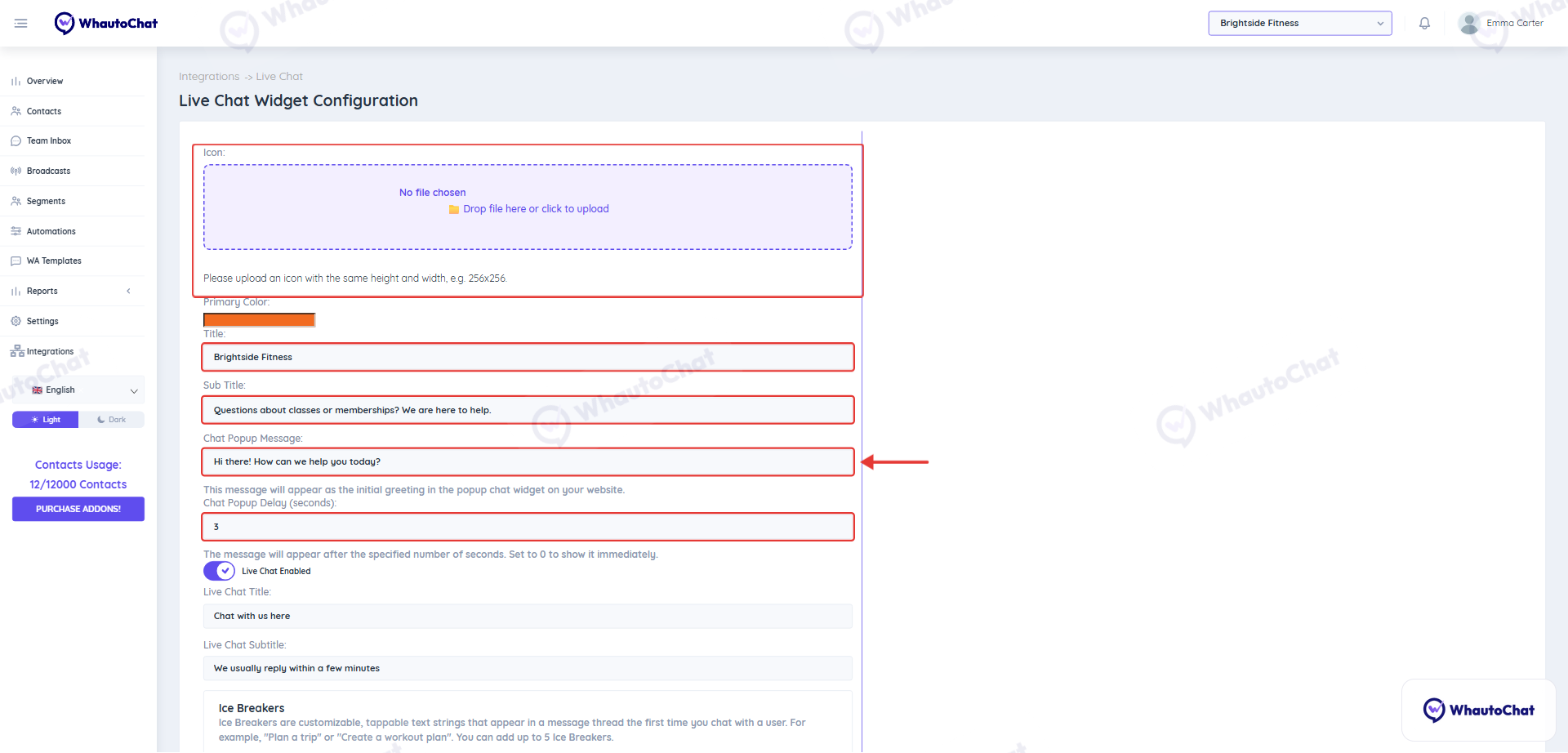
Upload Your Brand Icon
- Upload your logo or brand icon (Recommended size: 256x256 pixels, circle format).
-
Customize Branding
- Choose your Primary Color.
- Add a Title and Sub Title to reflect your brand voice in the chat widget.
-
Set Up Popup Greeting Message
- Add a friendly Chat Popup Message (e.g., “Hi there! How can we help you today?”).
- Choose the Chat Popup Delay (seconds):
0= Show message instantly.- Any other number = Message will appear after that delay.
-
Enable Live Chat Widget
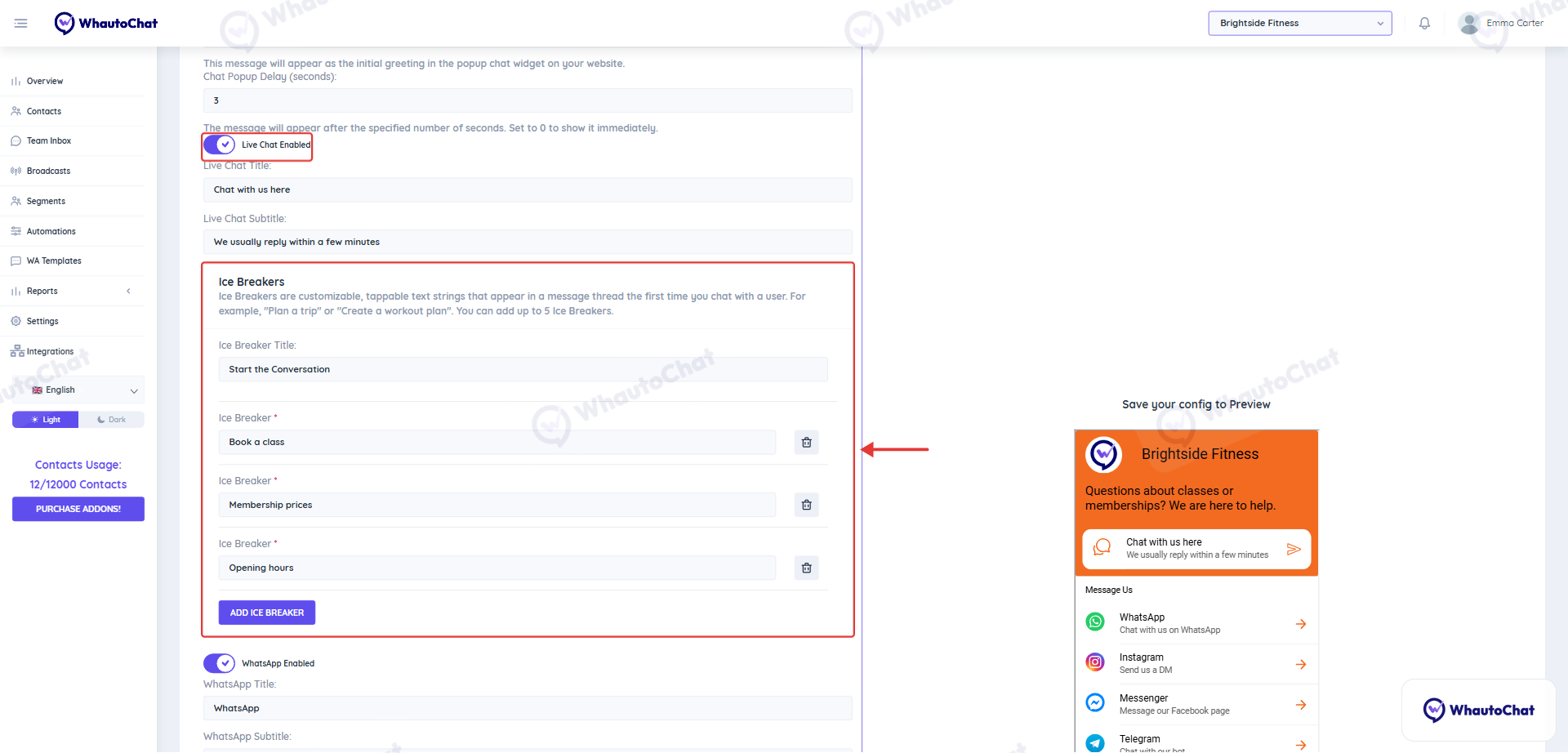
- Turn on Live Chat Enabled.
- Add a Live Chat Title and Live Chat Subtitle for the chat option inside the widget.
-
Add Ice Breakers (Optional)
- Ice Breakers are clickable text prompts that help guide first-time visitors.
- Example: “Talk to support”, “Request a demo”, “Book appointment”.
- Click Add Ice Breaker to add one. You can add up to 5 Ice Breakers.
🔗 Connect Additional Channels (Optional)
You can add messaging platforms directly into the widget:
-
✅ WhatsApp
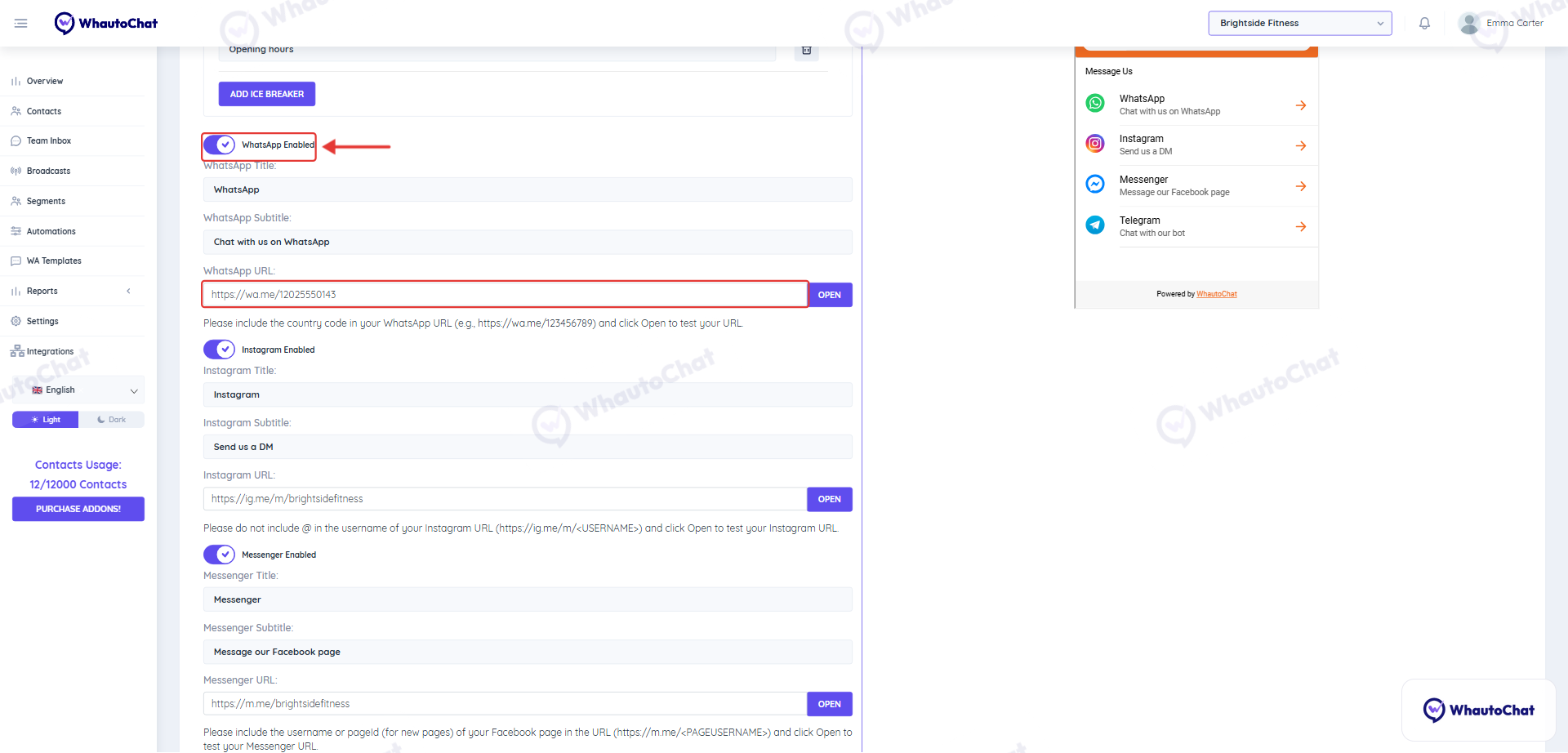
- Enable WhatsApp support.
- Add Title, Subtitle, and WhatsApp URL:
- Format:
https://wa.me/<number_with_country_code> - Example:
https://wa.me/12025550143
- Format:
-
✅ Instagram
- Enable Instagram.
- Add Title, Subtitle, and Instagram URL:
- Format:
https://ig.me/m/<username>(Do not include @) - Example:
https://ig.me/m/yourbrand
- Format:
-
✅ Messenger
- Enable Messenger.
- Add Title, Subtitle, and Messenger URL:
- Format:
https://m.me/<PageUsername>or use Page ID for newer pages. - Example:
https://m.me/yourbusinesspage
- Format:
-
✅ Telegram
- Enable Telegram.
- Add Title, Subtitle, and Telegram URL:
- Format:
https://t.me/<username>(Do not include @) - Example:
https://t.me/yourchannel
- Format:
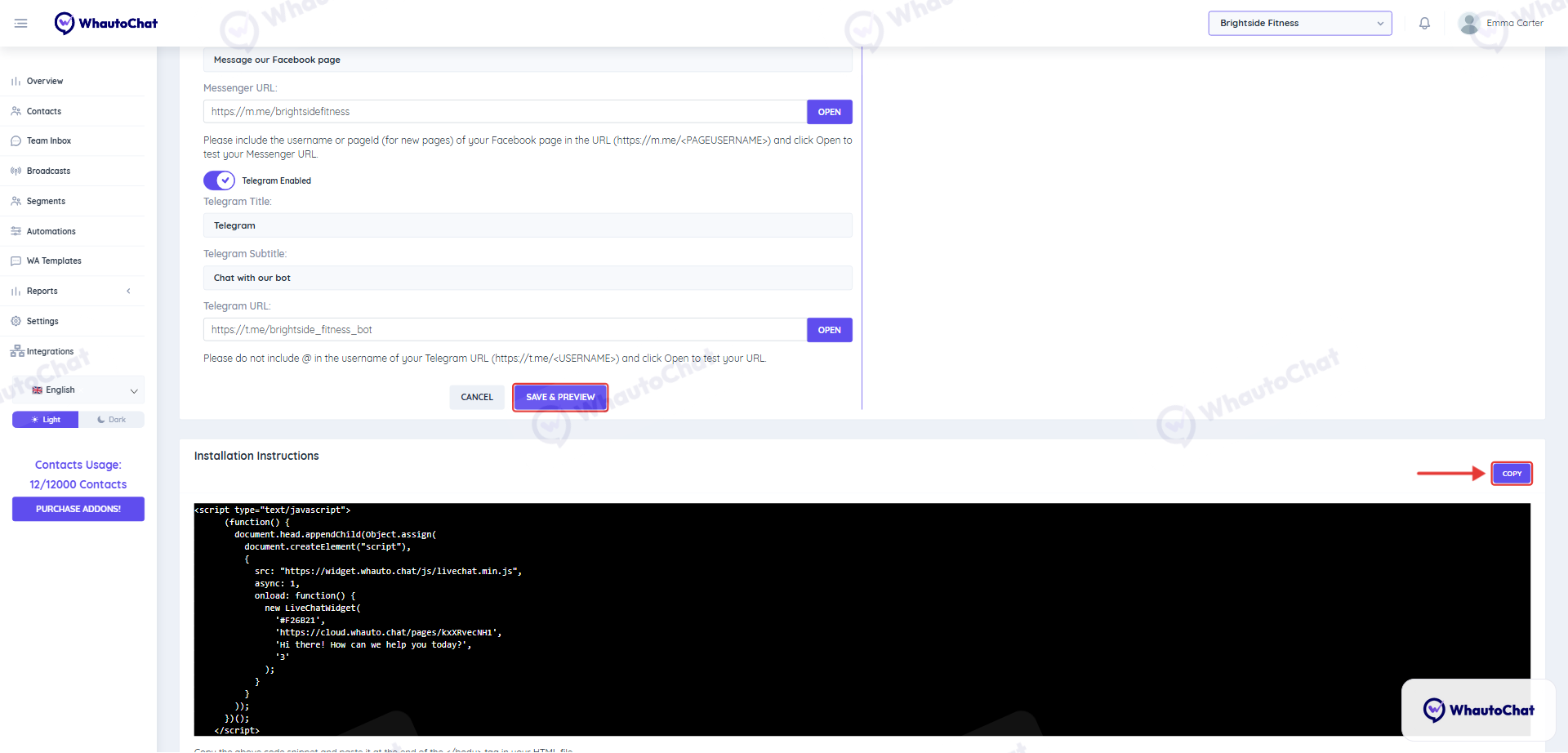
Each channel you enable appears as a button under Message Us in the widget preview.
🖥️ Preview & Install the Widget
- Click "Save & Preview"
- You’ll see a live preview of your chat widget on the right side of the screen.
- Copy the Code Snippet
- Scroll down to Installation Instructions to find the installation code.
- Click Copy and paste the code before the closing
</body>tag of your website's HTML.
Live Chat is now set up! Your website visitors can start chatting with you instantly via the widget.
Reach out to our support team anytime – we’re here to help you connect smoothly. [email protected]
For detailed troubleshooting, refer to our Troubleshooting or contact support.